

For years, developers looking to conquer the mobile application market faced a steep learning curve. If you wanted to ship an app to the Google Play Store, you had to leave the comfort of the PHP ecosystem and dive headfirst into Kotlin, Flutter, or React Native.
That era is over. With the release of NativePHP Laravel 13, you can now build truly native mobile applications using the exact same skills you use every day: Blade, Livewire, Inertia, Tailwind CSS, and your trusted Laravel backend.
This comprehensive, beginner-friendly guide walks you step-by-step through installing, configuring, and setting up NativePHP Laravel 13 specifically targeted for laravel mobile app development. By the end of this tutorial, you will know how to turn your Laravel web application into a fully functional Android package (.APK) ready for device testing and deployment.
1. What is NativePHP?
NativePHP is an innovative framework that allows PHP developers to build native desktop and mobile applications using Laravel. It is not an ordinary hybrid wrapper or a remote website loader.
Instead, NativePHP embeds a real, pre-compiled, highly optimized PHP runtime directly onto the user’s device. When a user launches your app, an internal Laravel application boots locally on their smartphone. It operates entirely offline if needed, handling routing, database queries via Eloquent, and executing background queue workers entirely client-side.
Benefits of Using NativePHP with Laravel
- Zero Language Context Switching: Write your backend logic, validation rules, and front-end state management using PHP. No need to learn Dart, JavaScript, or Kotlin.
- Blazing Fast Local Execution: Thanks to NativePHP’s persistent runtime engine, Laravel boots once when the app opens. Subsequent internal requests bypass full initialization cycles, cutting response times down to a rapid 5–30ms.
- Seamless Hardware Access: NativePHP provides clean PHP facades to bridge directly into native device hardware, allowing you to trigger haptic feedback, capture photos via the camera, request biometric authentication, and track GPS coordinates.
- Unified Codebase: Maintain a single repository that can power your web application, desktop app, and iOS/Android deployments simultaneously.
Why Build Mobile Apps with Laravel and NativePHP?
Building mobile applications traditionally demands massive investments in team scaling or agency outsourcing. By leveraging NativePHP with Laravel 13, small teams and indie hackers can dramatically decrease time-to-market. You gain access to robust web features—such as Filament admin panels, complex database migrations, and advanced design tools—packaged neatly inside a high-performing Kotlin/Android shell app.
2. Prerequisites for NativePHP Installation
Before setting up your environment, verify your development machine contains the necessary packages. NativePHP compiles underlying system structures, requiring specific toolchains.
System Requirements Checklist
- PHP Version: PHP 8.3 or PHP 8.4 (Laravel 13 native requirement). Ensure your CLI version matches your web environment.
- Composer: Composer v2.7 or higher installed globally.
- Node.js & npm: Node v18+ and npm v10+ for building asset pipelines via Vite.
- Android Studio: Required to fetch the Android SDK, Gradle build binaries, and manage system emulators.
- Operating System: Windows 10/11, macOS (Intel/Apple Silicon), or a modern Linux distribution (Ubuntu 22.04+ recommended).
3. Installing Laravel 13
Let’s start fresh by creating a clean Laravel 13 installation. Open your system terminal, navigate to your desired development directory, and execute the following setup commands.
# Create a brand new Laravel 13 application
laravel new laravel-native-app
During the interactive installation wizard, select your preferred options:
- Starter Kit: Select No starter kit if you want to keep it simple, or choose Livewire / Breeze depending on your project needs.
- Database Engine: Select SQLite. This is critical, as mobile devices run locally on SQLite databases.
Next, move into your project root folder:
Bash
cd laravel-native-app
Verify your local web app functions correctly by booting up the local development server:
Bash
php artisan serve
Open http://127.0.0.1:8000 in your web browser. If you see the default Laravel welco
me screen, your base application is up and running. Stop the server by pressing Ctrl + C.
4. NativePHP Installation and Setup
With our Laravel 13 workspace active, we can inject NativePHP’s mobile infrastructure package.
Step 1: Require the Mobile Package via Composer
Execute the following command to download the core NativePHP mobile package dependencies:
Bash
composer require nativephp/mobile
Step 2: Run the NativePHP Installation Command
Once Composer finishes pulling down the dependencies, execute the official NativePHP mobile scaffolding installer:
Bash
php artisan native:install
This structural command sets up specific architectural directories within your Laravel project.
Understanding Generated Files & Directories
After running the installation script, look at your project directory. You will notice several important modifications:
config/nativephp.php: The main control center configuration file containing application IDs, versions, and specialized Android SDK build paths.resources/js/vite-plugin.js: A custom Vite plugin designed to handle Hot Module Replacement (HMR) between your frontend code changes and the Android runtime view window.
5. Environment Configuration
NativePHP coordinates directly through standard Laravel environment structures. Open your .env configuration file in your preferred code editor and review the core parameters.
Required .env Production Settings
Add or update the following vital parameters inside your .env file to customize your Android app deployment wrapper:
Code snippet
# Unique Reverse-DNS identifier for your mobile application
NATIVEPHP_APP_ID=com.yourcompany.laravelnativeapp

# App version strings matching Google Play guidelines
NATIVEPHP_APP_VERSION=1.0.0

# Force instant hot-reloads and unpacking during local testing
# Set to DEBUG for local work; remove or change for production
NATIVEPHP_APP_VERSION=DEBUG

# Enable the lightning-fast background database worker queue
QUEUE_CONNECTION=database
[!WARNING]
Crucial App ID Step: Never leave
NATIVEPHP_APP_IDas a default placeholder value. Google Play utilizes this string to distinctly identify your package. Changing it after publishing will result in the store treating it as an entirely separate application.
NativePHP Configuration Block
Inside config/nativephp.php, you can customize exclusions to ensure your final mobile build footprint remains lightweight:
PHP
'cleanup_exclude_files' => [
    'storage/logs/*.log',
    'tests',
    '.git',
],
This configuration strip removes heavy test files, log backlogs, and version histories so your compiled .apk download remains small for end-users.
6. NativePHP Android Setup
To build an Android package, NativePHP must communicate with the official Android build tools. Follow these steps to configure your SDK environment variables.
Step 1: Install Android Studio
- Download and install Android Studio from the official Outbound Link: Android Developer Portal.
- During the setup wizard, select the standard options to install the Android SDK, Android SDK Command-line Tools, and Android Virtual Device (AVD) Emulator.
Step 2: Configure Environment Variables
You must tell NativePHP where your Android SDK tools reside by mapping system paths.
For Windows Users:
Open your environment variables settings window and add these variables to your User Variables:
- Variable Name:
ANDROID_HOME - Variable Value:
C:\Users\YOUR_USERNAME\AppData\Local\Android\Sdk
Next, append the platform tools folder path to your user path variable list:
C:\Users\YOUR_USERNAME\AppData\Local\Android\Sdk\platform-tools
For macOS and Linux Users:
Add these configurations directly into your shell profile configuration (~/.zshrc, ~/.bashrc, or ~/.profile):
Bash
export ANDROID_HOME=$HOME/Library/Android/Sdk
export PATH=$PATH:$ANDROID_HOME/emulator
export PATH=$PATH:$ANDROID_HOME/platform-tools
export PATH=$PATH:$ANDROID_HOME/cmdline-tools/latest/bin
Apply the new terminal updates instantly: source ~/.zshrc
Step 3: Verify Android SDK Installation
Ensure your command line reads your system paths properly by asking for the ADB version:
Bash
adb --version
If your terminal outputs a version number without errors, your Android development variables are configured correctly.
7. Building and Running the Application
Now comes the exciting part: executing your live Laravel application inside an Android environment.
Step 1: Adjust Vite Configuration for Assets
Open your vite.config.js and introduce the native mobile assets pipeline plugin helpers. This maps routing paths correctly inside the mobile webview shell layer:
JavaScript
import { defineConfig } from 'vite';
import laravel from 'laravel-vite-plugin';
import { nativephpMobile } from './vendor/nativephp/mobile/resources/js/vite-plugin.js';

export default defineConfig({
    plugins: [
        laravel({
            input: ['resources/css/app.css', 'resources/js/app.js'],
            refresh: true,
        }),
        nativephpMobile(),
    ],
});
Compile your asset pipeline using the targeted Android profile mode argument before execution:
Bash
npm run build -- --mode=android
Step 2: Run Development Mode
To compile the Android app and immediately launch it inside your configured system Android emulator, run the following Artisan command:
Bash
php artisan native:run android
The system will start a long-running watch process. Any code updates you save within your standard Blade layouts, Livewire components, or controller files will automatically trigger a refresh within your open mobile emulator view frame.
Step 3: Building a Debug APK
If you want to compile a raw .apk file to share with internal team members for real-device testing, use the build parameter:
Bash
php artisan native:build android --debug
Once the compilation process finishes, NativePHP will output your fresh test package inside your project directory under storage/app/nativephp/builds/android/.
8. Common Errors and Solutions
Setting up local compilers can occasionally trigger unexpected errors. Here is a handy reference list to fix common installation issues quickly.
1. “PHP binaries not available” or Architecture Mismatch
- Cause: Your system environment is attempting to call a compiled binary component compiled for a different processing architecture.
- Solution: Verify your
composer.jsonplatform requirements specify your target ecosystem clearly. Runcomposer updateto force NativePHP to fetch matching architectures mapped to your system profile.
2. Android SDK Not Found
- Error Message:
Environment variable ANDROID_HOME is not set. - Solution: Re-verify your system variables profile setup. Close and restart your terminal window completely to allow your system environment settings to refresh. You can explicitly confirm if your environment recognizes the path by executing
echo $ANDROID_HOME.
3. Gradle Build Failures (JDK Mismatch)
- Cause: Android Studio’s modern Gradle processing components require explicit Java Development Kit runtime environments.
- Solution: Ensure your machine runs an updated JDK environment (OpenJDK 17 or OpenJDK 21). You can explicitly point to your Java home directory directly in your terminal profile if your environment continues to experience conflicts.
4. Inertia 3 Build Failures
- Cause: Inertia 3 removed dependencies on the Axios client library in favor of standard
fetch. NativePHP requires Axios to route network calls through the local native engine. - Solution: Manually install Axios via npm and update your Inertia initialization routine to handle client calls:
Bash
npm install axios
9. Project Structure Overview
When building with NativePHP Laravel 13, your application follows a standard Laravel architecture with a few structural changes behind the scenes to bridge web views with native systems.
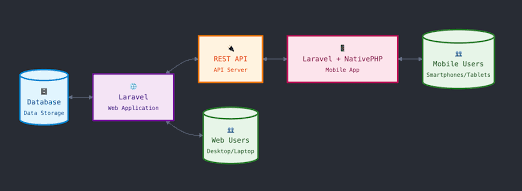
How Laravel and NativePHP Work Together
- The Native Container Shell: NativePHP boots up an underlying Android Kotlin wrapper application containing a native system WebView interface container component.
- Local Runtime Execution: An isolated background thread fires up your pre-compiled, embedded PHP binary service layer. This layer boots up your local Laravel framework instances directly on the device.
- Internal Routing: The system WebView maps its target navigation view variables directly to your internal local loops. Every time a user interacts with a feature, your application logic runs locally on the device without having to query a remote server database.
10. Testing the Application
Testing on a Physical Android Device
Running your application on an actual Android smartphone gives you the most accurate feel for real-world performance, touch gestures, and native transitions.
- Open your physical phone’s settings menu and tap Build Number 7 times to unlock Developer Options.
- Inside Developer Options, toggle USB Debugging to enabled.
- Connect your mobile device to your computer via a USB cable.
- Verify your terminal notices the newly attached smartphone unit:
Bash
adb devices
5. If your device shows up in the connected list, run your standard run command:
Bash
php artisan native:run android
- NativePHP will skip the default desktop emulator and side-load your application package directly onto your connected smartphone.
Debugging Tips
- Use standard Laravel logging methods (
Log::info()) to track background actions. You can inspect your live logs via the terminal or by tracking your device using Android Studio’s built-in Logcat viewer. - To quickly inspect UI layout errors, open Google Chrome on your computer and navigate to
chrome://inspect. This lets you open a remote inspector console directly inside your mobile app’s active WebView container.
FAQ (Frequently Asked Questions)
1. Can I use Filament or other admin panel kits inside NativePHP?
Yes! Modern versions of NativePHP include full ICU support, meaning heavy administration frameworks like Filament run smoothly on mobile interfaces out of the box.
2. Does NativePHP require an internet connection to run?
No. Because NativePHP packs the entire PHP runtime environment directly inside your application container file, your app runs fully offline. You can use standard client-side synchronization strategies to update data once an active network connection is detected.
3. Can I build iOS apps from a Windows computer using NativePHP?
No. Compiling iOS binaries requires Apple’s Xcode build toolchain, which is exclusive to macOS. However, you can write your entire application logic on Windows and build your Android .apk package first, then later compile the exact same codebase on a Mac to output your iOS package.
4. What is the minimum supported Android version for NativePHP apps?
NativePHP supports Android 8.0 (API Level 26) and above. This ensures your application can run on the vast majority of active Android devices worldwide.
5. How do database migrations work on a mobile device?
When your application boots up on a user’s phone, NativePHP automatically checks your database configuration and runs any outstanding migrations against the device’s local SQLite file.
6. Can I use standard Laravel Queue workers on a phone?
Yes! NativePHP features a thread-safe, persistent background execution system. If you configure QUEUE_CONNECTION=database, standard dispatched background tasks will process automatically without blocking your application’s user interface.
7. How does NativePHP handle front-end routing?
Routing works exactly like a standard Laravel web application. You can use your traditional routes/web.php definitions. When a user taps a link, the internal WebView renders the next route local-to-device.
8. Is NativePHP suitable for high-performance 3D mobile gaming?
No. NativePHP is designed for data-driven applications, business utilities, SaaS extensions, and content management apps. High-performance mobile gaming projects are better suited for specialized engines like Unity or Unreal Engine.
9. How do I fetch remote data from an external API?
You can use Laravel’s built-in Http client facade (Http::get()) just like you would in a standard web environment.
10. Can I monetize my NativePHP Android app with Google AdMob?
Yes. You can integrate ad networks by including standard JavaScript SDK packages within your main frontend layout views or by utilizing community-contributed NativePHP mobile ad plugins.
11. Conclusion
NativePHP combined with Laravel 13 marks a massive shift in how we approach mobile application development. It breaks down long-standing barriers, allowing web developers to build high-performance, native mobile applications without leaving their favorite ecosystem.