

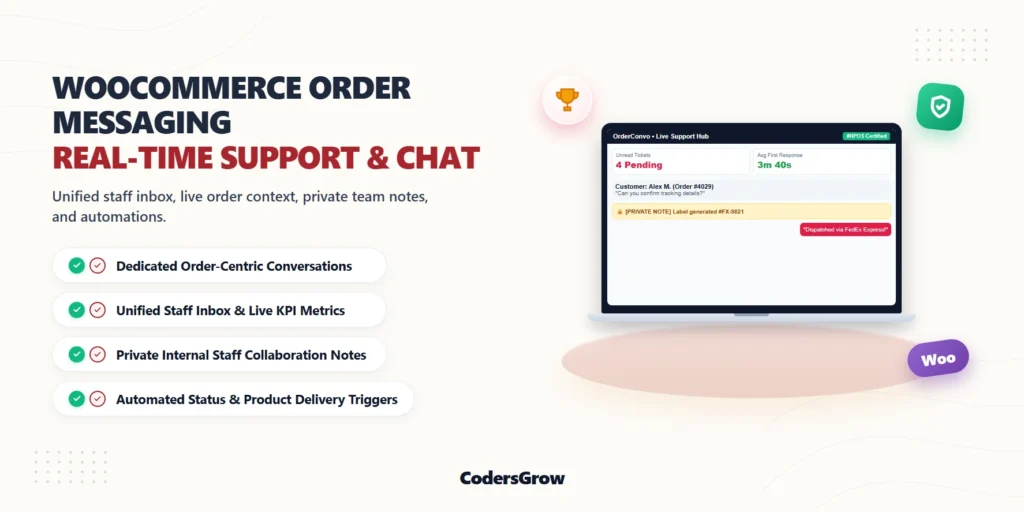
Modern eCommerce customers expect swift, contextual answers regarding their purchases, yet traditional email support often leads to lost messages and delayed responses. Implementing dedicated woocommerce order messaging enables store owners to connect directly with buyers right on their order details page, transforming customer service into a high-converting retention channel.
In this comprehensive guide, we will explore how OrderConvo provides an all-in-one order communication hub with unified staff management, automated status triggers, private team notes, and secure guest access.
Why Native WooCommerce Order Messaging Matters
Unlike third-party SaaS helpdesks that isolate conversations in separate browser tabs and charge per-agent monthly fees, native woocommerce order messaging connects directly to your store’s High-Performance Order Storage (HPOS) database. When a customer sends a message regarding an order, support agents have instant access to purchased items, shipping tracking numbers, customer lifetime value (LTV), and billing history without leaving WordPress.
Key Features of OrderConvo
OrderConvo is engineered from the ground up to deliver a clean, frictionless support experience for both store managers and buyers:
1. Unified Staff Inbox Dashboard
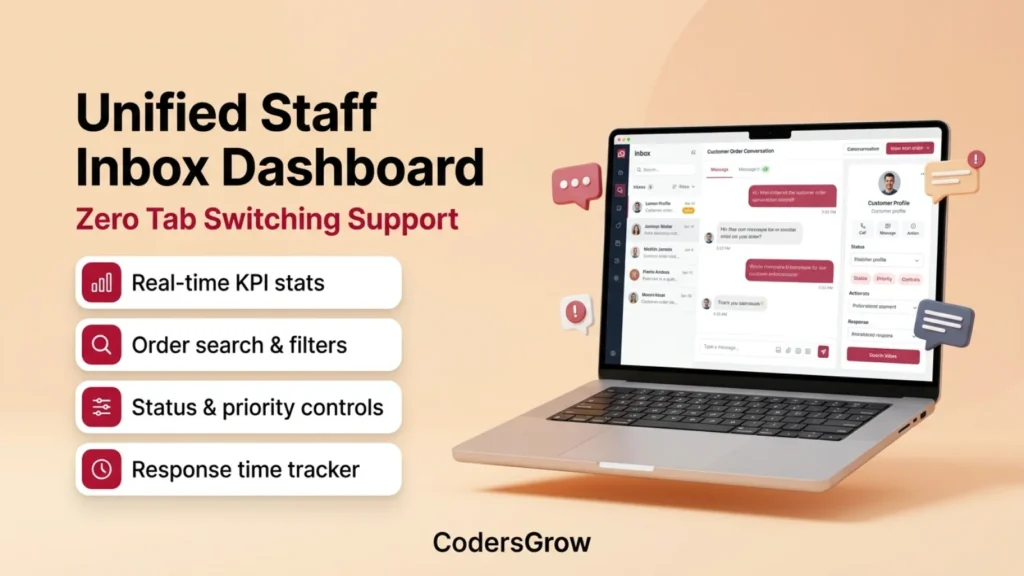
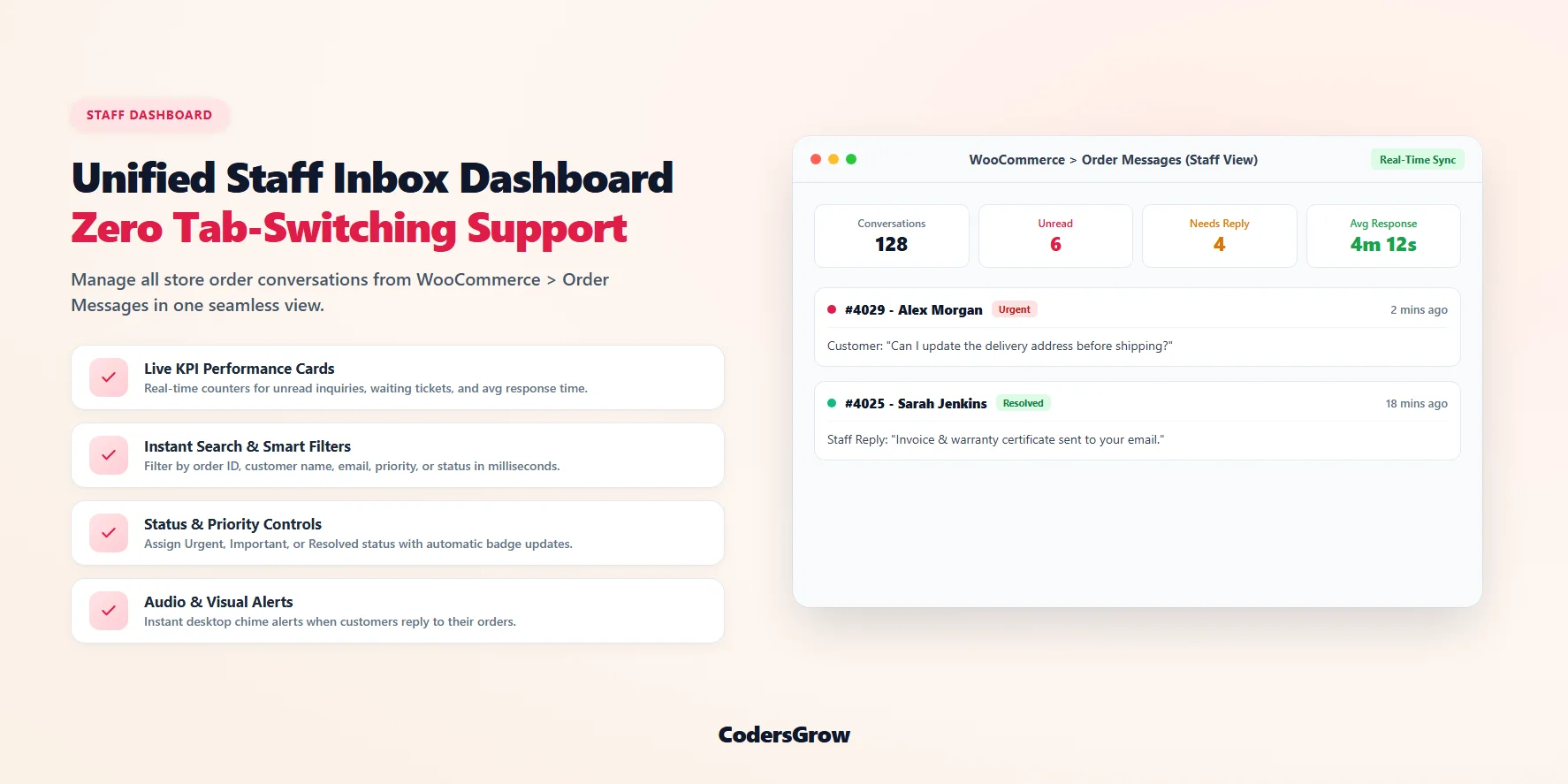
Support teams can manage all store conversations from a single dashboard located at WooCommerce > Order Messages. The inbox includes live KPI metric cards (Total Conversations, Unread Inquiries, Waiting for Staff, and Average First Response Time), along with instant search and priority filters.
2. Live Order Context Sidebar
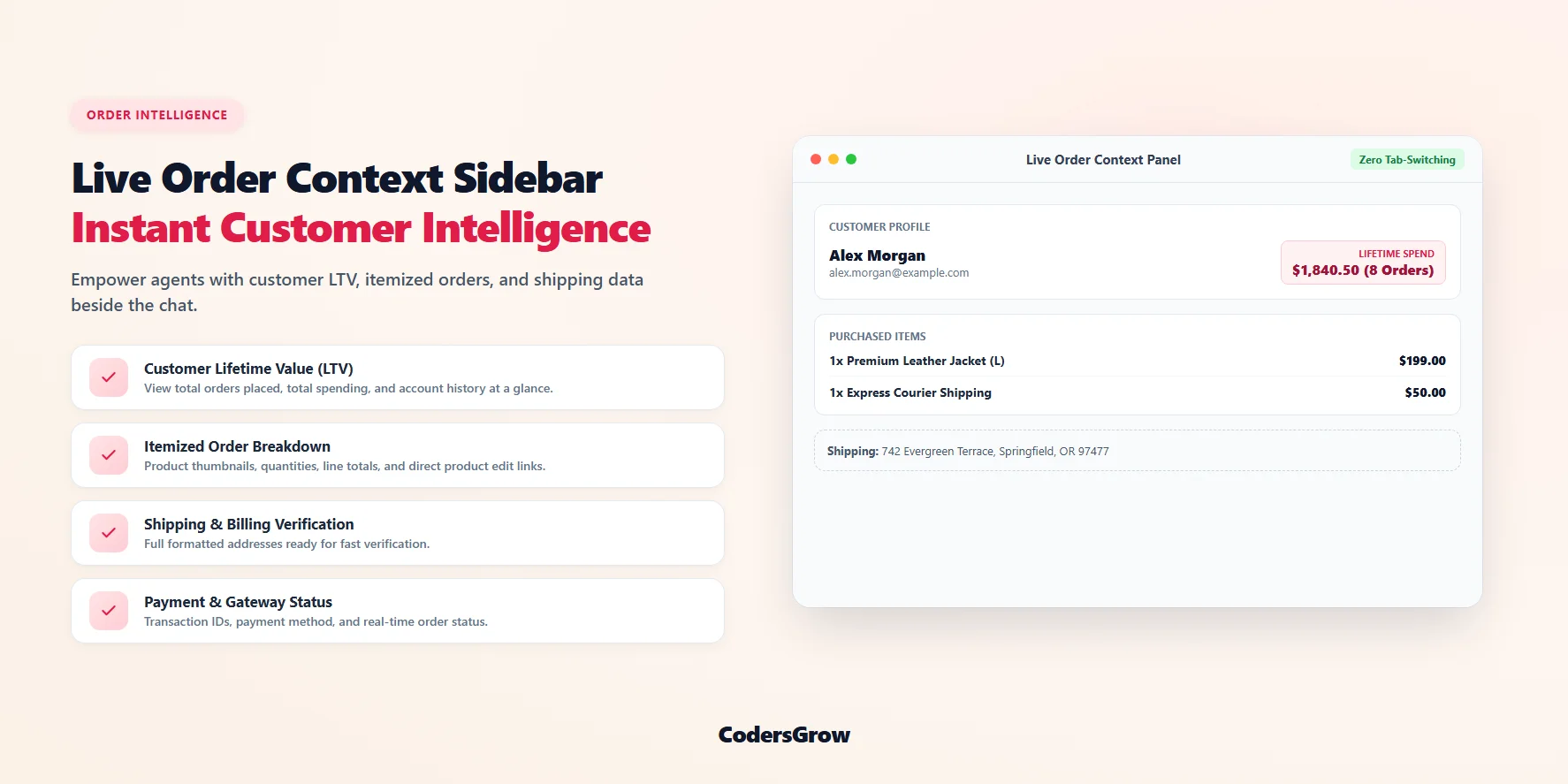
Eliminate tab switching with the built-in Order Context Sidebar. Agents can instantly view the customer’s total lifetime spend, previous orders, formatted shipping address, and itemized receipt breakdown right next to the active message thread.
3. Private Internal Staff Notes
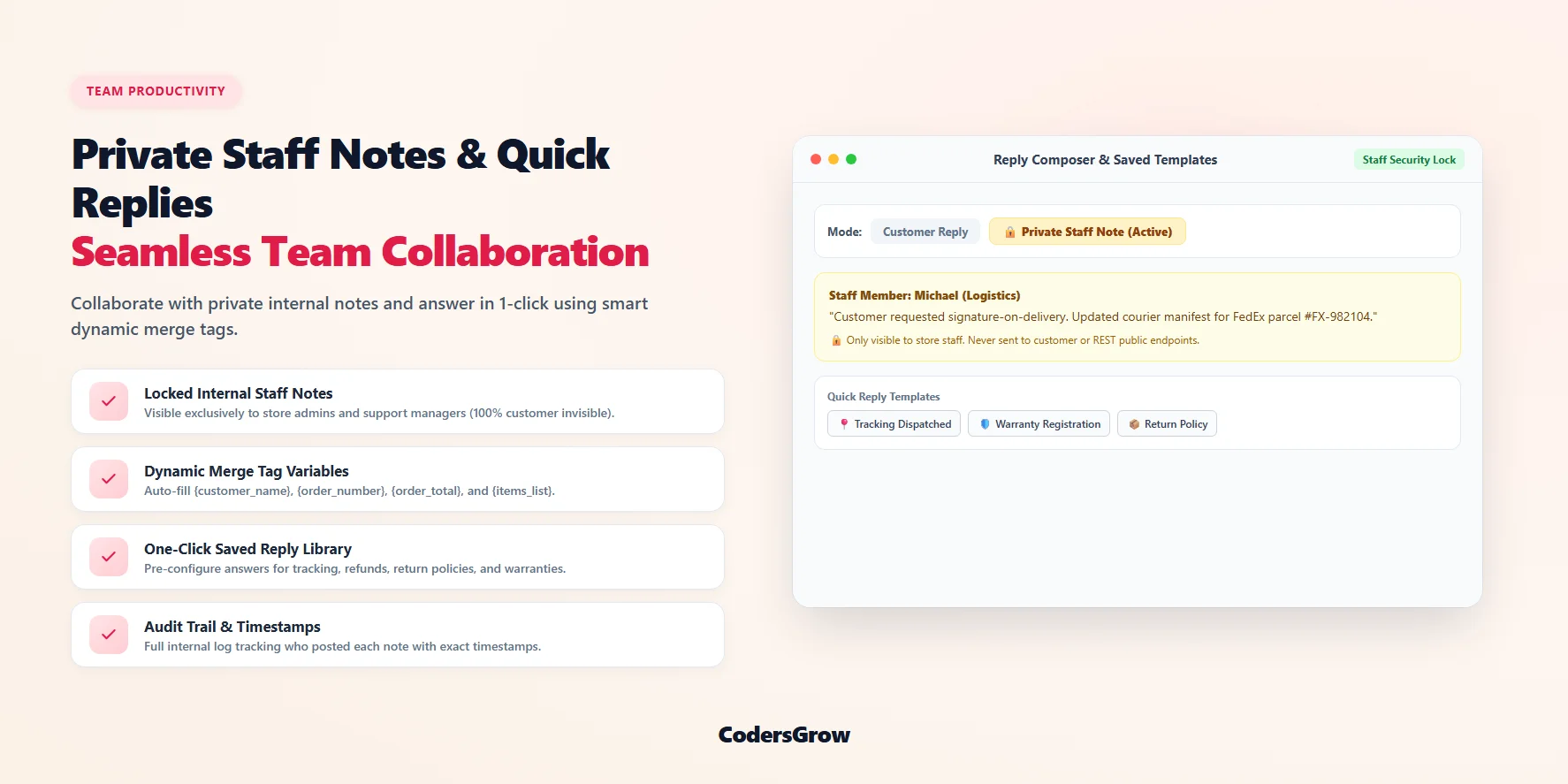
Staff members can switch between customer replies and internal notes with a single toggle. Private notes are highlighted in amber with a padlock icon and are strictly hidden from customers, emails, and REST API endpoints, allowing for seamless team collaboration.
4. Saved Replies & Dynamic Merge Tags
Accelerate support response times with pre-configured reply templates. Use smart merge tags such as {customer_name}, {order_number}, {order_status}, and {items_list} to automatically insert accurate order details in seconds.
5. Automated Status Change Triggers
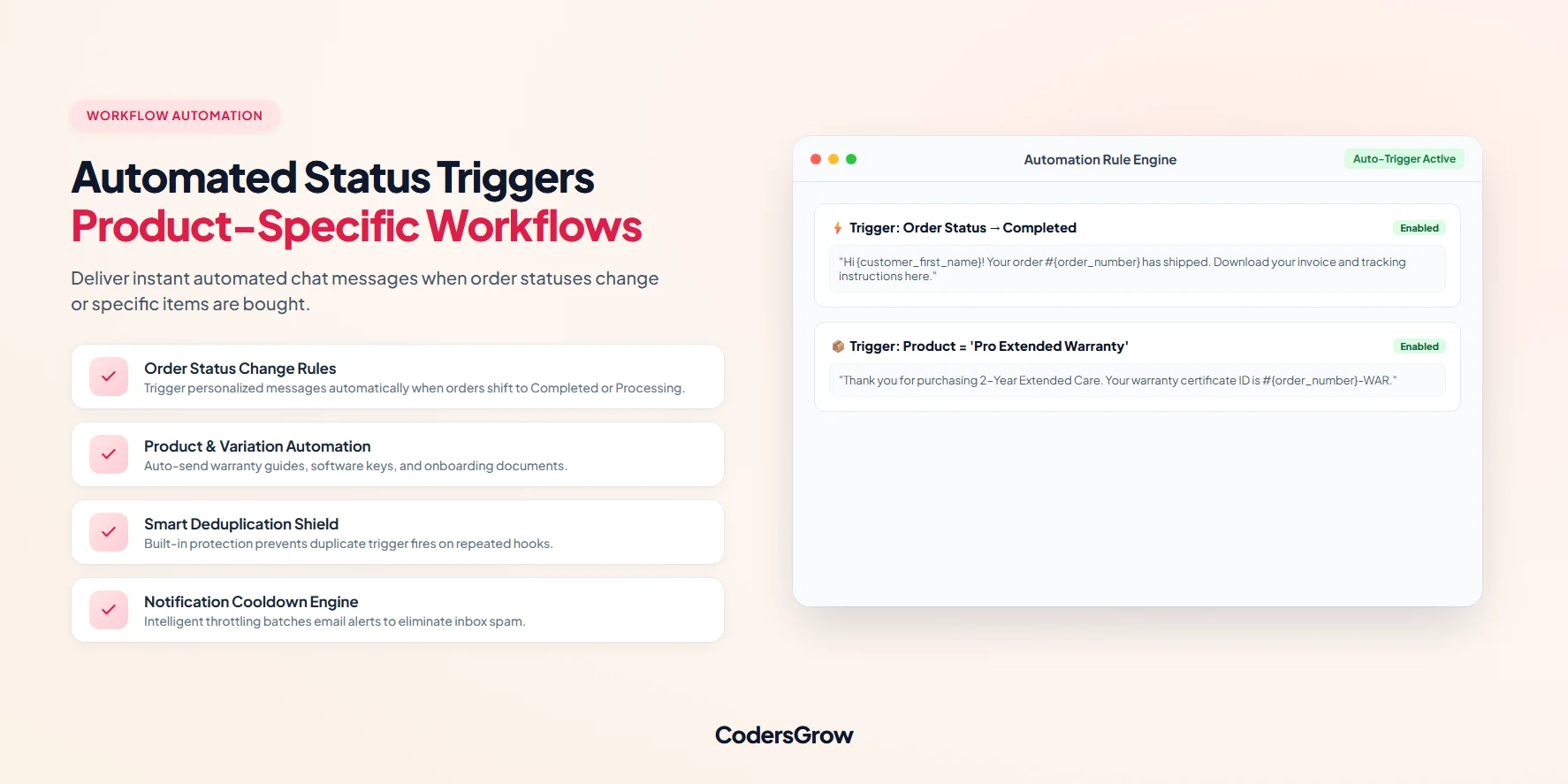
Automate repetitive customer notifications by setting up event triggers. For example, automatically post tracking instructions when an order transitions to “Completed” or send digital access keys when specific products are purchased.
6. Cryptographic Guest Chat & Attachments
Guest customers can communicate securely using SHA-256 HMAC-signed tokens without needing to create an account. Customers and staff can also upload images and documents with built-in lightbox previews and MIME-type validation.
Step-by-Step Setup Guide
- Install & Activate: Upload and activate the OrderConvo plugin via
Plugins > Add New. - Configure Settings: Navigate to
WooCommerce > OrderConvo Settingsto customize chat colors, avatar styles, notification cooldowns, and file attachment limits. - Test Customer Chat: Place a test order and visit
My Account > Orders > View Orderto test the live chat widget. - Respond from Staff Inbox: Open
WooCommerce > Order Messagesto reply to inquiries, add private notes, or use saved reply templates.
Conclusion
Upgrading your store with woocommerce order messaging simplifies customer communication, cuts support resolution times, and boosts shopper satisfaction. Get started with OrderConvo on CodersGrow today to deliver world-class order support directly on your WordPress store.