

Author: CodersGrow Engineering Team | Updated: September 2026 | Reading Time: 18 min
1. Introduction: The Power of Custom Product Boxes in E-Commerce
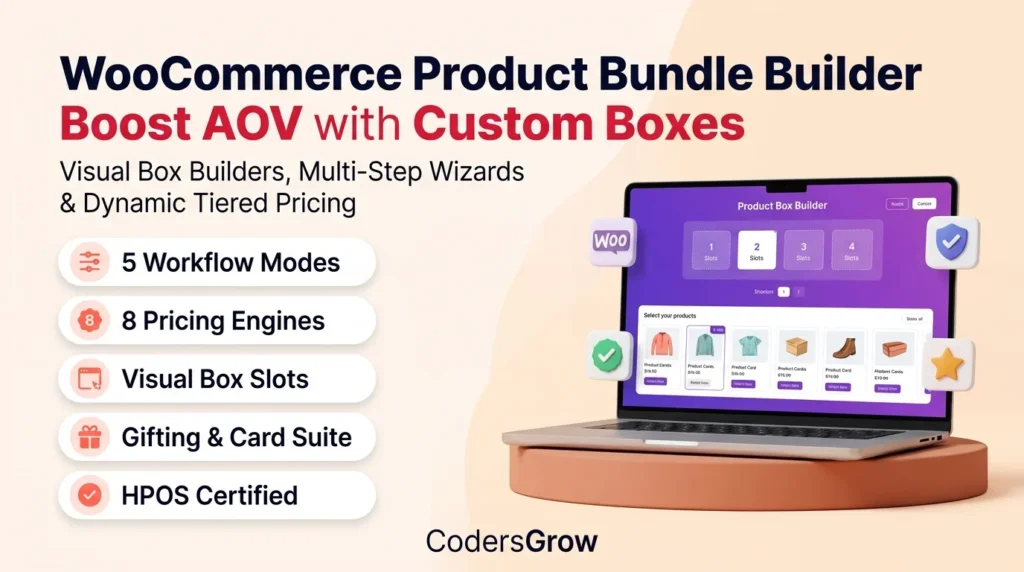
Implementing a woocommerce custom product box is one of the most effective strategies for increasing Average Order Value (AOV), accelerating inventory turnover, and delivering an unforgettable shopping experience.
According to e-commerce research by the [Baymard Institute](https://baymard.com/), rigid product catalog structures and lack of customization represent major friction points that drive cart abandonment. Modern shoppers expect personalized autonomy: they want to curate their own wine crates, build bespoke skincare routines, assemble custom snack packs, assemble custom gift hampers, or explore surprise mystery boxes.
Traditional WooCommerce product types (Simple, Variable, Grouped) do not natively support slot-based mix-and-match configurations, dynamic quota enforcements, live price recalculations, or component-level inventory deductions without double-charging.
BundleForge by CodersGrow solves this fundamentally by introducing an authoritative Hybrid Container architecture engineered for modern WordPress and WooCommerce stores. It transforms standard stores into dynamic mix-and-match engines with interactive 3D visual box containers, multi-step wizards, tiered volume pricing, composite validation rules, and 100% certified High-Performance Order Storage (HPOS) compliance.
+-----------------------------------------------------------------------------------+
|                           BUNDLEFORGE ARCHITECTURE                               |
+-----------------------------------------------------------------------------------+
|  [Frontend Reactive Engine]  <--->  [Rule & Pricing Engines]  <--->  [Hybrid Cart] |
|  - 3D Visual Box Slots              - Category Quotas                - Parent Container  |
|  - Multi-Step Stepper               - Companion Dependencies         - Linked $0 Items   |
|  - Quick-View Modal                 - Tiered Volume Discounts        - Atomic Rollback   |
|  - Live Sticky Summary              - Stock Aggregate Check          - HPOS Certified    |
+-----------------------------------------------------------------------------------+
—
2. Quick Overview & Key Capabilities Matrix
Before exploring the exhaustive feature-by-feature breakdown, here is a high-level capability matrix of what BundleForge delivers out of the box:
| Core Capability | Module Specification | Business Impact |
| :— | :— | :— |
| Builder Modes | 4 Distinct Modes: Single-Page, Multi-Step Wizard, Preset Pack, Mystery Box | Caters to gift boxes, subscription kits, and wholesale assortments |
| Capacity Engine | Any, Range (Min/Max), Fixed Quantity, and Step-based increments | Prevents underfilled or overfilled packaging |
| Pricing Models | Per-Item Sum, Flat Box Price, Base Fee + Items, Tiered Volume Discounts | Maximizes margins while incentivizing larger bundle sizes |
| Validation Rules | Category Quotas, Spend Boundaries, Dependencies, Exclusions, Item Caps | Enforces strict packaging and business logic constraints |
| Inventory Control | Real-time aggregate stock validation across all slots and variations | Eliminates stockouts and prevents over-selling |
| Gifting & Add-ons | Custom gift packaging choices, greeting card messages, custom fees | Generates incremental revenue on festive and corporate gifts |
| Cart & HPOS Engine | Hybrid container model: single billed parent + linked $0 component lines | Perfect stock deduction, accurate shipping, zero double-billing |
| Checkout Blocks | Full WooCommerce Store API & Block Checkout integration | Seamless checkout flow with concealed mystery box thumbnails |
—
3. Complete Feature Guide (By Category)
—
Category 1: Admin Dashboard & Global Operations
1.1 Central Analytics & Conversion Dashboard
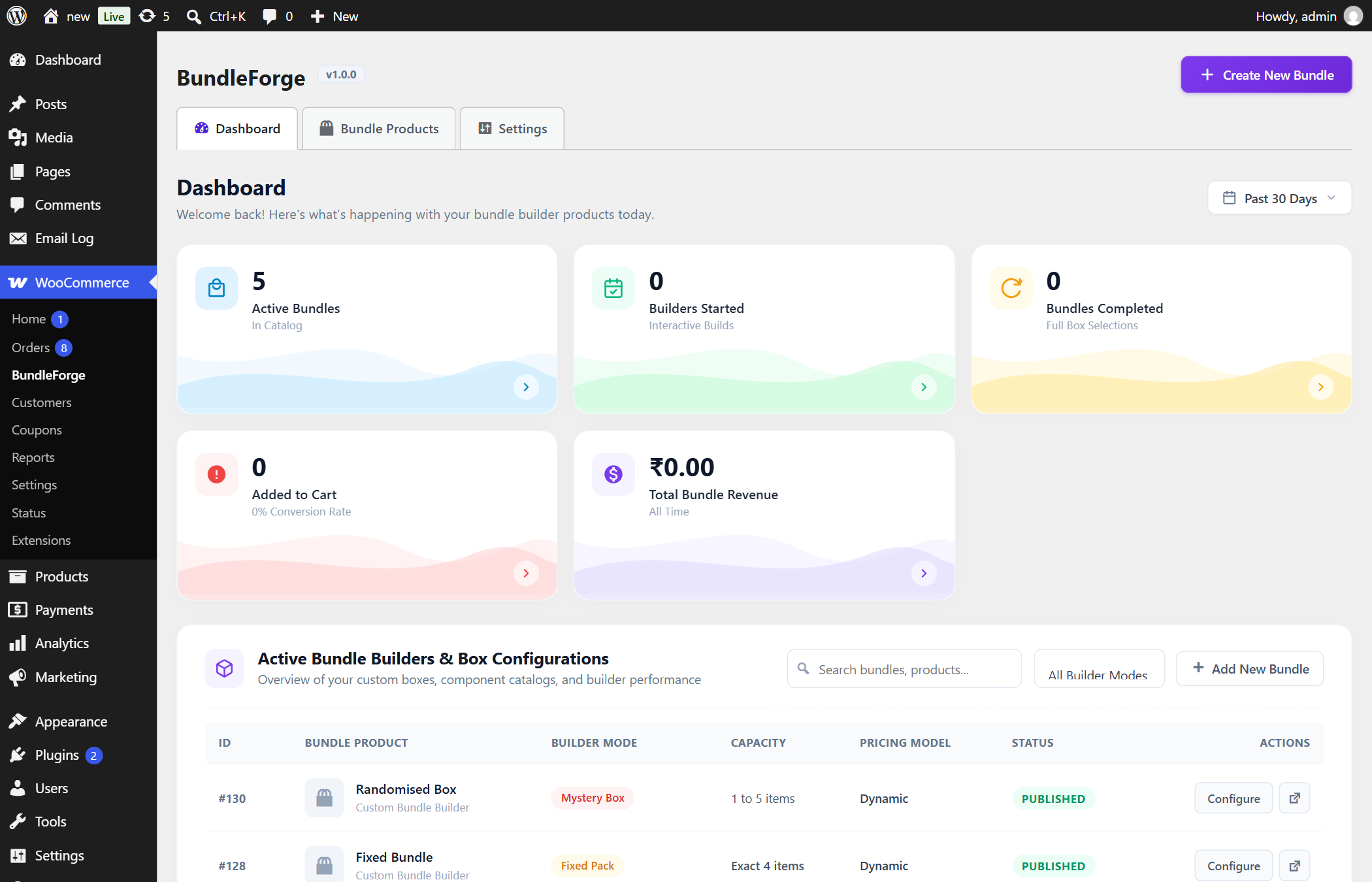
- What It Does: Provides a high-level executive dashboard tracking total bundle revenue, completed bundle orders, conversion rates, and component pick counts across custom date ranges (7, 30, 90 days, or All Time).
- How It Works: Operates via an optimized custom database repository that records telemetry events (
view_builder,add_item,remove_item,add_to_cart) without bloatingwp_optionsor causing database locks. - Where to Find It:
WordPress Admin → WooCommerce → BundleForge → Dashboard Tab. - Why It Is Useful: Store owners gain actionable data on which products are picked most frequently inside custom bundles, enabling informed merchandising and discount strategies.
- Use Case: An artisan chocolate brand notices their Dark Raspberry Truffle is selected in 84% of 12-piece boxes, prompting them to create a dedicated seasonal gift box around that flavor.
—
1.2 Global Settings & Frontend Engine Switches
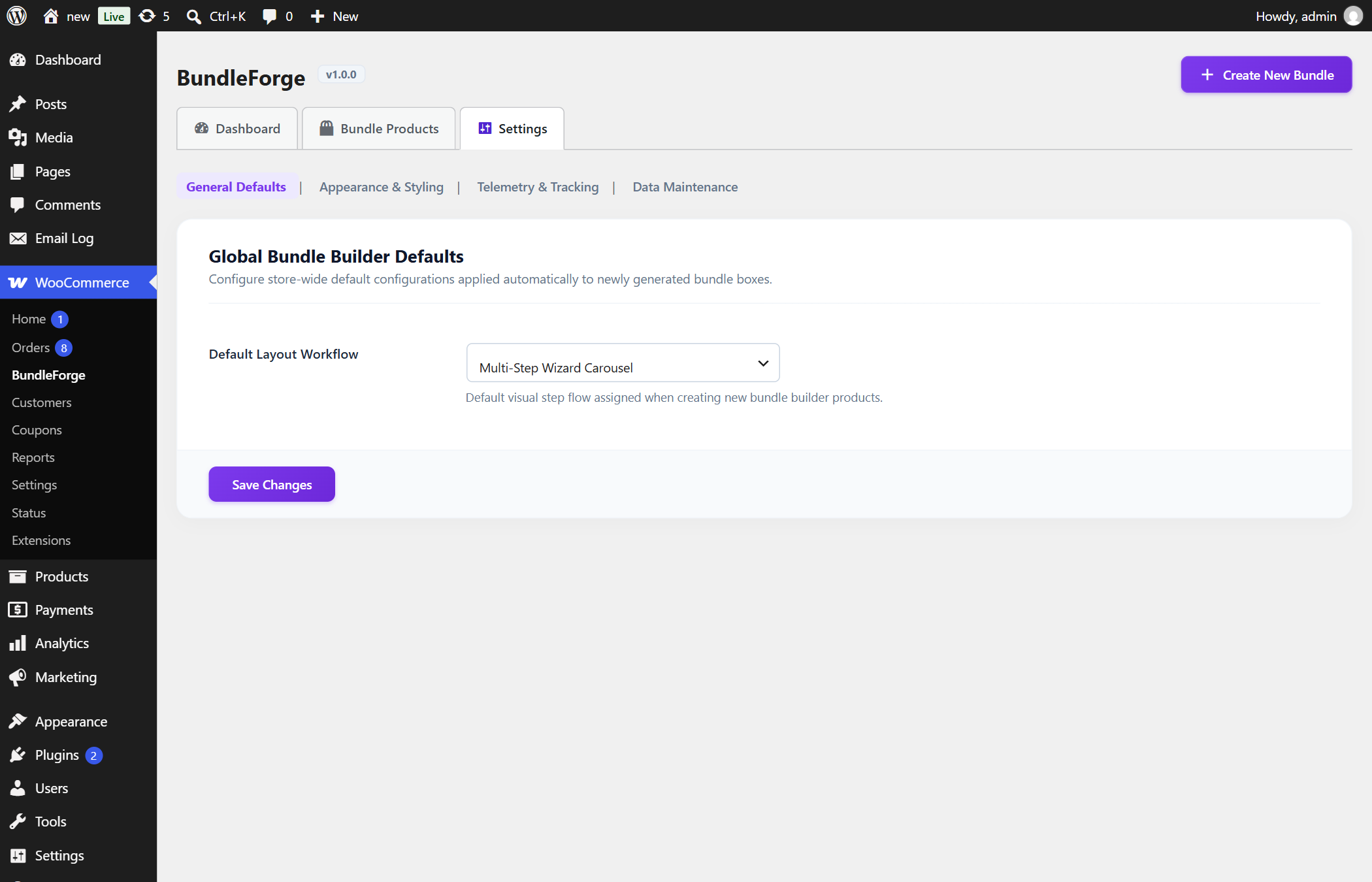
- What It Does: Manages sitewide default behaviors for all bundle products, including Quick-View modal activation, sticky summary positioning, auto-scroll transitions, and AJAX/REST endpoint fallback toggles.
- How It Works: Values are sanitized through
SettingsSchemaand stored in a single structured optioncg_bf_settings. - Where to Find It:
WordPress Admin → WooCommerce → BundleForge → Settings Tab → General Section. - Why It Is Useful: Eliminates the need to configure repetitive settings across dozens of individual bundle products while still allowing product-level overrides.
- Use Case: Enabling the Auto-Scroll to Next Step feature sitewide so mobile shoppers are smoothly guided to the next selection stage after filling a slot.
—
1.3 High-Performance Caching & Store API Integration
- What It Does: Controls REST API caching lifetimes, nonce validation modes, Store API extensions for WooCommerce Blocks, and front-end telemetry throttling.
- How It Works: Integrates with WP Rocket, LiteSpeed Cache, Cloudflare, and Redis Object Cache by serving non-personalized bundle catalogs via high-speed REST endpoints (
/wp-json/bundleforge/v1/products) while isolating personalized session pricing to dynamic AJAX endpoints. - Where to Find It:
WordPress Admin → WooCommerce → BundleForge → Settings Tab → Performance Section. - Why It Is Useful: Guarantees sub-100ms response times on high-traffic product pages even during Black Friday flash sales.
—
1.4 Central Bundle Catalog Management
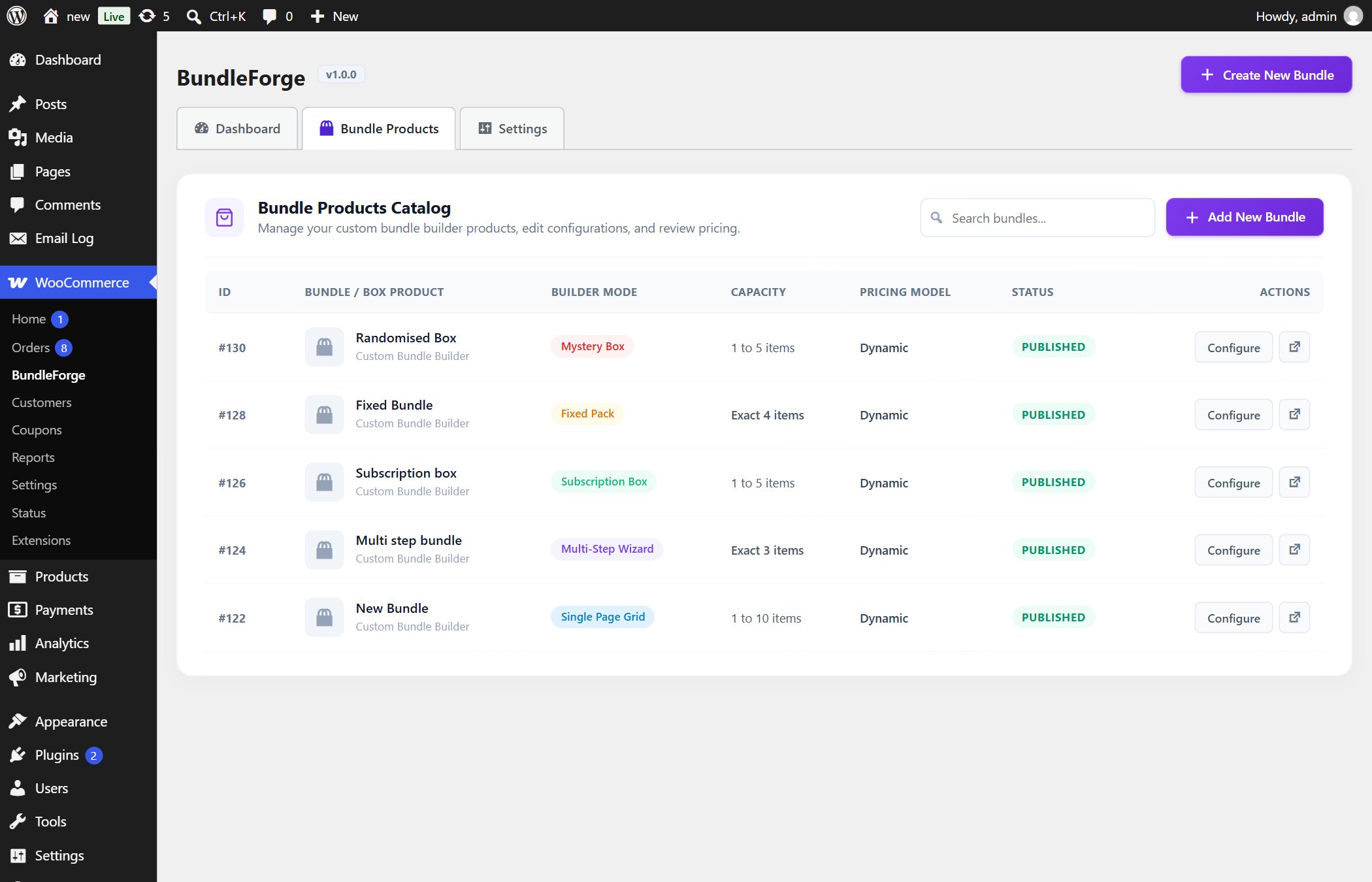
- What It Does: Lists all bundle builder products created in WooCommerce with their active mode, capacity configuration, pricing model, active rules count, and shortcodes (
[bundleforge_builder id="..."]). - How It Works: Queries custom product type
bundleforgeand compiles metadata columns into a clean administrative table with direct links to edit, view, or duplicate. - Where to Find It:
WordPress Admin → WooCommerce → BundleForge → Bundle Products Tab. - Why It Is Useful: Store managers can audit all bundle rules and copy embeddable shortcodes in seconds without searching through the general WooCommerce product table.
—
Category 2: Bundle Modes & Architecture
2.1 Single-Page Mix-and-Match Builder Mode
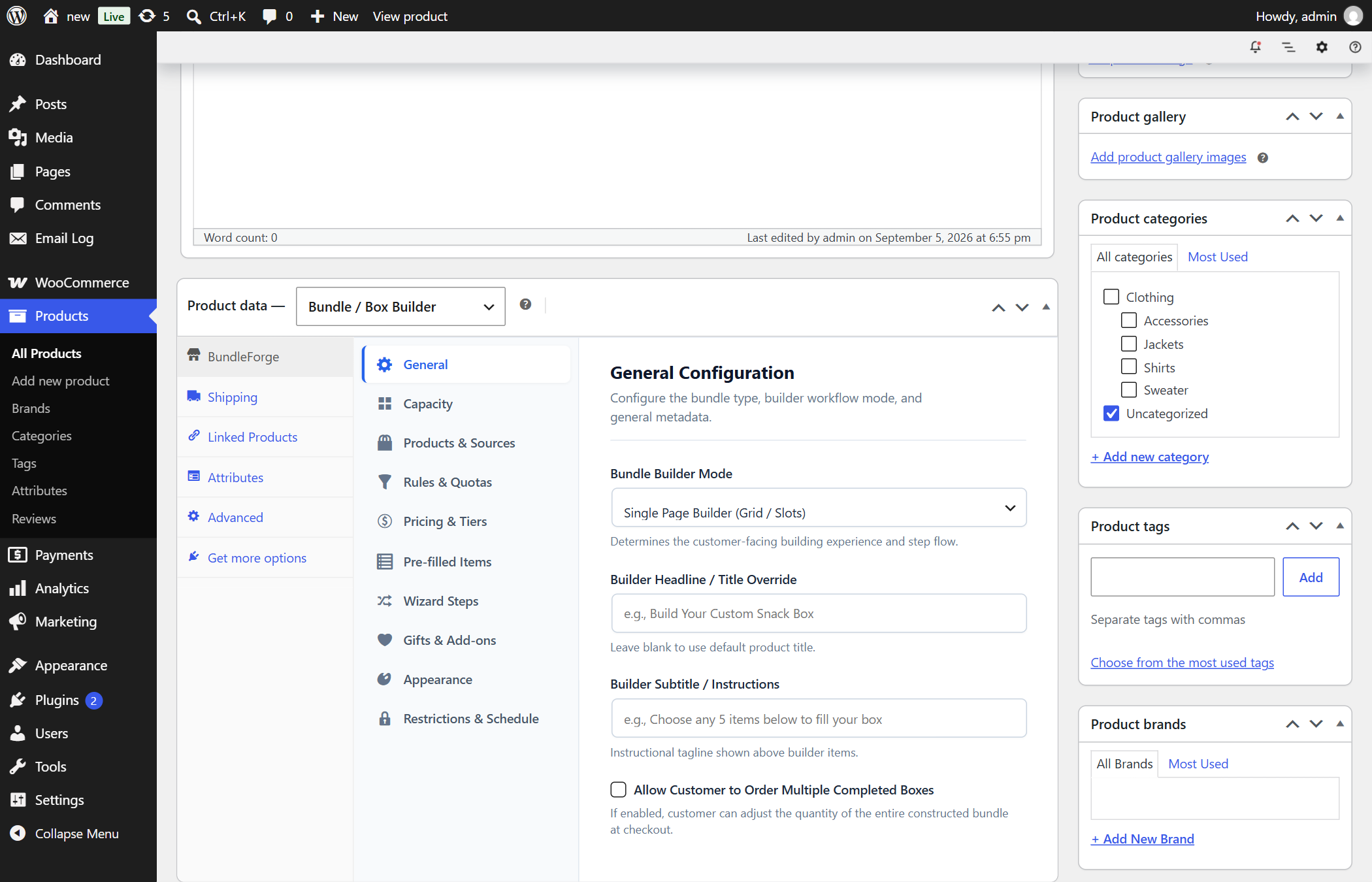
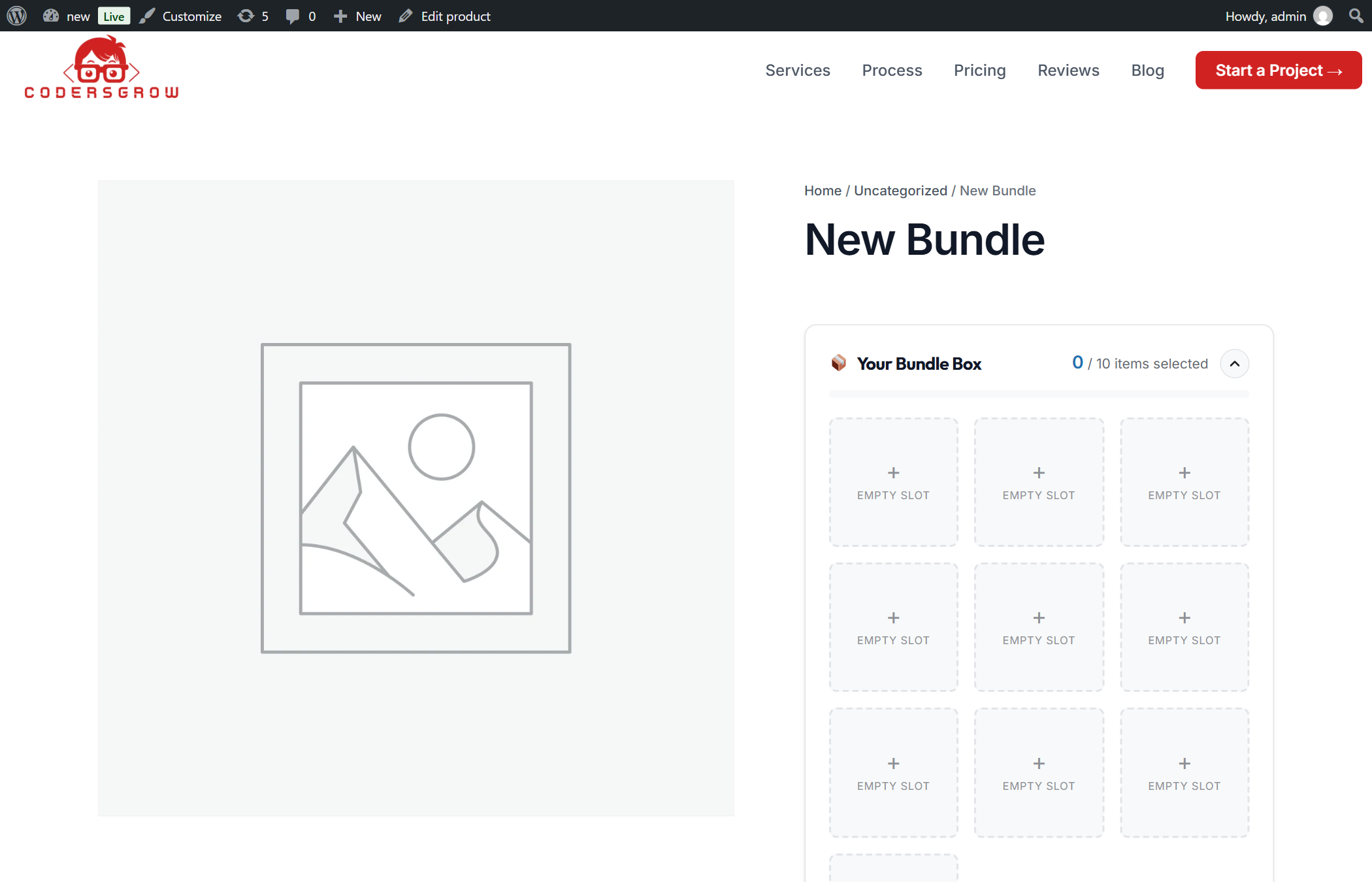
- What It Does: Renders an interactive single-page builder where shoppers see a visual slot container on top (or pinned to the side) and a responsive product grid below.
- How It Works: As shoppers click + Add to Box, slots animate in real time, category quotas update instantly, and total pricing recalculates dynamically via the reactive JavaScript engine.
- Where to Find It:
Edit Product → Product Data → BundleForge Tab → General Panel → Builder Mode = "Single-Page Builder". - Why It Is Useful: Best suited for 3-to-12 item assortment boxes (donuts, beer 6-packs, craft soaps, apparel packs) where customers want to see everything on one screen.
—
2.2 Multi-Step Guided Wizard Mode
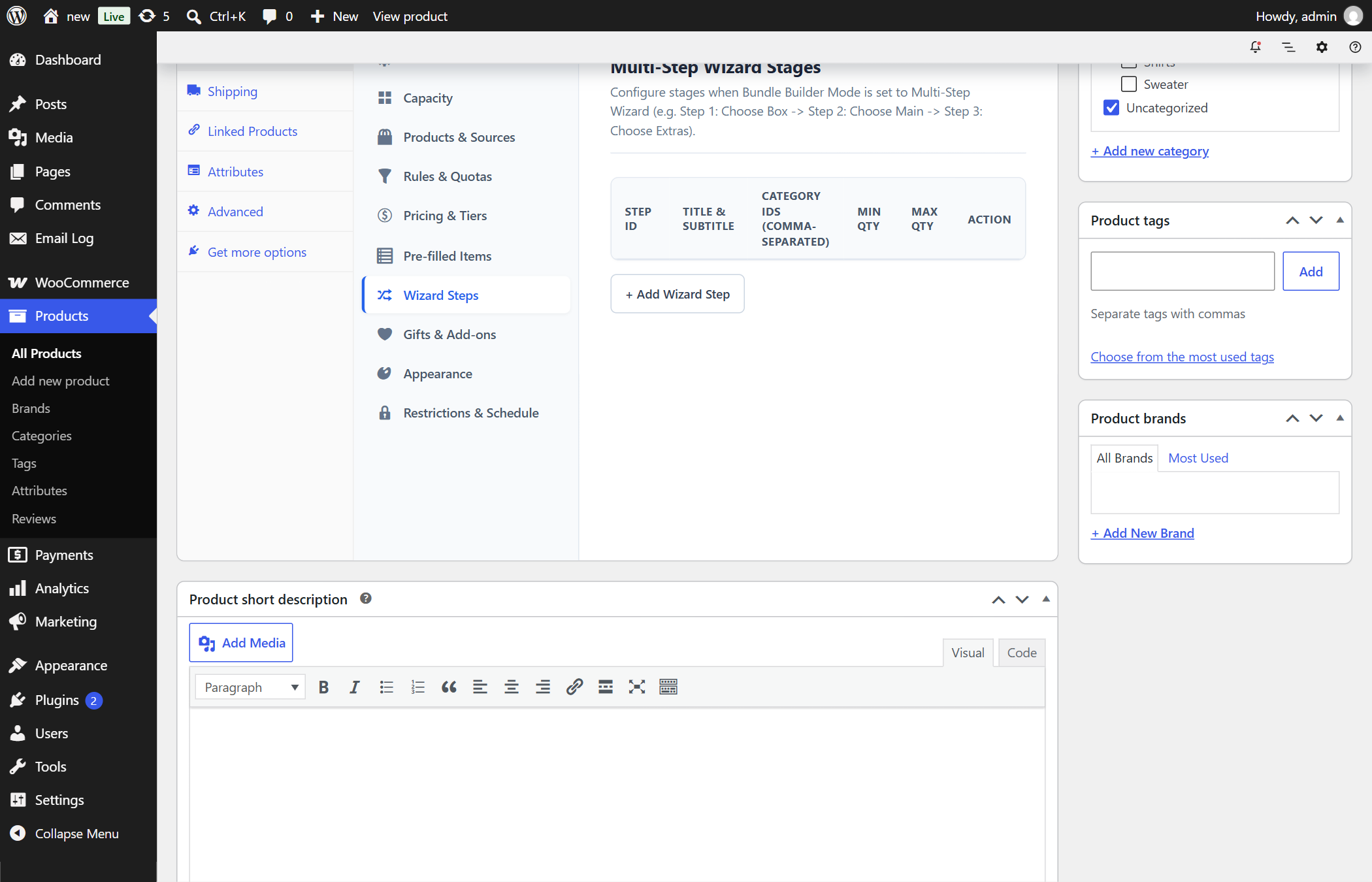
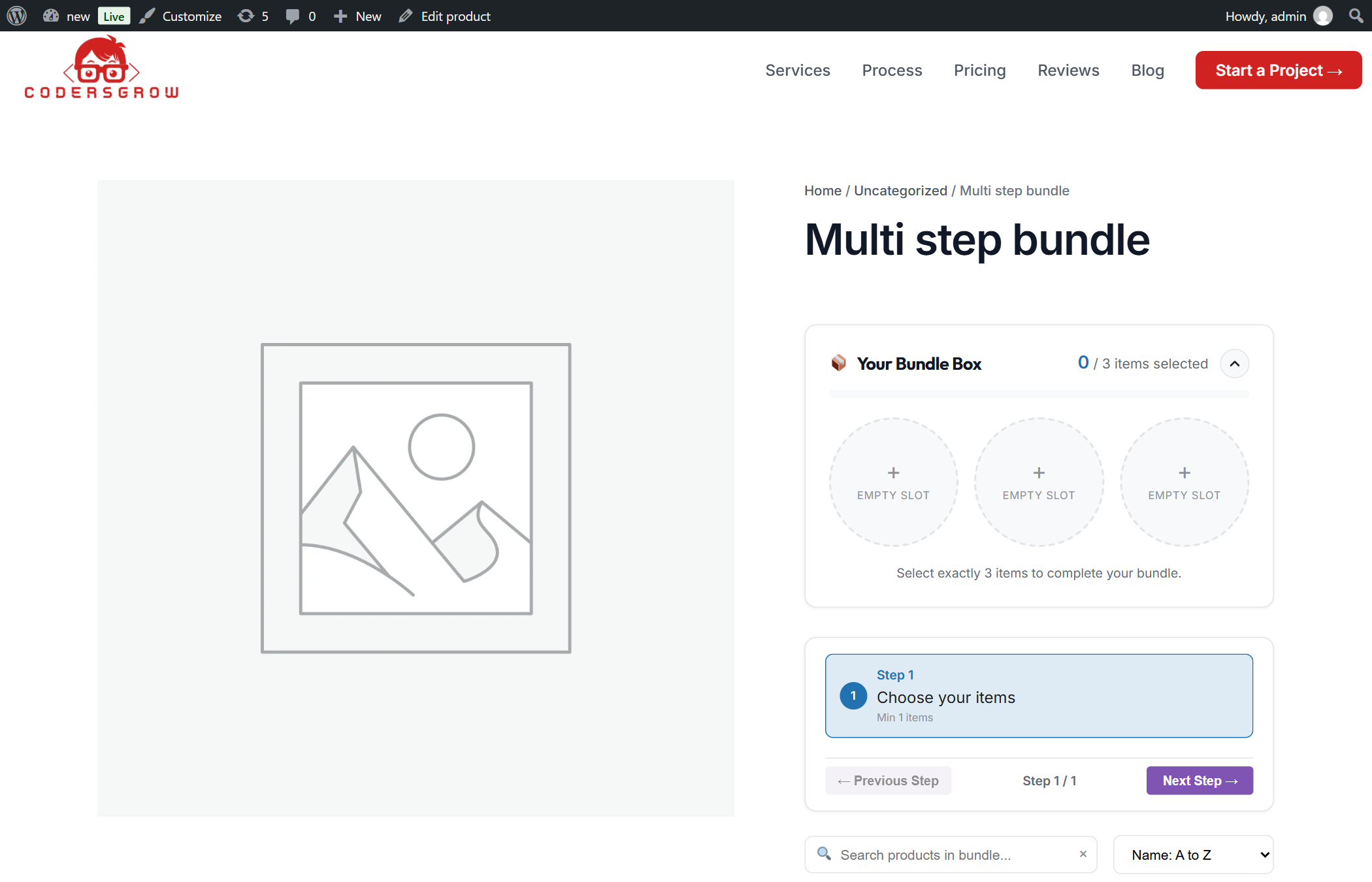
- What It Does: Breaks complex, high-capacity bundles into guided, sequential stages with an animated progress stepper.
- How It Works: Each stage filters the product grid to specific allowed categories or attributes and enforces individual stage completion quotas before allowing the user to proceed to the next stage.
- Where to Find It:
Edit Product → Product Data → BundleForge Tab → Wizard Stages Panel. - Why It Is Useful: Reduces cognitive overload for large, structured builds (e.g. Build Your Own PC, Custom Skincare Regimen, Bridal Gift Hamper).
—
2.3 Fixed Preset Pack Mode
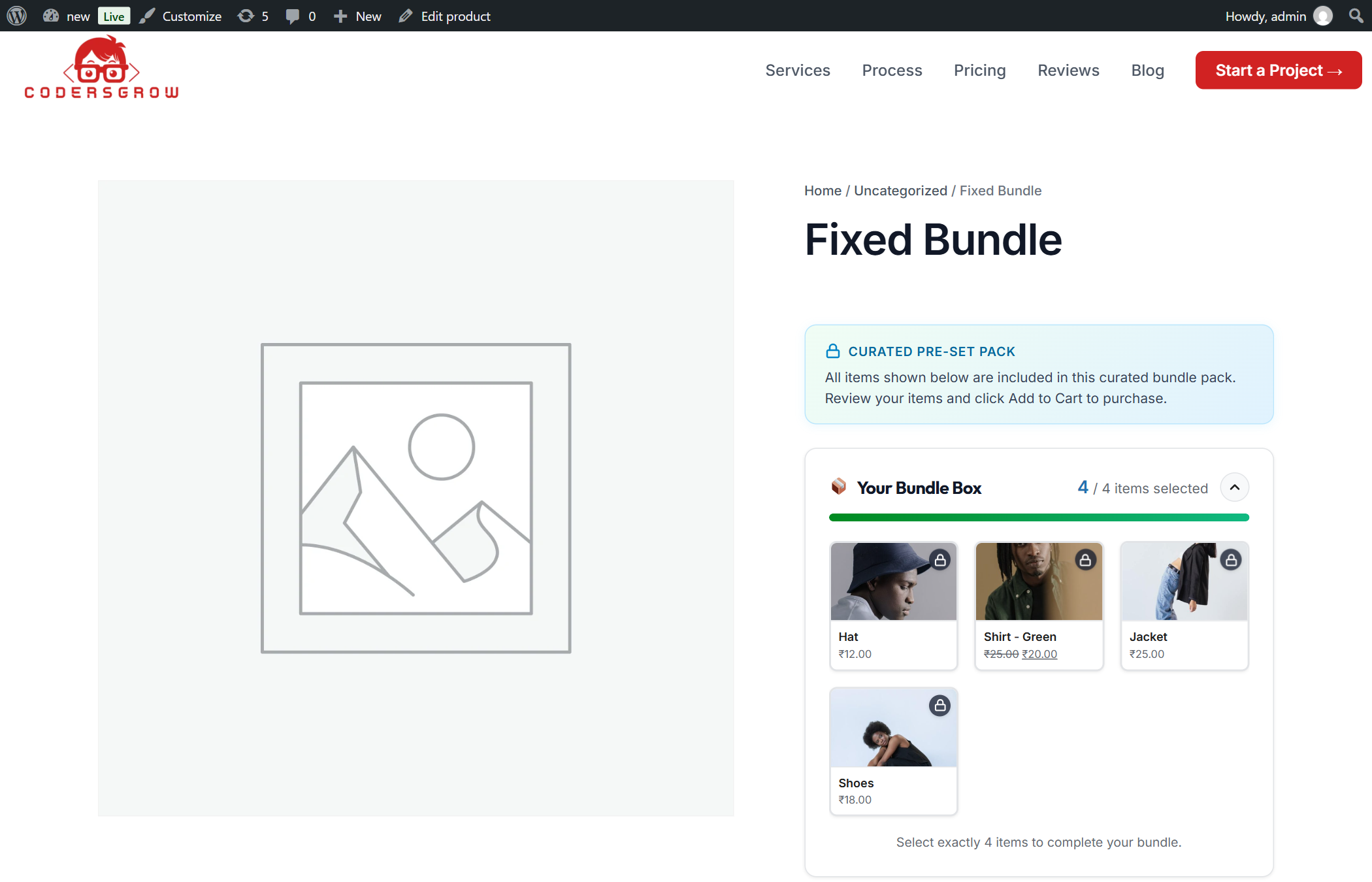
- What It Does: Allows store owners to sell pre-configured, curated bundles of products at a bundle discount where customers cannot alter or remove individual component items.
- How It Works: Loads prefilled items directly into the session with locked flags, disabling grid selection buttons while retaining the visual bundle packaging and discount structure.
- Where to Find It:
Edit Product → Product Data → BundleForge Tab → General Panel → Builder Mode = "Fixed Preset Pack". - Why It Is Useful: Perfect for pre-assembled gift sets (“New Mom Starter Kit”, “Ultimate BBQ Rubs Pack”) where items are packaged together in the warehouse.
—
2.4 Mystery Box & Randomized Selection Engine
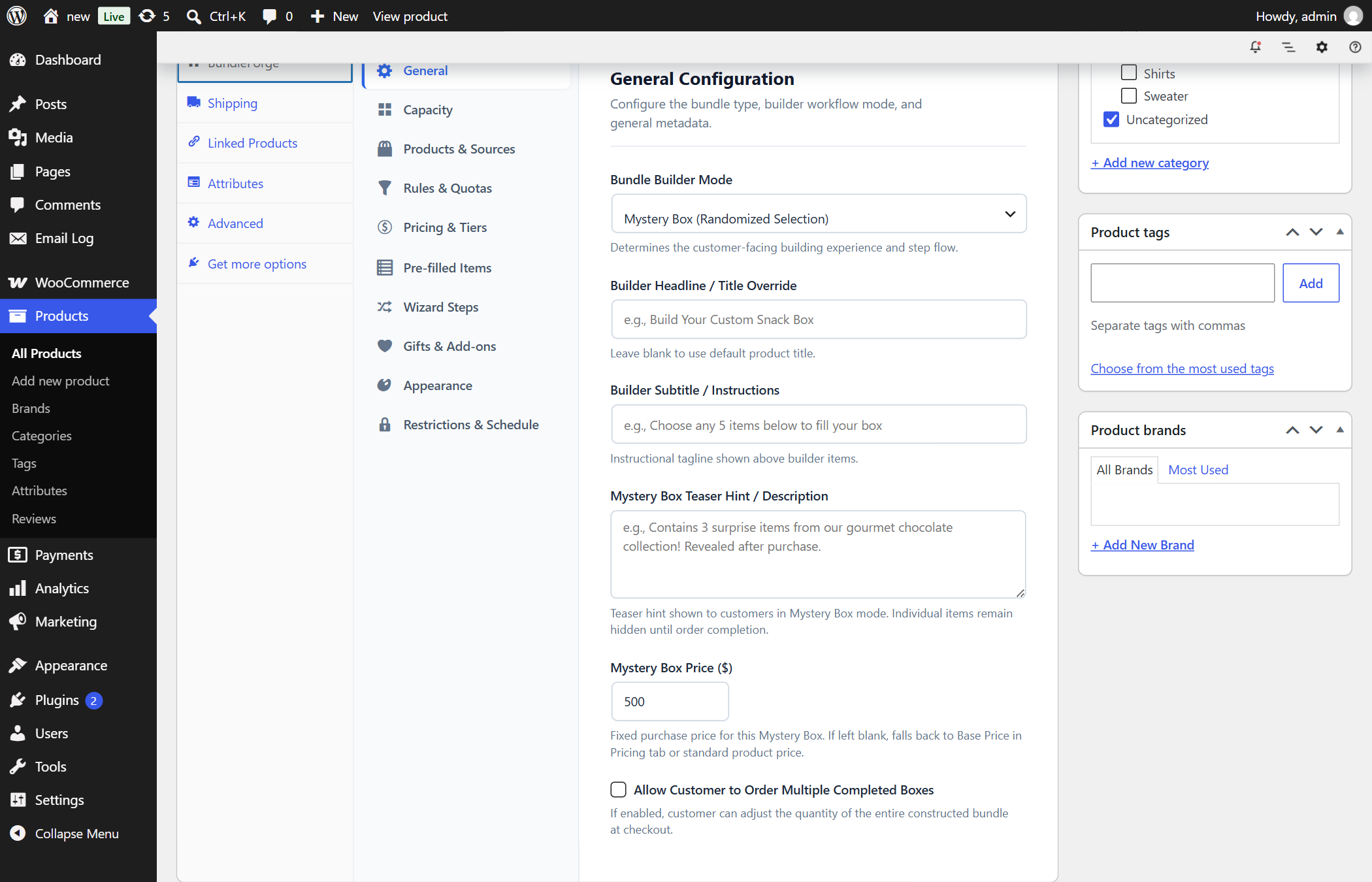
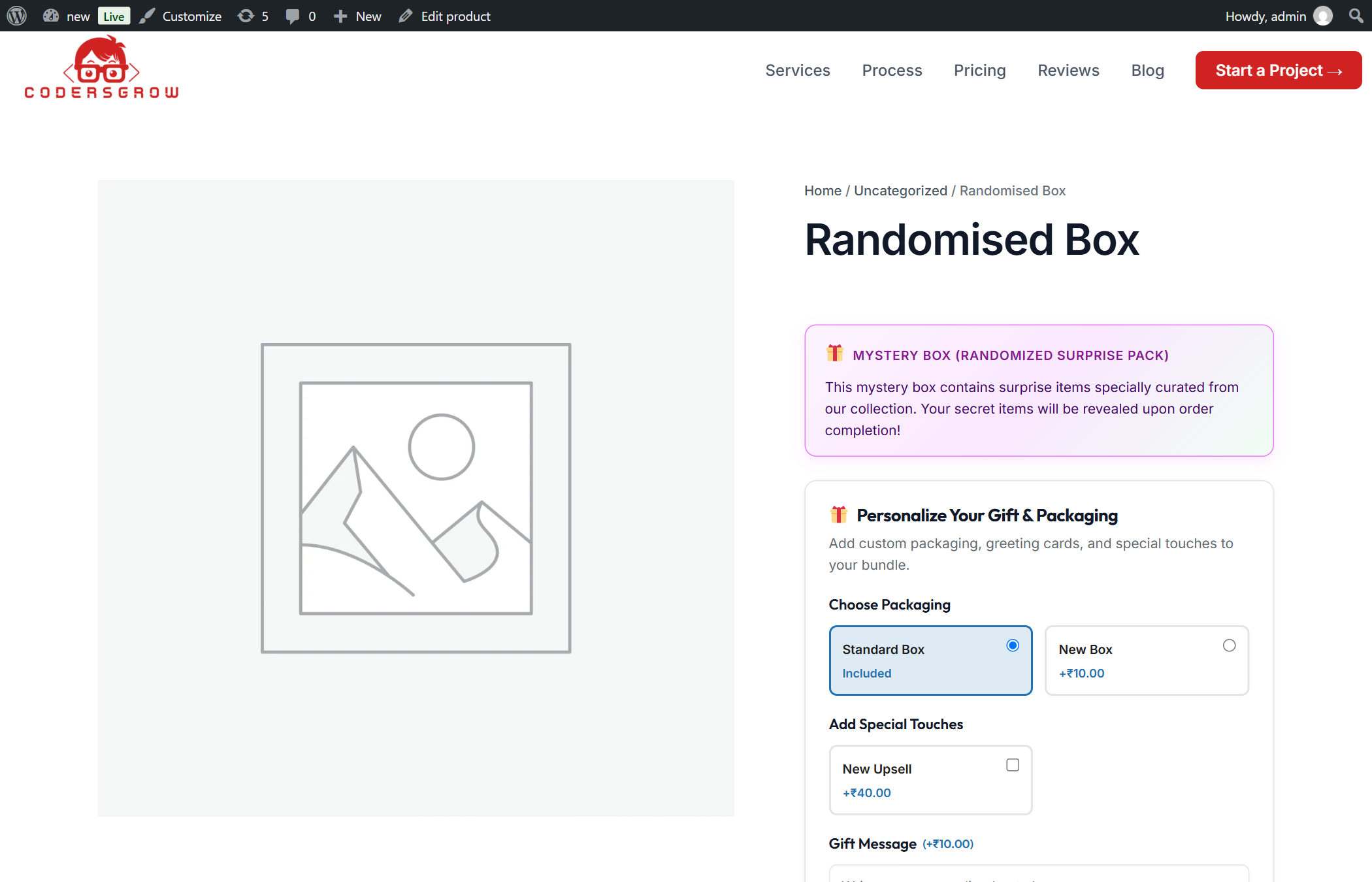
- What It Does: Creates a gamified “Mystery Box” where customers purchase a flat-priced box knowing only the price and a teaser hint. The server randomly curates in-stock items behind the scenes.
- How It Works:
- On Add to Cart,
MysteryManagerchecks candidate pools, filters for in-stock items, and selects random products. - In Cart and Block Checkout, child item names, images, descriptions, and links are completely masked as
🎁 Mystery Surprise Itemwith zeroed pricing and a 3D gift box illustration. - Upon payment completion, the WooCommerce Order Received / Thank You page triggers a celebratory Unboxing Reveal displaying the exact curated products received.
- Where to Find It:
Edit Product → Product Data → BundleForge Tab → General Panel → Builder Mode = "Mystery Box". - Why It Is Useful: Clears inventory, gamifies the shopping experience, and creates viral unboxing moments on social media.
—
Category 3: Capacity, Grid Layouts & Visual Box Slots
3.1 Flexible Capacity Modes
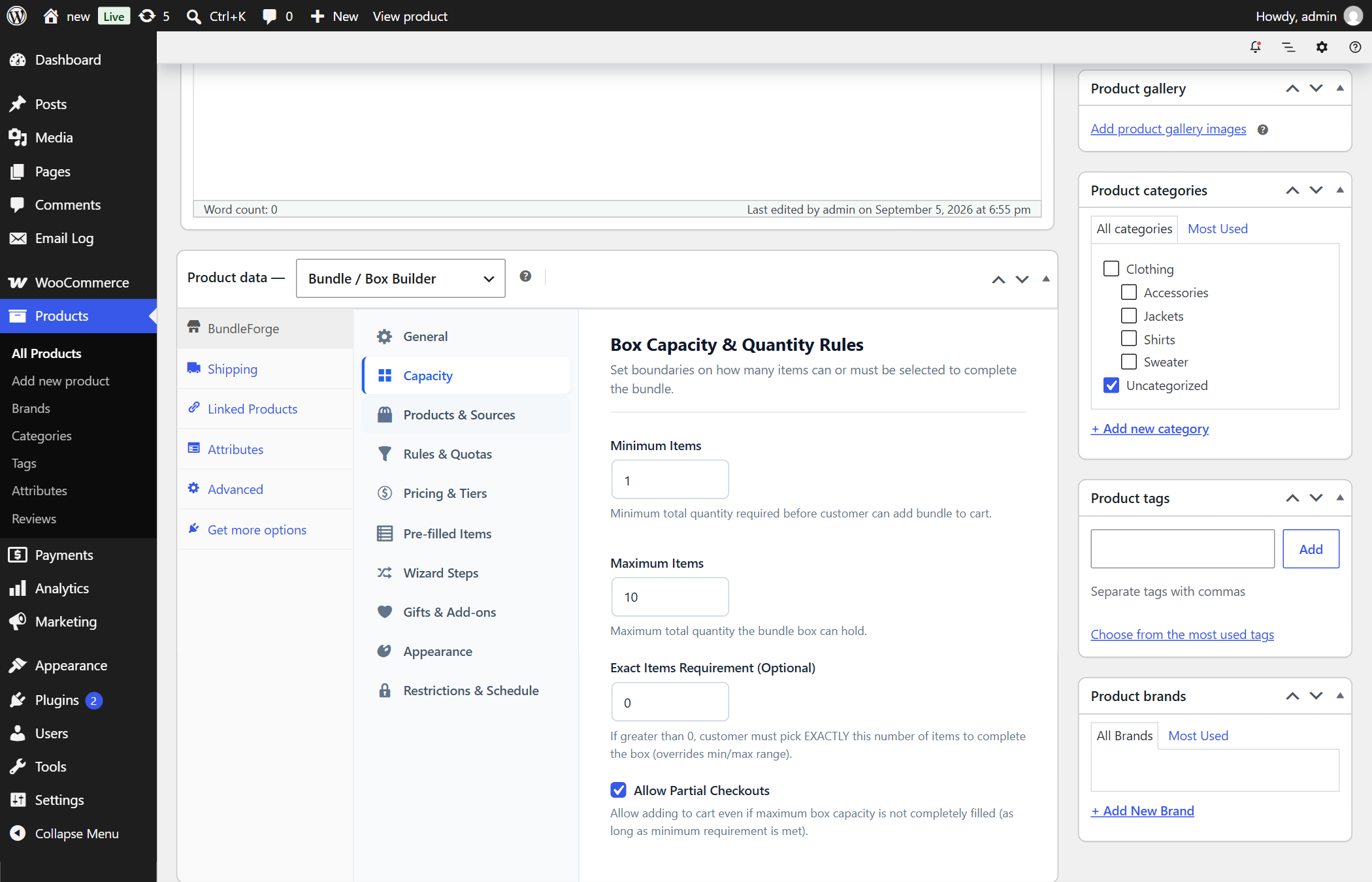
- What It Does: Defines exactly how many component items can or must be packed inside the bundle container.
- Supported Capacity Modes:
Any (Flexible): No restrictions; customers can purchase any quantity of items.Range (Min / Max): Enforces a minimum and/or maximum item threshold (e.g. 3 to 6 items).Exact (Fixed Slots): Enforces an exact number of slots (e.g. 6-pack donut box, 12-pack wine crate).Step Increment: Allows purchasing in multiples (e.g. packs of 4, 8, 12).- Where to Find It:
Edit Product → Product Data → BundleForge Tab → Capacity & Grid Panel. - Why It Is Useful: Ensures bundles match physical packaging dimensions and shipping container capacities.
—
3.2 Reactive 3D Visual Box & Real-Time Slot Fill Tracker
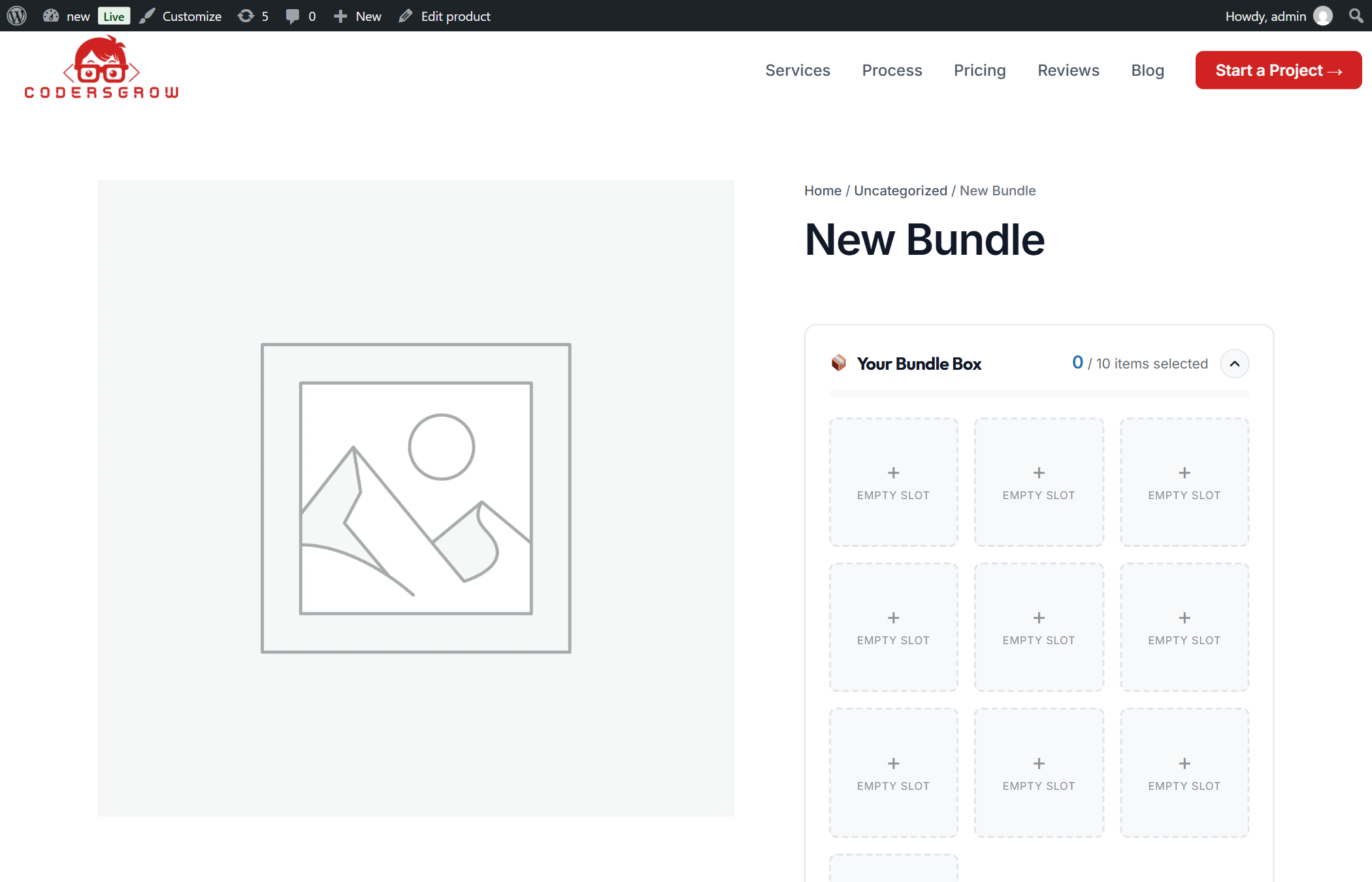
- What It Does: Renders a physical packaging box representation at the top of the builder with numbered, vacant slots that fill with realistic product thumbnails as items are selected.
- How It Works: Powered by vanilla CSS Grid and lightweight ES6 mutations. Clicking any populated slot immediately removes the item, adjusts inventory counts, updates rule quotas, and refreshes the sticky price bar.
- Where to Find It: Rendered automatically on the single product page based on the capacity settings.
- Why It Is Useful: Delivers high-engagement gamification—shoppers naturally desire to “fill all the slots” before checking out, directly increasing items per order.
—
Category 4: Product Catalog Sources & Filtering
4.1 Multi-Taxonomy Product Sourcing
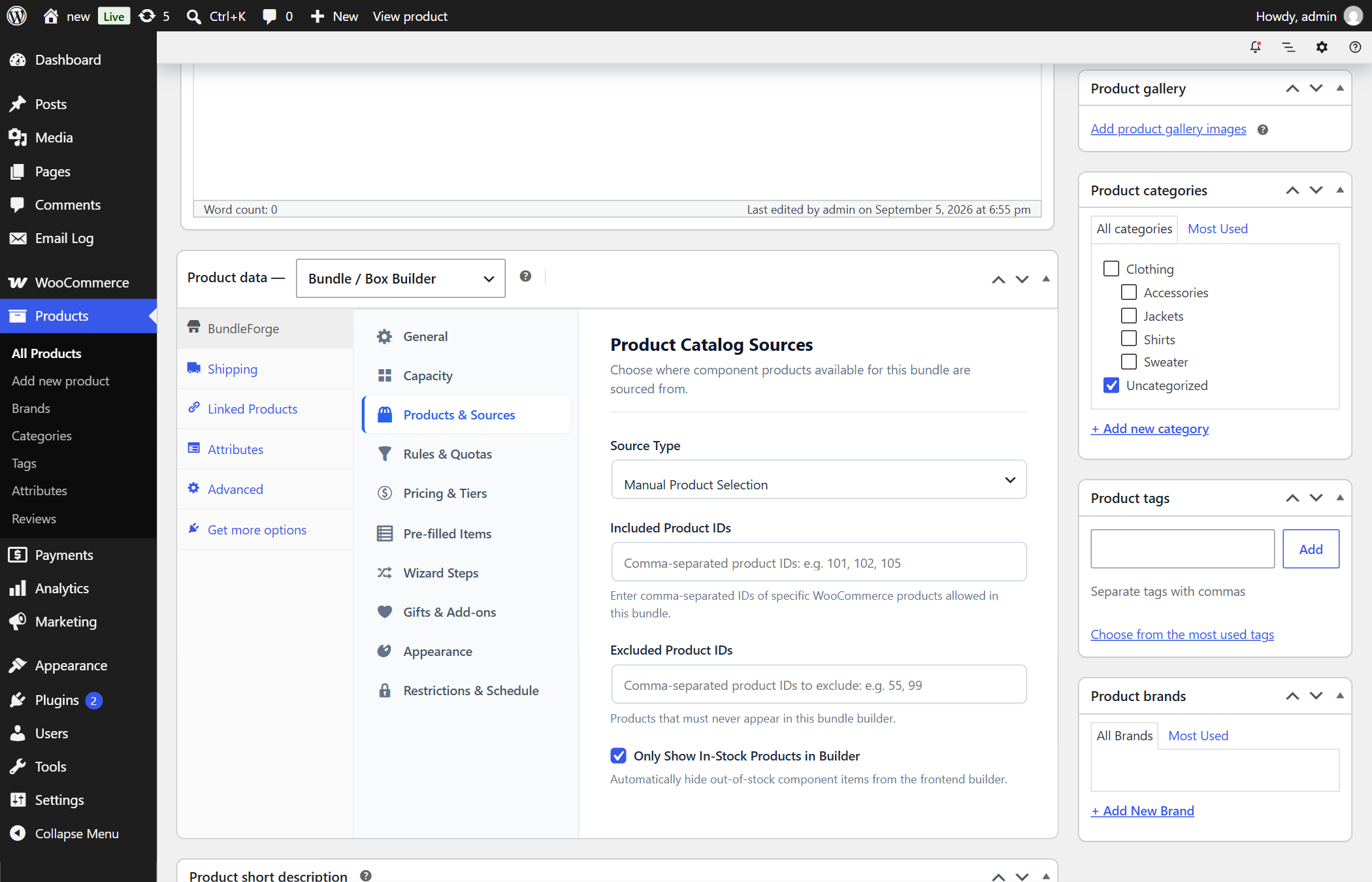
- What It Does: Controls which products from your WooCommerce store are eligible to be picked inside this specific bundle.
- Supported Source Options:
Manual Selection: Specific comma-separated product IDs (e.g.101, 102, 105).Specific Categories: Dynamically includes all current and future products in selected categories.Specific Product Tags: Dynamically filters by product tags.Specific Product Attributes: Filters by custom taxonomies (e.g.size:large,flavor:vanilla).All Store Products: Opens the entire catalog (excluding explicit exclusions).- Out-of-Stock Auto-Filter: Automatically hides out-of-stock items or renders them in greyscale with a “Sold Out” stripe.
- Where to Find It:
Edit Product → Product Data → BundleForge Tab → Product Sources Panel. - Why It Is Useful: Store owners can configure automated seasonal bundles (e.g. “Summer Collection”) that automatically update as new products are published in the store.
—
Category 5: Composite Rules & Validation Engine
5.1 Category Quotas, Dependencies & Exclusions
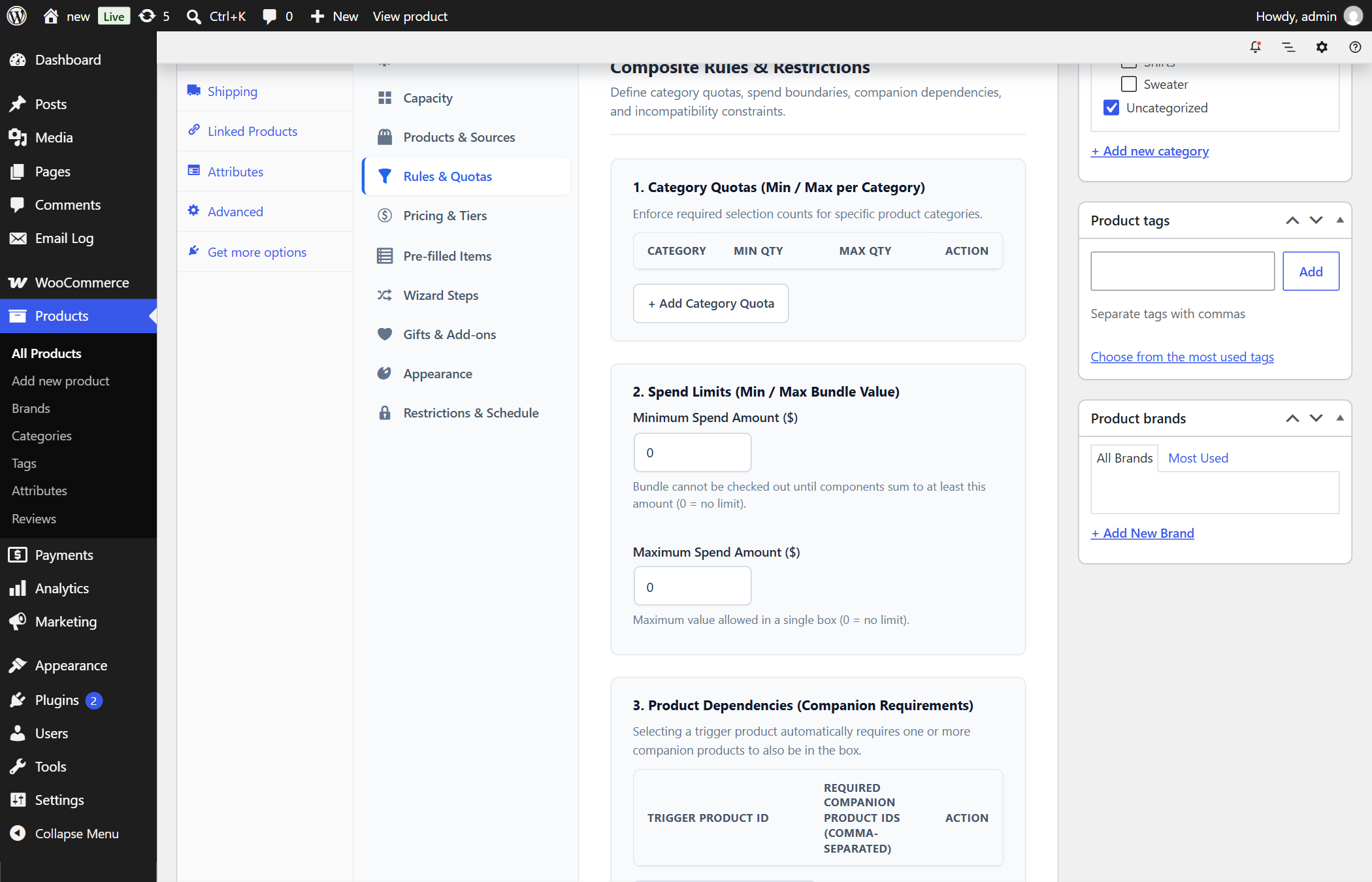
- What It Does: Enforces complex e-commerce merchandising logic before allowing the bundle to be added to the cart.
- Rule Types Available in BundleForge:
- Category Quotas (Min / Max per Category): Requires the customer to pick at least 2 Beverages and at most 1 Dessert inside a meal box.
- Spend Limits (Min / Max Dollar Amount): Enforces that the total value of items inside a custom box must sum to at least $50.00.
- Product Dependencies (Companion Requirements): Selecting a Camera Body automatically requires selecting a Compatible Lens.
- Product Incompatibilities (Mutual Exclusions): If a Heavy Bottle is in the box, an Incompatible Fragile Item cannot be selected.
- Per-Product Item Caps: Restricts any single high-value item from being chosen more than 2 times in the same box.
- Where to Find It:
Edit Product → Product Data → BundleForge Tab → Rules & Limits Panel. - Why It Is Useful: Guarantees bundle profitability and packaging feasibility without manual order auditing.
—
Category 6: Dynamic Pricing Strategies & Tiered Discounts
6.1 Multi-Model Pricing Engine
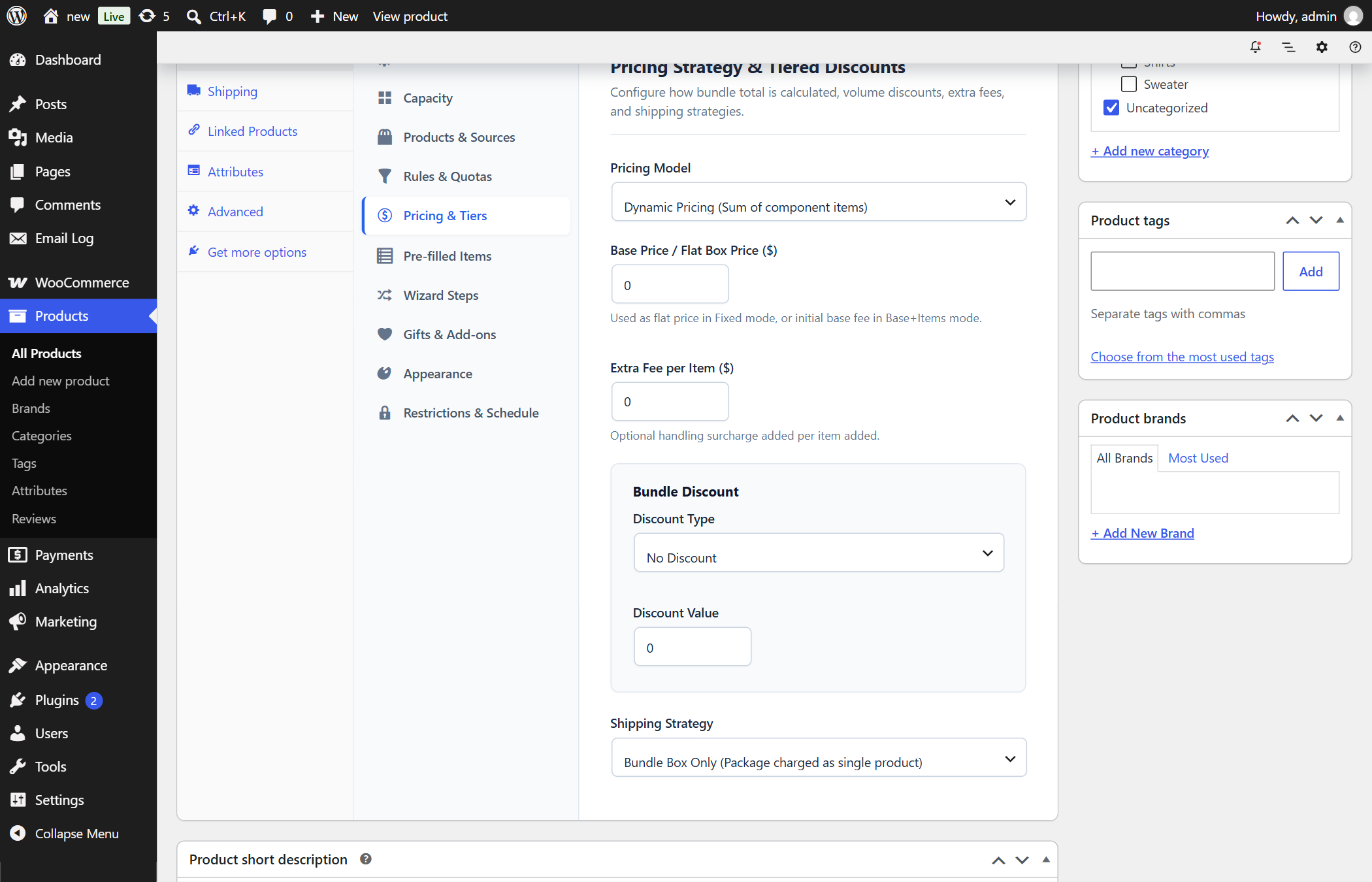
- What It Does: Calculates total bundle pricing dynamically based on the merchant’s chosen pricing strategy.
- Supported Pricing Models:
Per-Item Summation: Sum of regular/sale prices of all selected component items.Fixed Box Price: Flat fee regardless of components chosen (e.g. Any 6 items for $49.00).Base Price + Component Items: Flat container/box fee + the individual prices of components.Tiered Volume Discounts: Automatic milestone discounts (e.g. Pick 3 = 10% off, Pick 6 = 20% off, Pick 12 = 30% off).Global Bundle Discounts: Percentage (%) or Fixed Dollar ($) discount applied to the final calculated total.- Where to Find It:
Edit Product → Product Data → BundleForge Tab → Pricing & Discounts Panel. - Why It Is Useful: Enables aggressive marketing incentives that encourage shoppers to add “just one more item” to reach the next discount milestone.
—
Category 7: Prefilled Items & Starter Templates
7.1 Pre-Selected Default Slot Configurations
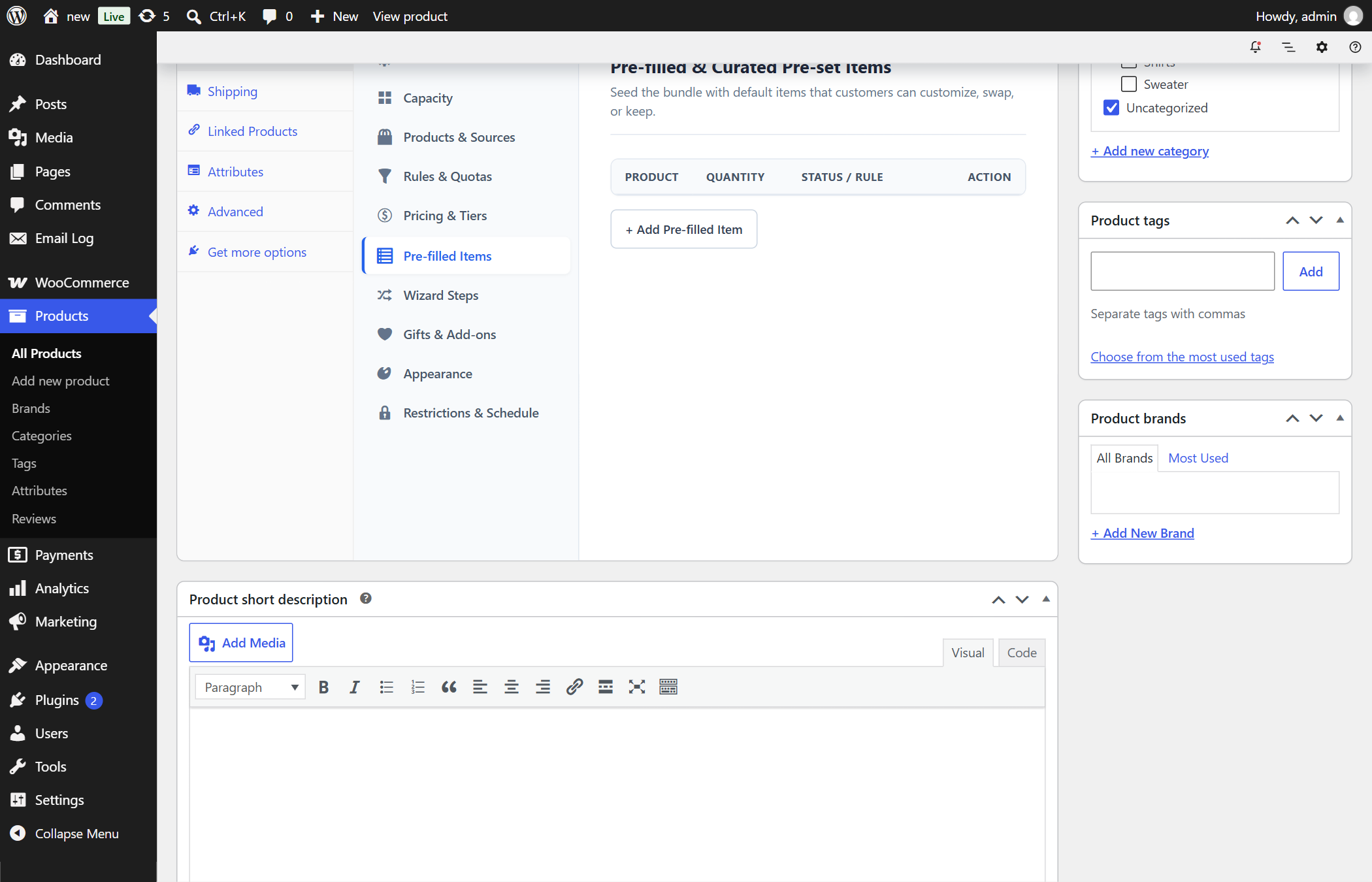
- What It Does: Pre-populates the visual box with recommended products when the customer first lands on the product page.
- Configurable Options:
Product ID & Variation ID: Specific default products loaded into slots.Default Quantity: Pre-set quantity for each slot.Mandatory Lock: If enabled, customer cannot remove or change this specific component item.- Where to Find It:
Edit Product → Product Data → BundleForge Tab → Pre-filled Items Panel. - Why It Is Useful: Eliminates “blank page syndrome” by giving customers an attractive starting assortment that they can easily modify.
—
Category 8: Gifting, Add-ons & Packaging
8.1 Custom Gift Packaging & Personalized Messages
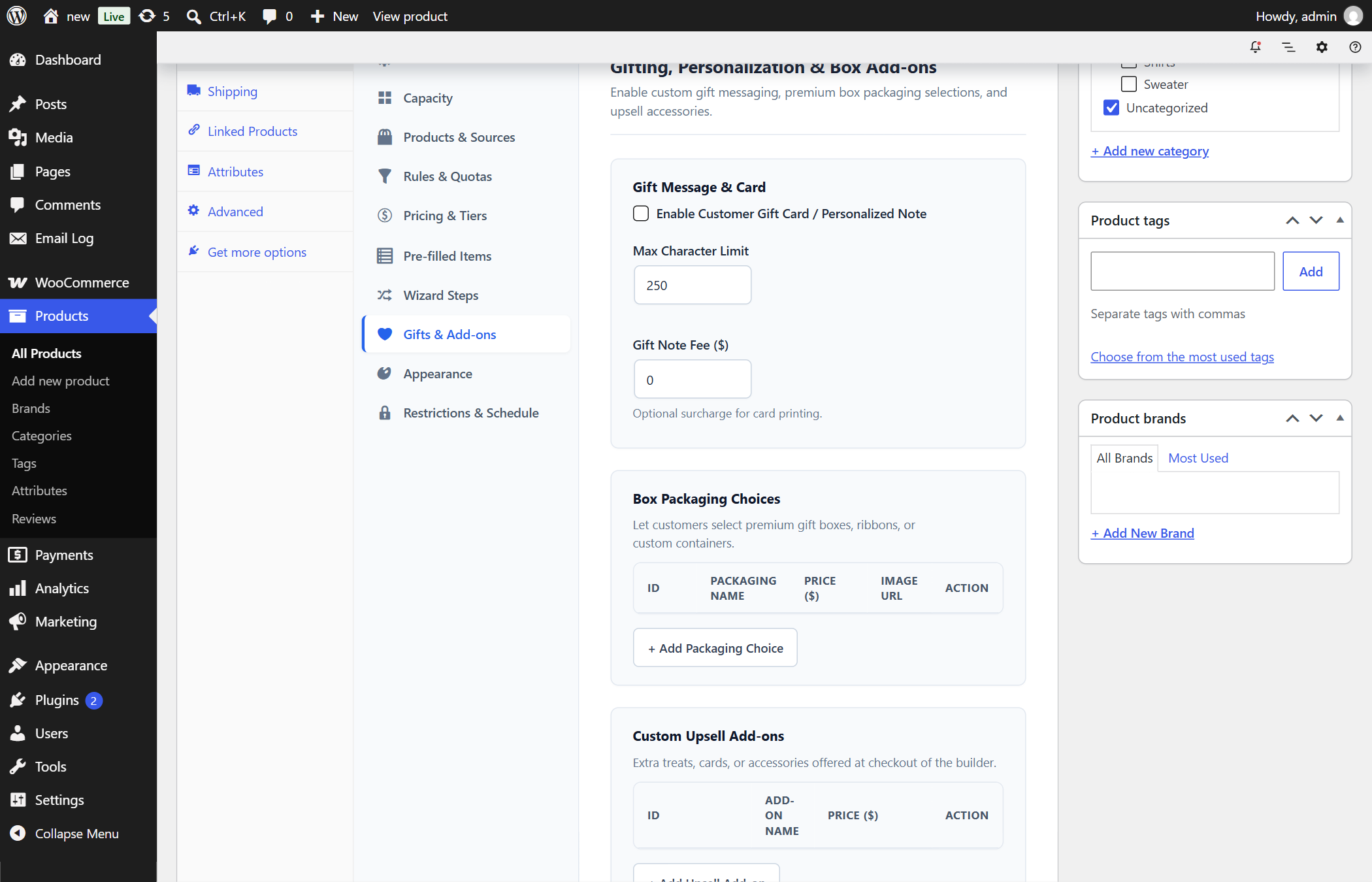
- What It Does: Adds an integrated gift customization accordion directly inside the bundle builder.
- Available Features:
- Custom Packaging Choices: Customers can choose between Eco Kraft Box (Free), Luxury Wooden Box (+$10.00), or Velvet Festive Box (+$15.00).
- Personalized Greeting Card Message: Textarea with customizable character limit counter.
- Gift Message Fee: Optional upcharge fee for handwritten gift cards.
- Where to Find It:
Edit Product → Product Data → BundleForge Tab → Gifts & Add-ons Panel. - Why It Is Useful: Turns ordinary e-commerce purchases into premium, ready-to-gift packages with high profit margins on packaging add-ons.
—
Category 9: Appearance, Themes & Customization
9.1 Theme Color Accents & Visual Styling
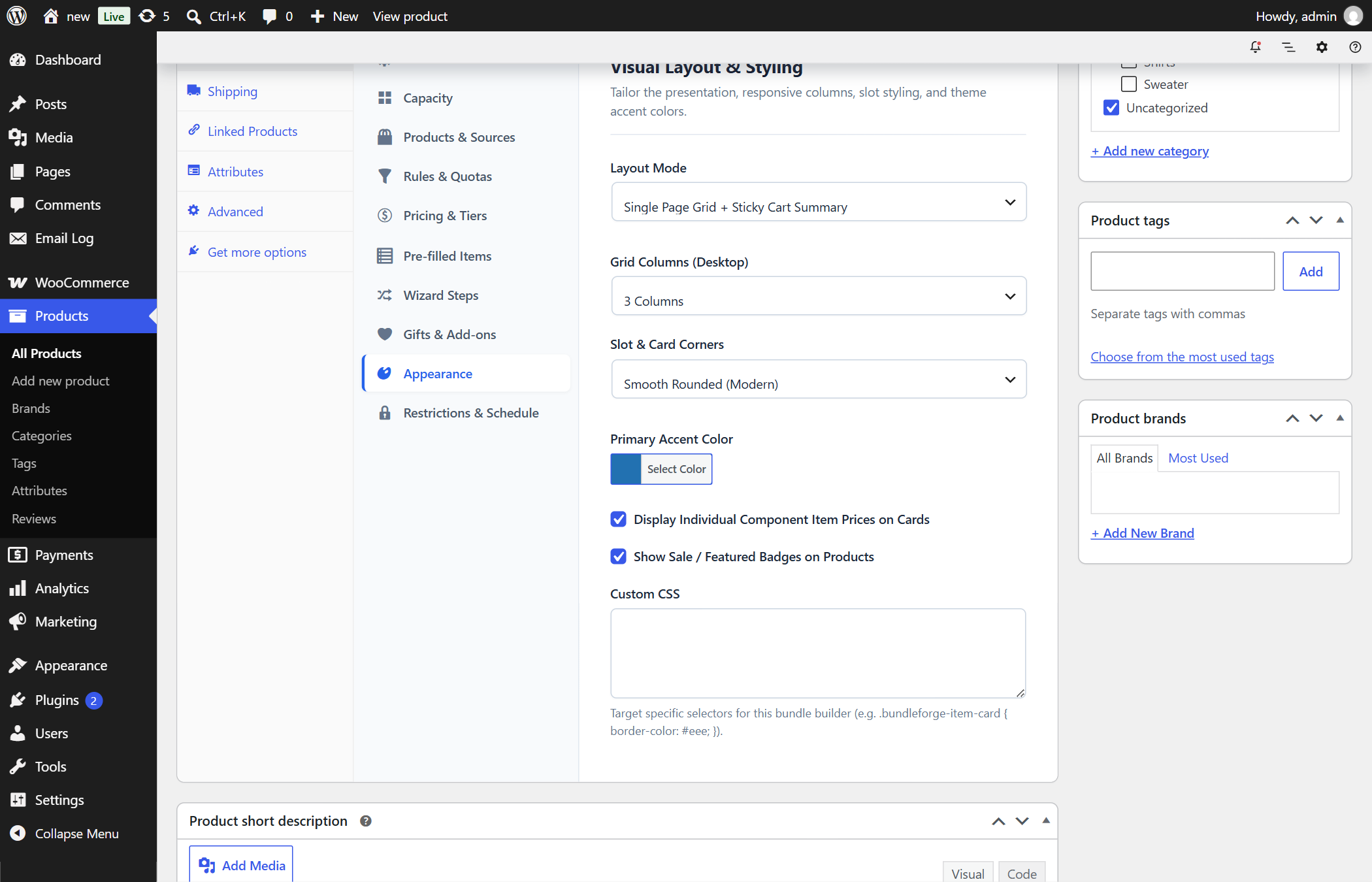
- What It Does: Customizes the visual aesthetic of the builder to match your store’s brand colors perfectly without writing code.
- Customizable Styling Tokens:
- Primary Accent Color (Buttons, highlights, progress bars).
- Visual Box Container Background & Border Radius.
- Badge Colors (Discount pills, Category tags, In-stock indicators).
- Grid Card Hover Effects and Micro-Animations.
- Custom CSS code editor for advanced developer styling.
- Where to Find It:
Edit Product → Product Data → BundleForge Tab → Appearance Panel. - Why It Is Useful: Ensures the bundle builder feels like an organic, bespoke part of your storefront rather than a clunky third-party widget.
—
Category 10: Access Restrictions, Scheduling & Stock Control
10.1 Role Gatekeeping, Schedules & Individual Sale Limits
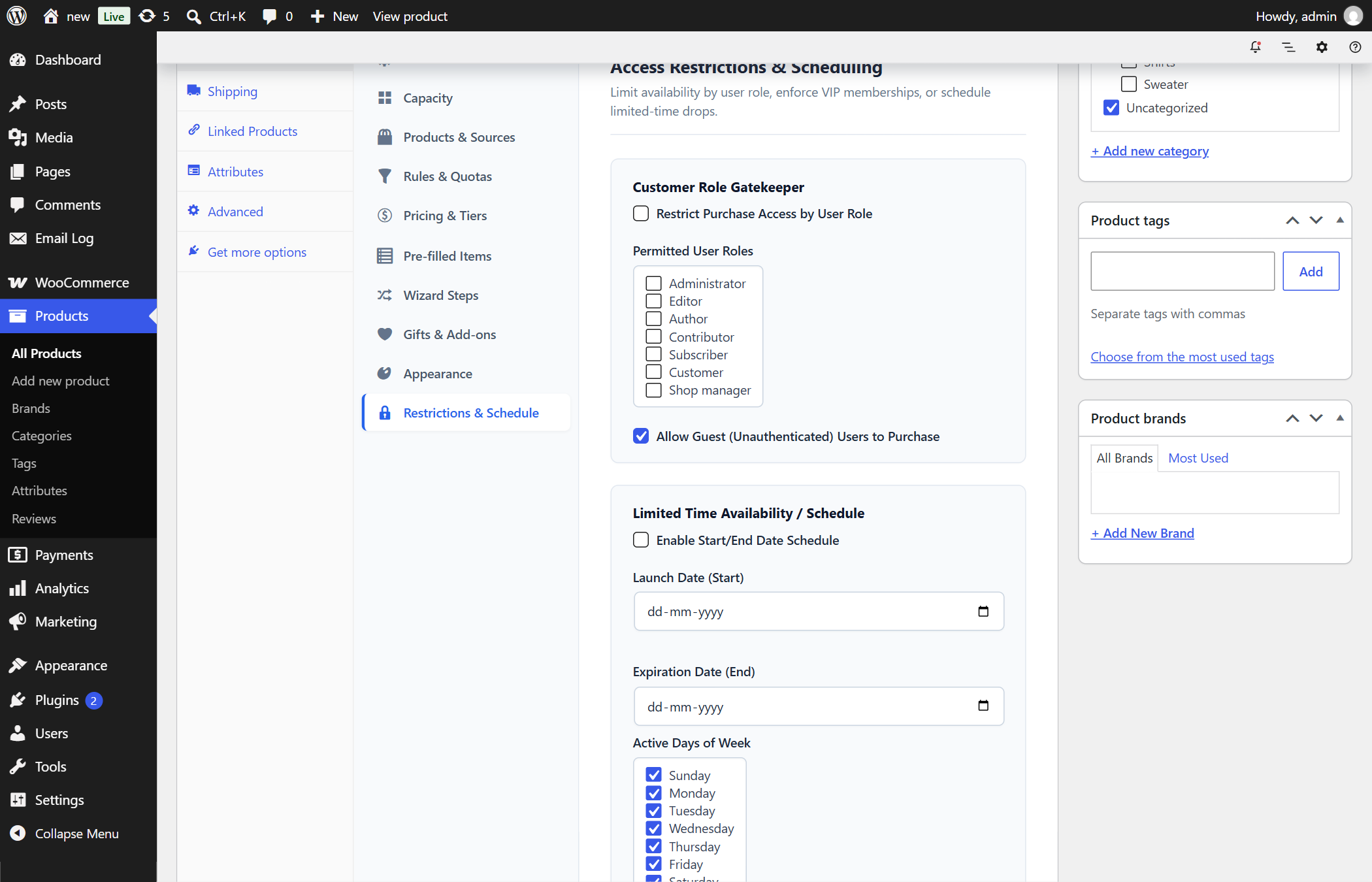
- What It Does: Restricts who can purchase the bundle, when it can be purchased, and in what quantities.
- Features Included:
- Customer Role Gatekeeper: Limit purchase access to Wholesale Buyers, VIP Members, or Subscribers.
- Guest Purchase Switch: Allow or require customer authentication prior to configuring.
- Launch & Expiration Schedules: Automated start date/time and end date/time for limited-edition drops.
- Active Days of Week: Restrict availability to specific weekdays (e.g. Friday-to-Sunday weekend specials).
- Sold Individually: Restricts orders to exactly 1 bundle instance per checkout.
- Where to Find It:
Edit Product → Product Data → BundleForge Tab → Restrictions & Schedule Panel. - Why It Is Useful: Ideal for exclusive VIP member boxes, seasonal holiday countdowns, and B2B wholesale case pricing.
—
Category 11: Cart, Checkout & Order Unboxing (HPOS Certified)
11.1 Hybrid Container Tree Hierarchy & Locked Quantities
- What It Does: Renders custom bundles inside the standard WooCommerce cart, mini-cart, and checkout tables with clear parent-child lineage (
↳). - How It Works:
- The Parent Line Item carries the authoritative bundle price and configuration summary.
- The Child Line Items are priced at
$0.00(“Included”) and have locked non-editable quantity controls. - Quantity Synchronization: Adjusting the parent quantity to
2automatically scales all child components proportionally. - Atomic Cascade Removal: Removing the parent removes all children; removing a child removes the parent to prevent broken bundles.
- Why It Is Useful: Preserves standard WooCommerce inventory deduction, warehouse pick lists, and weight-based shipping calculations without double-charging the customer.
—
11.2 WooCommerce Block Checkout & Mystery Concealment
- What It Does: Full native compatibility with modern WooCommerce Cart and Checkout Gutenberg Blocks via Store API integration.
- Store API Features:
- Extends
wc/store/v1/cart/itemswith bundle identification schemas (is_bundle_parent,is_bundle_child,is_mystery,parent_key). - Filters
woocommerce_store_api_cart_item_imagesto deliver custom 3D vector gift box artwork for mystery box items. - Suppresses component product names, descriptions, and permalinks until payment completion.
- Why It Is Useful: Ensures flawless compatibility with modern full-site editing themes and checkout block funnels.
—
4. Step-by-Step Tutorial: Creating a Custom 6-Pack Box
Here is a step-by-step tutorial for creating a “Build Your Own 6-Pack Craft Soda Box” in under 3 minutes:
[Step 1: New Product] -> [Step 2: Capacity 6] -> [Step 3: Source Sodas] -> [Step 4: Tiered Price] -> [Publish]Step 1: Create a BundleForge Product
- Navigate to WordPress Admin → Products → Add New.
- Enter the title:
Build Your Own 6-Pack Soda Box. - In the Product Data dropdown, select BundleForge Builder.
Step 2: Configure Fixed 6-Item Capacity
- Click the BundleForge tab, then open the Capacity & Grid subpanel.
- Set Capacity Mode to
Exact Items. - Set Exact Number of Items to
6. - Leave Allow Overfill unchecked.
Step 3: Select Soda Product Sources
- Open the Product Sources subpanel.
- Under Source Type, select
Specific Product Categories. - In the Select Allowed Categories box, check
Craft Sodas. - Ensure Only Show In-Stock Products in Builder is enabled.
Step 4: Configure Pricing & Discounts
- Open the Pricing & Discounts subpanel.
- Select Pricing Strategy as
Per-Item Summation. - Check Enable Tiered Volume Discounts.
- Set rule: When 6 items are packed, apply a 15% discount on the entire box.
Step 5: Publish & Preview
- Click Publish.
- Open the frontend product page to test your live interactive 6-pack visual box builder!
—
5. Head-to-Head Comparison: Default WooCommerce vs BundleForge
| Feature / Capability | Default WooCommerce | Legacy Bundle Plugins | BundleForge by CodersGrow |
| :— | :—: | :—: | :—: |
| Interactive 3D Visual Box Slots | ❌ None | ❌ None (Basic List) | ✅ Full Real-Time Visual Box |
| Multi-Step Stage Stepper Wizard | ❌ None | ❌ Limited Addon | ✅ Native Stage Wizard Included |
| Mystery Box Gamification | ❌ None | ❌ None | ✅ Server Randomization & Unboxing |
| 100% HPOS & Block Checkout Ready | ⚠️ Partial | ❌ Legacy Post Meta | ✅ Native Store API & HPOS Certified |
| Composite Rules (Quotas & Deps) | ❌ None | ⚠️ Basic Min/Max Only | ✅ Quotas, Spend, Incompatibilities |
| Gifting & Custom Packaging | ❌ None | ❌ None | ✅ Packaging Choices & Custom Cards |
| Shareable Direct Bundle Links | ❌ None | ❌ None | ✅ 1-Click Cryptographic Share URLs |
| Page Speed & Caching Safety | ⚠️ Slow with Ajax | ⚠️ Breaks Caching | ✅ Fast REST API + Dynamic Ajax Fallback |
—
6. Search-Optimized Frequently Asked Questions (FAQ)
Q1: Does BundleForge correctly reduce stock for each component item when a bundle is purchased?
Yes, 100%. BundleForge uses the Hybrid Container architecture. When an order is placed, each selected product or variation is linked as a dedicated child order line item in WooCommerce. WooCommerce’s native inventory engine automatically deducts stock for every individual SKU while ensuring the parent container carries the authoritative bundled price.
Q2: Is BundleForge fully compatible with WooCommerce High-Performance Order Storage (HPOS)?
Yes. BundleForge is certified for HPOS (COT / Custom Order Tables). It stores bundle lineage UUIDs and configuration schemas directly within HPOS-compliant order item metadata, fully supporting both classic post meta and high-volume HPOS databases.
Q3: How does the Mystery Box mode keep products hidden from the customer before checkout?
During the cart and checkout process, BundleForge hooks into WooCommerce session loaders, classic template filters, and the Store API (wc/store/v1/cart). It masks component names as Mystery Surprise Item, clears short descriptions, suppresses clickable permalinks, and replaces photos with a 3D gift illustration. Once the order status changes to completed/processing, the Order Received screen triggers a celebratory unboxing reveal.
Q4: Can customers save their custom bundle and finish purchasing it later?
Yes. BundleForge includes a built-in Save Bundle and Share Bundle engine. Logged-in shoppers can save custom configurations to their account, while any customer can generate a unique cryptographic share link to send their custom-curated box to friends, family, or colleagues.
Q5: Will BundleForge slow down my product pages or break with caching plugins?
No. BundleForge is built with vanilla ES6 JavaScript (no heavy jQuery bloat) and serves product catalog grids via high-speed, cached REST API endpoints (/wp-json/bundleforge/v1/products). It works seamlessly with WP Rocket, LiteSpeed Cache, Cloudflare, and Redis Object Cache.
Q6: Can I restrict certain bundles to Wholesale or VIP customer roles?
Yes. Under the Restrictions & Schedule panel, store owners can restrict bundle purchasing to specific WordPress user roles (e.g. wholesale_customer, vip_member), enforce guest authentication, or schedule launch drops for limited-time promotions.
—
7. Conclusion: Scale Your Store’s Average Order Value Today
Building custom product assortments should not require complex custom coding or fragile multi-plugin workarounds. BundleForge gives WooCommerce store owners a turnkey, visually stunning, and conversion-optimized solution to launch mix-and-match bundles, multi-step gift wizards, and mystery boxes in minutes.
Ready to Supercharge Your WooCommerce Store?
- 📦 [Explore BundleForge on CodersGrow](https://codersgrow.com/)
- 📚 [Read Full Developer Documentation](https://codersgrow.com/docs/)
- 🚀 [Try the Live Interactive Demo](http://localhost/new/product/new-bundle/)