

The Haven Real Estate Admin Panel Workflow is designed to provide a centralized and efficient control system for managing all aspects of a real estate platform. It enables administrators to seamlessly handle properties, users, transactions, and overall system operations through a clean and intuitive interface.
At the core of the system, the admin dashboard offers a comprehensive overview of key metrics such as total properties, active listings, registered users, recent inquiries, and ongoing transactions. This real-time data helps administrators make informed decisions and monitor platform performance effectively.
1. Admin Login Workflow
The admin panel workflow starts with the Admin Login page.
The admin enters the registered email and password to access the system securely.
Step-by-Step Admin Login Process
- Open the admin login page.
- Enter valid login credentials.
- Click the Login button.
- The system verifies the credentials.
- If the details are correct, the admin is redirected to the Admin Dashboard.
- If the details are incorrect, an error message is shown.
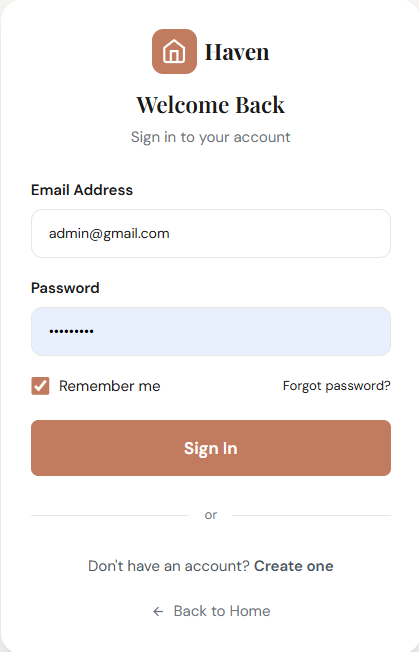
This is the first step in the Real Estate admin panel workflow, and it ensures only authorized users can access the backend.
Haven Admin Dashboard
The Admin Dashboard is the first screen the admin sees after logging into the system.
It gives a quick summary of the entire real estate platform so the admin does not need to open multiple pages to check important data. It helps save time and makes daily management faster.
The dashboard is clean, organized, and designed in a way that even non-technical users can easily understand it.
2. Dashboard Overview Workflow
After login, the admin lands on the Dashboard.
This is the main control area where the admin can quickly see system activity and access all modules.
One of the best things about the Haven Admin Dashboard is its simple and modern design.
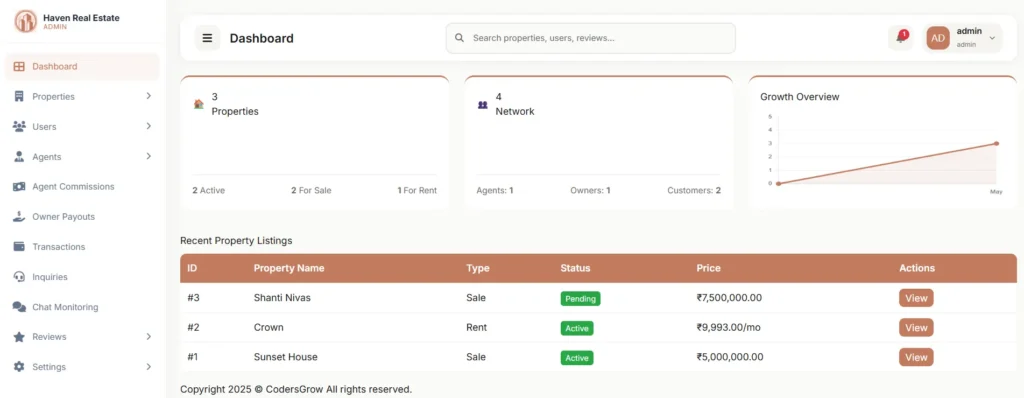
The layout is divided into clear sections:
- Left Sidebar Menu for quick navigation
- Top Search Bar for fast searching
- Summary Cards for important business data
- Growth Overview Chart for activity tracking
- Recent Property Listings Table for latest property updates
Easy Navigation from the Sidebar Menu
On the left side of the dashboard, there is a sidebar menu that allows the admin to access all important modules of the system.
The available sections include:
- Dashboard
- Properties
- Users
- Agents
- Agent Commissions
- Owner Payouts
- Inquiries
- Chat Monitoring
- Reviews
- Settings
This means the admin can easily move from one section to another with just one click.
Powerful Search Bar for Quick Access
At the top of the dashboard, there is a smart search bar.
This search bar allows the admin to quickly search for:
- Properties
- Users
- Reviews
- Other important records in the system
Instead of opening each section manually, the admin can simply type what they are looking for and find it faster.
Property Summary Card
The dashboard shows a Property Summary Card that gives a quick overview of property data.
In the screenshot, it displays:
- Total Properties
- Active Properties
- For Sale Properties
- For Rent Properties
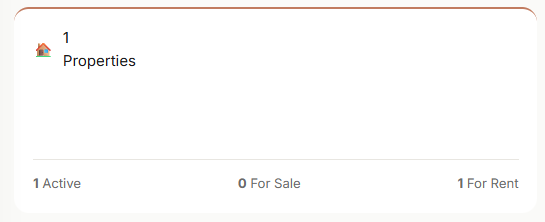
This section helps the admin instantly understand the current property status in the system.
Why it matters:
The admin can quickly see:
- How many properties are currently active
- How many are listed for sale
- How many are available for rent
This helps in daily business decisions and property tracking.
Network Summary Card
The dashboard also includes a Network Summary Card.
This section shows the total number of users connected to the platform, such as:
- Agents
- Owners
- Customers
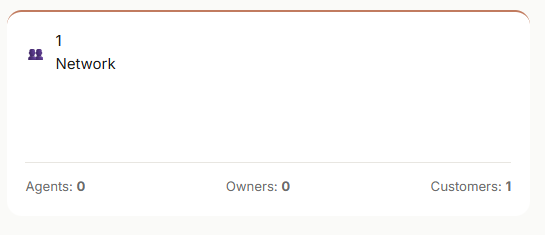
This gives the admin a quick view of how many people are using the system.
Growth Overview Chart
The Growth Overview section shows a simple chart that helps the admin understand platform activity over time.
This visual chart can help track:
- Business growth
- Property listing trends
- User activity
- System engagement
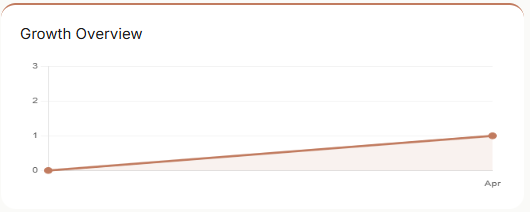
Even non-technical users can easily understand charts because they visually show whether the business is growing.
Why this feature is important:
- Easy to understand performance trends
- Helpful for monthly or weekly reviews
- Supports better planning and decision-making
Recent Property Listings Table
The Recent Property Listings section shows the latest properties added to the system.
The table includes useful details like:
- Property ID
- Property Name
- Type (Sale or Rent)
- Status (Active / Inactive)
- Price
- Action Button (View Details)

In the example shown:
- Property Name: House
- Type: Rent
- Status: Active
- Price: ₹10,000.00/mo
This makes it very easy for the admin to monitor newly added properties.
Benefits of this section:
- Quick access to latest listings
- Easy property review
- Faster property management
- One-click viewing option
Notification and Admin Profile Area
At the top-right of the dashboard, there is a notification icon and admin profile section.
Notification Icon
This helps the admin stay updated with important alerts such as:
- New inquiries
- New reviews
- New property activities
- Important system updates
Admin Profile
The admin profile area shows:
- Admin name
- User role
- Dropdown options for profile actions
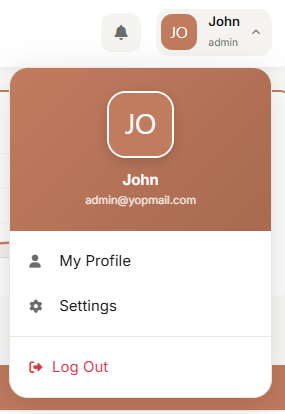
This makes account management easy and professional.
3. Property Management Workflow
The Property Management module is one of the most important parts of the admin panel.
This section is used to create, update, and control all property listings.
- Open the Properties module from the side menu.
- Click Add New Property.
The Add Property feature in the Haven Real Estate Management System is designed to make property listing easy and organized. It gives admins a complete form where they can enter all important property details in one place, including pricing, location, images, owner information, agent assignment, property status, and SEO settings.
Whether you are listing a house, villa, apartment, rental property, or property for sale, this feature helps you add everything properly without confusion.
- Add Propertly
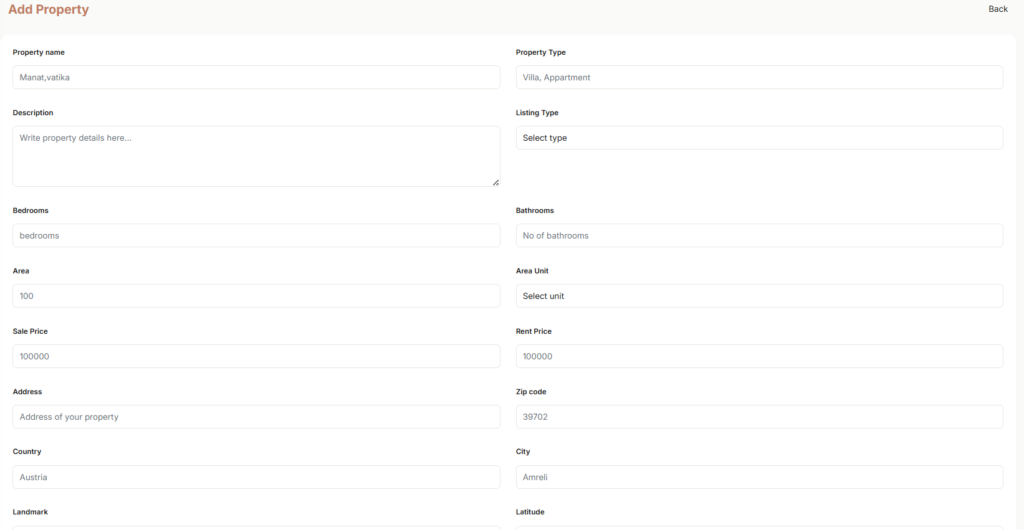
The form is divided into clear sections so users can easily understand what information to enter.
Main sections include:
- Basic Property Details
- Pricing Information
- Location Information
- Agent and Owner Information
- Image Upload Section
- Property Status Section
- SEO Settings Section
Add Basic Property Information
The first part of the form allows the admin to enter the main property details.
Fields in this section:
- Property Name
- Property Type
- Description
- Listing Type
Why this section is important:
Property Name
This is the title of the property, such as:
- Luxury Villa
- Family Apartment
- Modern House
- Commercial Office Space
A clear property name makes listings look professional and easy to identify.
Property Type
The admin can define what kind of property it is, such as:
- Villa
- Apartment
- House
- Plot
- Commercial Property
Add Property Size and Room Details
The next section helps the admin enter important space and room information.
Fields include:
- Bedrooms
- Bathrooms
- Area
- Area Unit
Latitude and Longitude
These fields are useful for:
- Map integration
- Accurate property pin location
- Better location display on the frontend
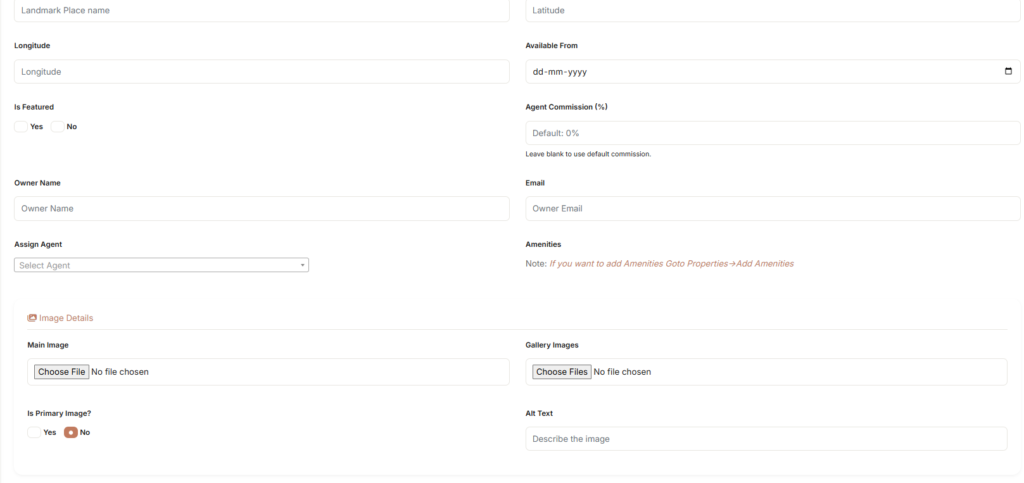
Set Property Availability Date
The form includes an Available From field.
This allows the admin to choose the date from which the property will be available for buyers or tenants.
Why this is useful:
- Helps renters know move-in dates
- Makes scheduling easier
- Improves listing clarity
- Reduces confusion for customers
Mark a Property as Featured
The Add Property form includes an Is Featured option.
The admin can choose:
- Yes
- No
What is a featured property?
A featured property is a highlighted listing that can be shown in special sections like:
- Homepage featured properties
- Premium listings
- Top recommended properties
Set Agent Commission Easily
The form includes an Agent Commission (%) field.
This allows the admin to define how much commission the assigned agent will receive for this property.
If the admin leaves it empty, the system can use the default commission value.
Why this is useful:
- Flexible commission control
- Supports custom commission per property
- Saves time with default commission fallback
Add Owner Information
The Add Property page also allows the admin to enter property owner details.
Fields include:
- Owner Name
- Owner Email
Why this is useful:
This helps the admin keep track of who owns the property, especially when managing multiple owners inside the platform.
Assign an Agent to the Property
The form includes an Assign Agent dropdown.
This allows the admin to select a specific agent for the property.
Why this feature is important:
- Connects the property with the right agent
- Makes agent management easier
- Helps track commissions
- Useful for inquiry handling and sales coordination
Amenities Support for Better Property Listings
The form also includes an Amenities note that guides the admin to add amenities separately.
Examples of amenities may include:
- Parking
- Swimming Pool
- Garden
- Security
- Gym
- Lift
- Balcony
- Power Backup
Why this is useful:
Amenities make property listings more attractive and informative for buyers.
Upload Main Image and Gallery Images
Images are one of the most important parts of any real estate listing.
The Add Property form includes a dedicated Image Details section.
Image fields include:
- Main Image
- Gallery Images
- Is Primary Image?
- Alt Text
Why this section is powerful:
Main Image
This is the main display image for the property. It is usually shown on:
- Property cards
- Listing pages
- Featured sections
- Search results
Gallery Images
Admins can upload multiple property images to show:
- Living room
- Bedroom
- Kitchen
- Exterior view
- Bathroom
- Balcony
- Garden
- Other spaces
This gives buyers a better view of the property.
Is Primary Image?
This option allows the admin to choose whether the uploaded image should be treated as the primary display image.
Alt Text
Alt text helps describe the image in words. This is useful for:
- Better SEO
- Better accessibility
- Improved image understanding for search engines
Example alt text:
- Modern 3BHK apartment living room
- Luxury villa front view
- Spacious kitchen in rental property
Set Property Status with Full Control
The Add Property form includes a Property Status section.
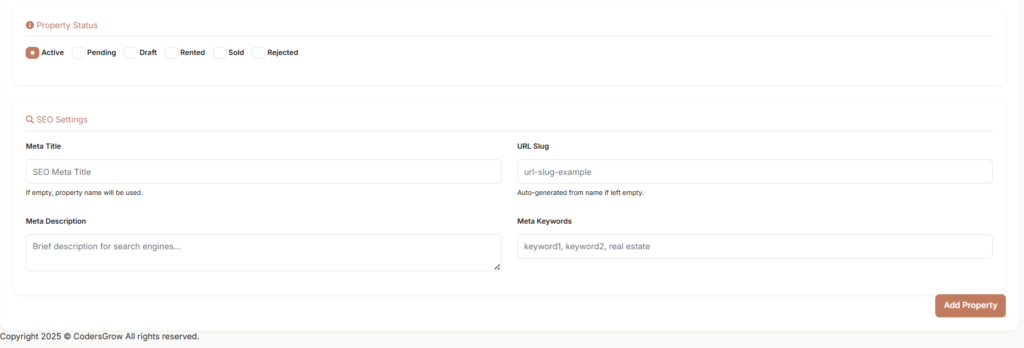
The admin can select from multiple status options, such as:
- Active : The property is live and visible.
- Pending: The property is under review or waiting for approval.
- Draft: The property is saved but not ready for public display.
- Rented: The property has already been rented.
- Sold: The property has already been sold.
- Rejected: The property is not approved or not available for listing.
This gives the admin complete control over property visibility and workflow.
Built-In SEO Settings for Better Google Visibility
One of the best advanced features in the Add Property form is the SEO Settings section. This allows the admin to improve how the property appears in search engines like Google.
SEO fields include:
- Meta Title
- URL Slug
- Meta Description
- Meta Keywords
Why this matters:
Meta Title: This is the SEO title shown in search results. If left empty, the system can use the property name automatically.
URL Slug: This creates a clean and readable URL for the property page.
Example:
luxury-villa-in-downtownmodern-apartment-for-rent
If left empty, the system can auto-generate it from the property name.
Meta Description: This is the short description shown in search results. A good meta description can improve click rates.
Meta Keywords: This helps organize search-related keywords for the property.
Benefits of built-in SEO:
- Better search engine visibility
- More organic traffic
- More professional property pages
- Better marketing performance
User Management Module
Running a successful real estate platform isn’t just about listing properties; it’s about managing the people behind those listings. Whether you are a property owner, a professional agent, or someone looking for their dream home, the CodersGrow Real Estate Management System provides a seamless, secure, and organized environment for everyone.
In this post, we’ll explore how our User Management Module simplifies complex operations and ensures your platform remains professional and trustworthy.
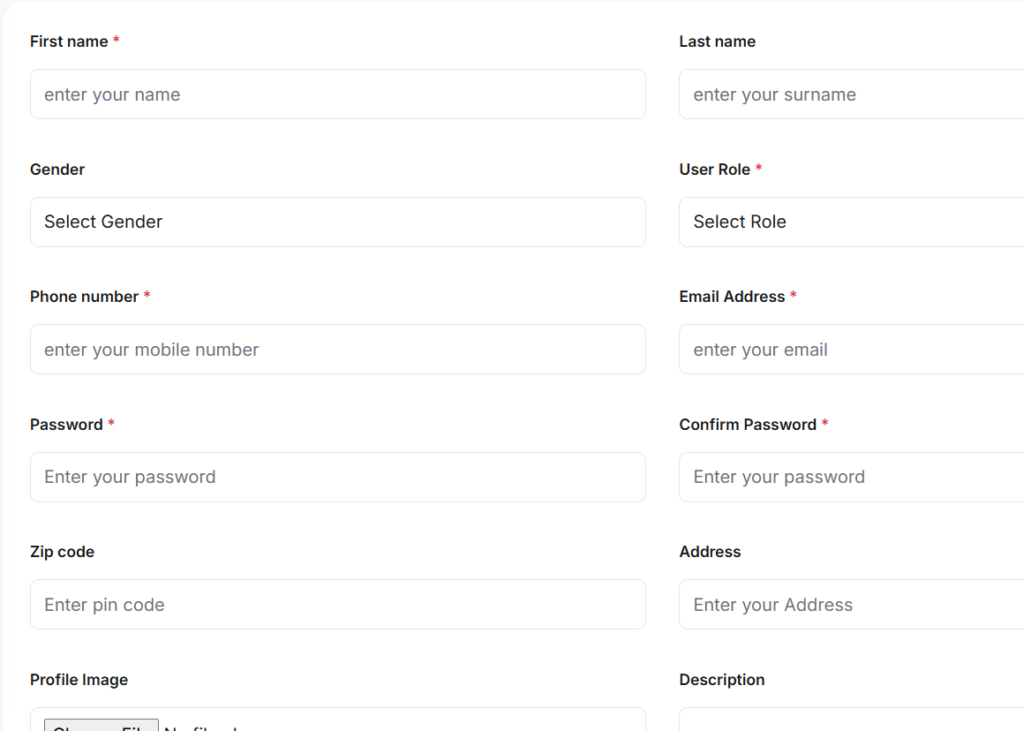
1. Add New Users
Admin can manually create accounts for your clients (customers) or property owners. You just need their basic info like name, email, a password and other user details.
2. All Users
This page displays a complete list of all users who have registered on your website. It allows you to quickly view key user information, including contact details and user roles. Agent accounts are managed in a separate section, so they are not shown here.
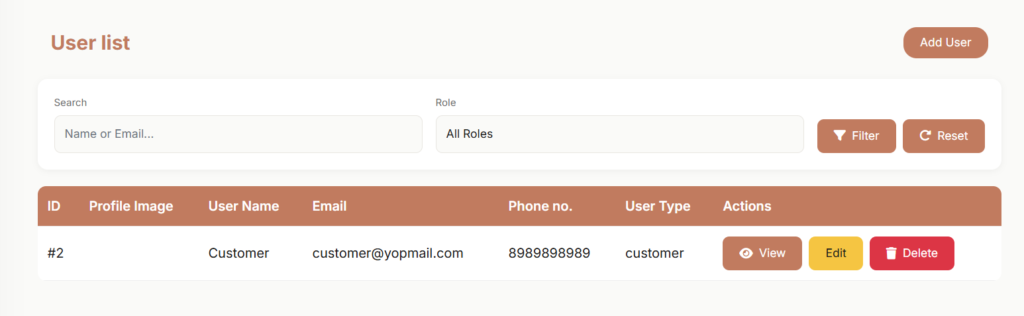
- Search and Find: Have a lot of users? No problem! Use the search bar to find someone by name or email in seconds.
- Keep Info Updated: If a user changes their phone number or moves to a new address, you can update their profile for them.
Agent Management
The Agents section is an important part of the real estate management system, built specifically for real estate professionals to manage property listings, handle buyer inquiries, and improve the overall property sales process.
- Add Agent
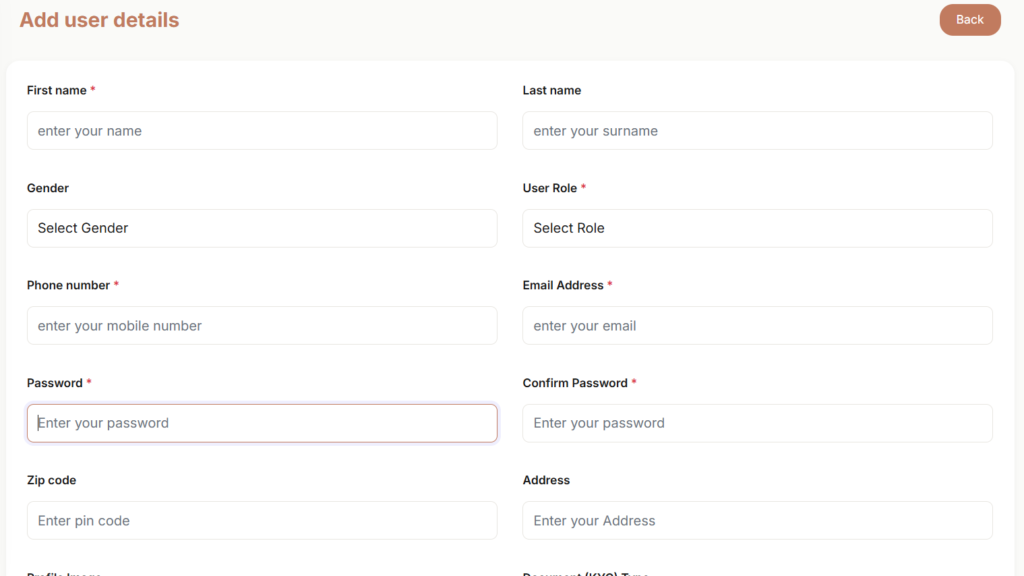
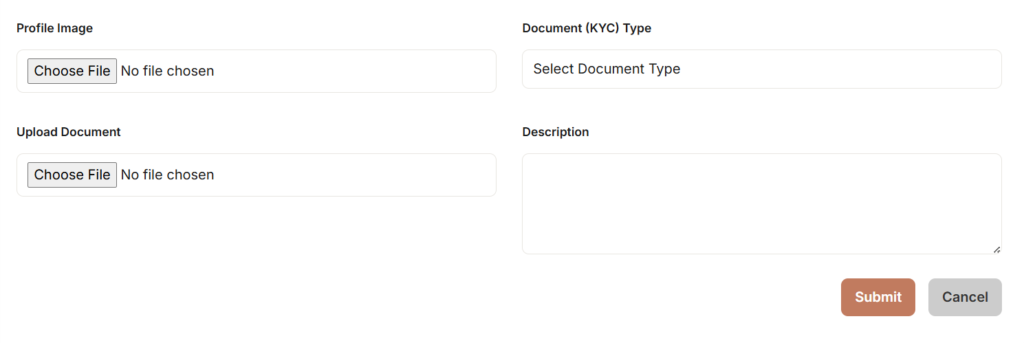
Managing agents is a bit more detailed because they represent your brand. This module includes:
- New Agents: Admin can add agents to your team directly from the admin panel. If admin add them manually, they are automatically approved and active right away.
- Verification (KYC Documents): To ensure trust and safety, you can upload and store important documents (like ID cards or licenses) for every agent.
2. All Agents
Once you click on All Agents in your sidebar, you enter a powerful list view designed to help you manage your entire professional team in one place. This is a clean, organized table that displays every agent on your platform.
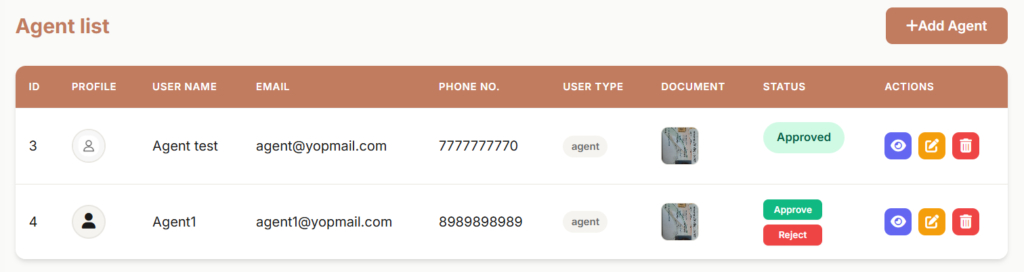
- Managing Status: If admin see a “Approve” button, it means a new professional has registered themselves through your website and is waiting for your approval and admin can reject the agent. This is an essential step to ensure your platform’s quality.
- Approval System: If an agent registers themselves on your site, they enter a “Pending” state. Admin can review their details and documents in your dashboard before clicking Approve to activate them.
- Automated Communication: If you reject an agent’s application, the system can automatically send them an email explaining why, so they know exactly what to fix.
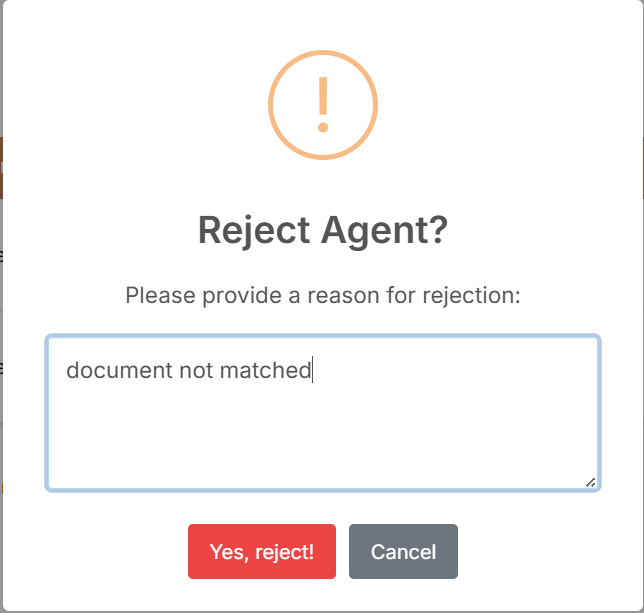
The Reject Agent feature allows the admin to reject an agent registration request if the submitted details are incomplete, incorrect, or do not meet platform requirements.
Instead of silently removing the request, the system asks the admin to provide a clear rejection reason before completing the action.
Agent Commissions Management
A financial hub where admin track how much commission each agent has earned and manage their payouts.
The Agent Commission Management section helps the admin easily review, track, and manage agent commission payouts for completed property deals. It gives a clear overview of all commission activities in one place, making financial tracking simple and organized.
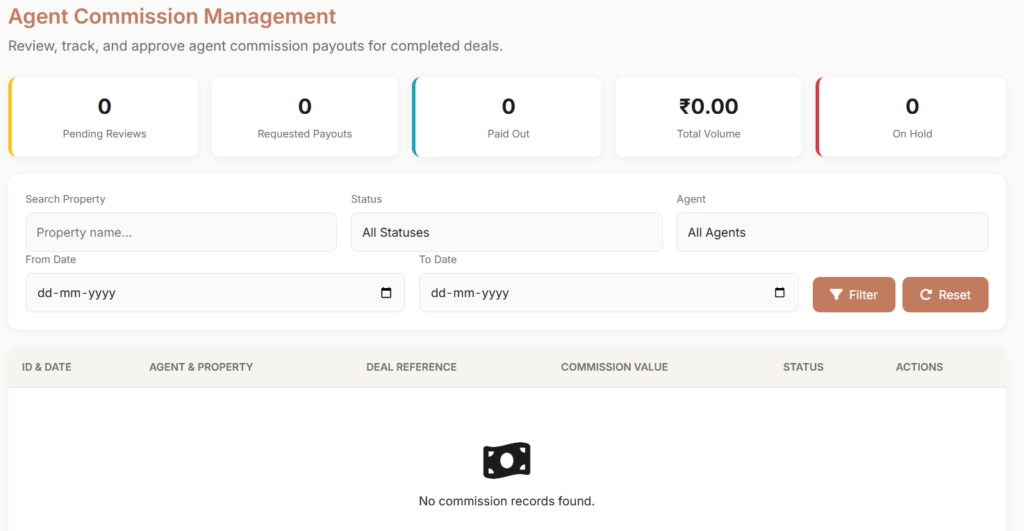
At the top of the page, the admin can quickly see important commission summaries such as Pending Reviews, Requested Payouts, Paid Out, Total Volume, and On Hold. These quick stats help the admin understand the current commission status at a glance.
The page also includes useful filters like Property Search, Status, Agent Selection, and Date Range. This allows the admin to find specific commission records quickly based on property name, agent, payout status, or selected dates.
Below the filters, a detailed table displays commission records with important information such as ID & Date, Agent & Property, Deal Reference, Commission Value, Status, and Actions. This makes it easy to review each commission entry and take the required action when needed.
Overall, the Agent Commission Management feature keeps commission handling smooth, transparent, and well-structured, helping admins manage agent earnings efficiently inside the Haven – Real Estate Management System.
Owner Payouts
The Owner Payout Management section helps the admin review, track, and release payouts to property owners after successful deal payments. It keeps the owner payment process clear, organized, and easy to manage from one central place.
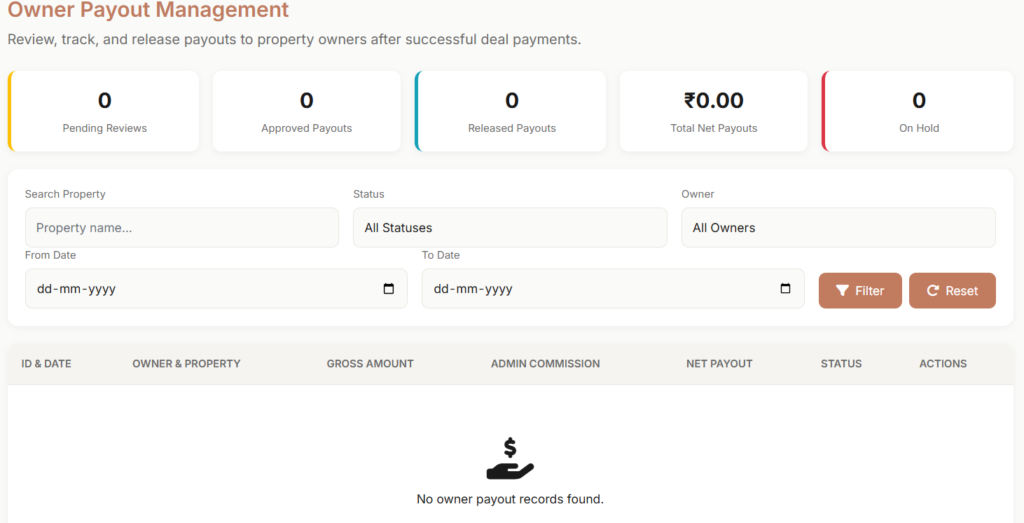
At the top of the page, the admin can quickly view important payout summaries such as Pending Reviews, Approved Payouts, Released Payouts, Total Net Payouts, and On Hold. These summary cards provide a quick overview of the current payout status.
The page also includes useful filters like Property Search, Status, Owner Selection, and Date Range. These filters make it easy to find specific payout records based on property name, owner, payout status, or selected dates.
Below the filters, a detailed table displays all payout information including ID & Date, Owner & Property, Gross Amount, Admin Commission, Net Payout, Status, and Actions. This helps the admin review each payout record and manage owner payments efficiently.
Overall, the Owner Payout Management feature makes payout handling smooth, transparent, and professional inside the Haven – Real Estate Management System.
Transactions
It requires a robust financial backbone to track every dollar that moves through the system. Whether it’s a booking token, a final property payment, or a rental deposit, transparency is key.
In this post, we explore the Transactions—the central command center for financial oversight in the Haven – Real Estate Management System.
Why a Centralized Transaction Module Matters ?
In a multi-stakeholder environment involving Agents, Owners, and Customers, financial discrepancies can lead to trust issues. The Transactions module eliminates “guesswork” by providing a single source of truth for all monetary exchanges.
The transaction ledger is designed for clarity. Every entry provides critical metadata, including:
- Reference ID: A unique identifier for every payment, essential for cross-referencing with bank statements or payment gateways (like Stripe).
- Customer Details: Instant visibility into who made the payment (Name and Email).
- Payment Method: Tracks whether the user paid via Bank Transfer, Credit Card, or other integrated gateways.
- Transaction Type: Clearly labels payments as Token, Final Payment, or Rent, helping admins distinguish between booking fees and full purchases.
- Amount & Status: Real-time updates on the transaction state (Pending, Completed, or Failed).
1. Advanced Filtering for Rapid Auditing
Finding one specific payment among thousands shouldn’t be a “needle in a haystack” situation. Our admin panel includes powerful filtering tools:
- Smart Search: Quickly find transactions by ID, Customer Name, or Email.
- Method-Based Filtering: Filter by payment provider to reconcile specific accounts.
- Status Tracking: Instantly identify pending payments that require manual approval (common in bank transfers).
2. Feature Spotlight: The “Print Record” Capability
For real estate agencies that require physical documentation or offline bookkeeping, the Print Record button is a game-changer. With one click, admins can generate a clean, professional summary of the filtered transaction list, ready for internal meetings or tax preparation.
Inquiry – Mastering Leads Management in Your Admin Panel
In the competitive world of real estate, a missed inquiry is a missed opportunity. The speed and quality of your response can be the difference between a “just looking” browser and a “ready to buy” client.
The Inquiries (Leads Management) section of the Haven Real Estate Admin Panel is designed to ensure no lead ever falls through the cracks. Let’s explore how this powerful module streamlines your sales funnel.
At the top of the Leads Management dashboard, you’ll find five critical “Status Cards.” These provide an instant pulse check on your sales team’s activity:
- Total Leads: Your overall database size.
- New: Fresh inquiries that haven’t been touched yet.
- Pending: Leads currently in the conversation phase.
- Contacted: Leads that have been successfully reached.
- Overdue: The most critical stat—identifying leads that have been waiting too long for a response.
1. Precision Filtering for High-Volume Management
As your platform grows, you might receive hundreds of inquiries a day. Our advanced filtering system allows you to organize this data with surgical precision:
- Search & Status: Quickly find a lead by name or filter by where they are in the sales journey.
- Priority Levels: Focus your energy on “High Priority” leads who are ready for immediate viewings.
- Team Assignment: See exactly which agent is handling which lead with the “Assigned To” filter.
- Date Range Tracking: Analyze lead volume over specific weeks or months to measure marketing success.
2. Detailed Lead Tracking
The main table provides a 360-degree view of every inquiry:
- Property Link: Instantly see which specific listing the customer is interested in.
- Contact Info: Direct access to the customer’s preferred communication channel.
- Lead Type: Distinguish between general inquiries, viewing requests, or pricing questions.
- Audit Trail: Track the exact date and time the lead was created to ensure compliance with response-time goals.
3. Exporting for Success
While our admin panel is powerful, we know many agencies use external CRM tools or email marketing platforms. The Export button allows you to download your lead data in a clean format, making it easy to run retargeting campaigns or perform deep-dive analysis in Excel.
Chat Monitoring
In a digital real estate marketplace, the most critical moments happen in the chat. From initial price negotiations to scheduling site visits, the conversation is where trust is built—or broken.
The Chat Monitoring module in the Haven Admin Panel provides admins with the oversight needed to ensure every interaction on the platform is professional, secure, and productive.
1. Maintaining Professional Standards
Real estate deals involve significant financial commitments. As an admin, you need to ensure that agents are responding professionally and that customers are receiving accurate information. The Chat Monitoring dashboard gives you a high-level view of:
- Total Conversations: The overall volume of engagement on your site.
- Active (Last 7 Days): A metric to gauge current platform “heat” and engagement levels.
- Flagged for Review: A critical safety feature to identify conversations that may contain inappropriate content or suspicious behavior.
2. Context-Aware Oversight
One of the most powerful features of our chat system is its Contextual Integration. Unlike generic chat apps, our monitoring tool links every conversation to:
- Participants: See exactly which Agent and Customer are speaking.
- Related Property: Instantly know which listing is the subject of the conversation.
- Deal Status: Understand the stage of the deal (e.g., Inquiry, Booking Request, or Payment Pending) directly from the chat overview.
3. Security and Fraud Prevention
The Flagged for Review system is your first line of defense against off-platform deals or fraudulent activity. By monitoring keywords or manually reviewing flagged chats, admins can prevent “leakage” (where users try to bypass platform fees) and protect users from potential scams.
4. Resolving Disputes with Ease
Sometimes, miscommunications happen. Whether it’s a dispute over a promised amenity or a disagreement about a viewing time, having a central record of the conversation allows admins to act as fair mediators. With the Actions menu, admins can jump into a chat log, review the history, and provide a resolution based on factual evidence.
Reviews Management
In the world of real estate, reputation is everything. A single glowing review can convince a hesitant buyer to book a viewing, while a negative, unaddressed comment can drive potential clients away.
The Reviews section of the Haven Admin Panel is your tool for managing social proof, ensuring that your platform showcases the very best experiences of your buyers, sellers, and tenants.
1. Why Active Review Moderation is Key
A successful marketplace requires a balance of transparency and quality control. Our admin panel provides a structured workflow to manage this balance through four distinct status categories:
- All: A complete history of every piece of feedback.
- Pending: New reviews that require admin verification before they appear on the frontend.
- Approved: Live reviews that are helping build your brand’s credibility.
- Rejected: Feedback that violates platform policies or contains inappropriate content.
2. Curating the Perfect Testimonial
While many reviews come from users on the site, sometimes you have a stellar testimonial from an offline client or a high-profile partner. The “Add Review” feature allows admins to manually input reviews, including the reviewer’s Name, Designation (e.g., “Verified Buyer” or “Luxury Property Investor”), and their specific Rating. This is a powerful way to seed your platform with high-quality social proof during your early growth phases.
3. Deep-Dive Analysis
The reviews table isn’t just a list—it’s a database of user sentiment. Admins can:
- Search by Property: See which specific listings are generating the most buzz.
- Filter by Rating: Quickly identify 1 or 2-star reviews that need immediate attention from your customer support team.
- Review Comments: Read the specific details of a user’s experience to find areas for platform improvement.
Total Control: Mastering the Settings Hub
If the dashboard is the heart of your application, the Settings module is its brain. This is where you define the rules, the look, and the financial logic of your entire real estate.
In this guide, we’ll walk through the six powerful submenus within the Settings hub and show you how to leverage them to build a professional, high-performing real estate brand.
1. General Settings: The Core Identity
First impressions start here. The General tab allows you to configure the basic DNA of your platform:
- Site Name: The global name displayed in browser tabs and emails.
- Default Currency: Whether you’re dealing in USD, INR, or EUR, ensure your listings show the correct currency symbol.
- Support & Contact Info: Define your support email, phone number, and physical office address so customers know how to reach you.
2. Payment Settings: Securing the Transaction
Money is the lifeblood of real estate. In the Payment submenu, you can:
- Configure automated gateways like Stripe.
- Set up Manual Bank Transfer details for offline payments.
- Manage transaction fees and currency conversion rules.
3. Commission Settings: Defining Your Revenue Model
How does your platform make money? The Commission tab is where you define your business model:
- Admin Commission: Set the percentage the platform keeps from every sale or rental.
- Agent Commission: Define the standard cut for your agents.
- Note: These settings ensure that every time a property is sold, the system automatically calculates and distributes the correct amounts.
4. SEO Settings: Boosting Your Visibility
A beautiful site is useless if no one can find it. The SEO submenu gives you control over:
- Global Meta Tags: Define the title and description that appear on Google.
- Social Graph Tags: Control how your site looks when shared on Facebook or Twitter.
- Keywords: Optimize your platform for “Real Estate,” “Apartments for Rent,” and other high-traffic search terms.
5. Appearance Settings: Visual Branding
Your brand should be unmistakable. In the Appearance tab, you can customize:
- Logo & Favicon: Upload your brand assets for the header, footer, and browser tabs.
- Theme Colors: Match the site’s primary and secondary colors to your corporate identity.
- Dynamic Branding: Changes made here reflect instantly across the frontend and admin panel.
6. Social Profiles: Expanding Your Reach
Modern real estate thrives on social media. The Social Profiles tab allows you to link your official accounts:
- Facebook, Instagram, LinkedIn, and more.
- These links are automatically updated in your website footer and “Contact Us” pages, driving cross-platform engagement.