
Setting up a reliable woocommerce email to telegram bridge allows online store owners to forward customer emails directly to Telegram and reply without opening an email client. When running a high-volume e-commerce storefront, juggling support tickets, transactional inquiries, and order notes across webmail dashboards introduces friction and delays response times.
By routing inbound customer emails into private Telegram chats or shared staff channels, your support team gains instant mobile visibility into incoming questions. Even better, modern store notification technology turns this into a true two-way bridge: your operators simply swipe to reply in Telegram, and the system automatically sends an outbound branded email back to the customer.
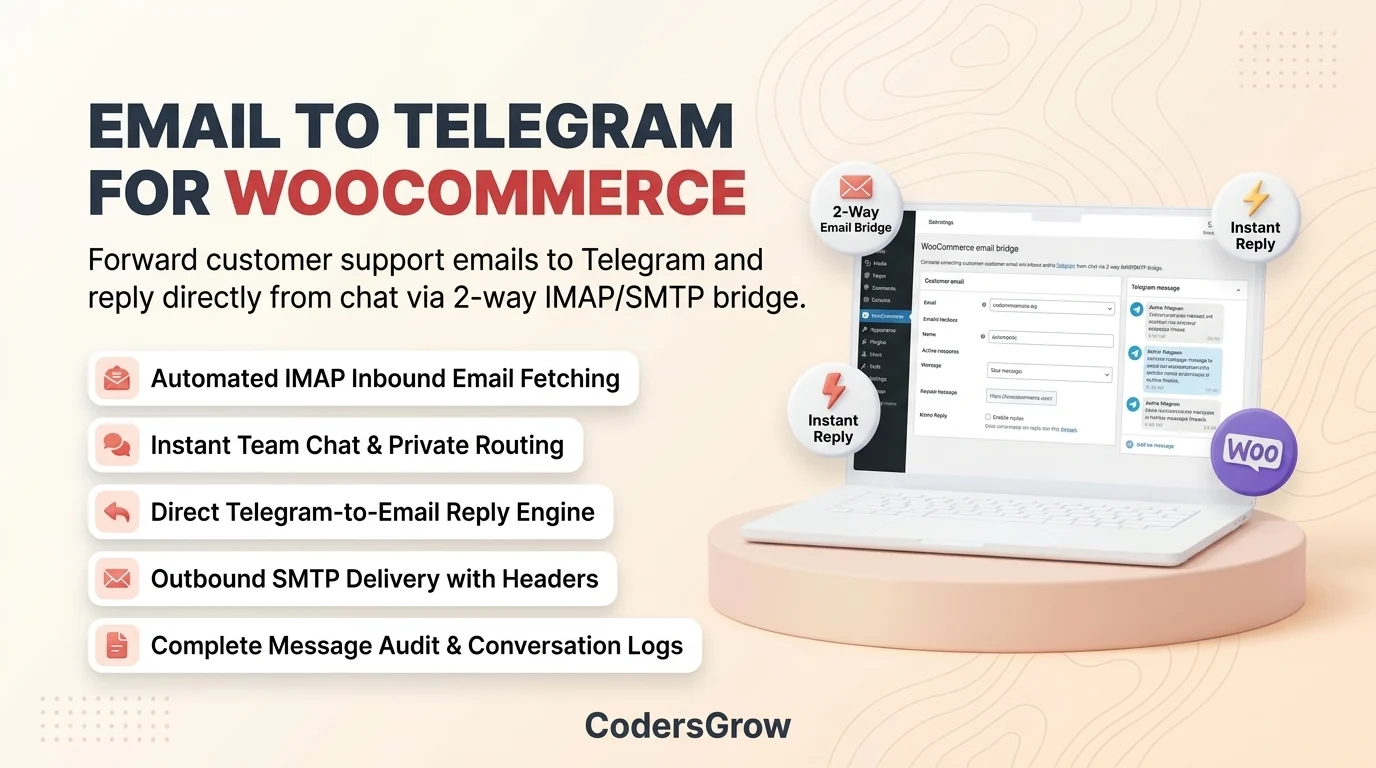
Figure 1: Two-way WooCommerce email to Telegram bridge architecture connecting customer inboxes with Telegram channels.
Why a WooCommerce Email to Telegram Bridge Changes the Game
Most notification tools only offer one-way broadcast pings. Implementing a two-way email bridge transforms Telegram into a lightweight, ultra-responsive customer support command center:
- Instant Push Notification for Inbound Support: No more checking webmail or leaving desktop browser tabs open. Inbound customer emails arrive as immediate push notifications on your phone or desktop via the Telegram Bot API.
- Reply Directly from the Telegram App: Support agents can swipe right on the Telegram message, type their response, and send it. The bridge converts the text into a clean SMTP email addressed to the customer.
- Shared Team Collaboration: Inbound emails forwarded to a Telegram group enable team members to see who is responding, discuss tricky inquiries internally, and coordinate coverage without forwarding emails back and forth.
- Unified Order & Support History: Pairing customer messaging with our tutorials on WooCommerce Telegram notifications and how to set up Telegram notifications for WooCommerce creates an all-in-one store operations workflow.
How the Two-Way Bridge Works Under the Hood
The communication cycle operates across four coordinated automated checkpoints:
- Inbound Customer Email: A customer sends an inquiry to your support address (e.g.,
[email protected]) or replies directly to an automated order receipt email. - IMAP Fetching & Telegram Forwarding: The plugin checks your mail server via IMAP, parses the sender details and message body, and delivers a formatted notification to your designated Telegram chat.
- Operator Swipe-to-Reply: An administrator or support agent uses Telegram’s native “Reply” function to answer the inquiry directly within the messaging app.
- Outbound SMTP Dispatch: The plugin intercepts the Telegram bot reply webhook, matches the conversation thread, and delivers a professional HTML email to the customer via your authenticated SMTP server.
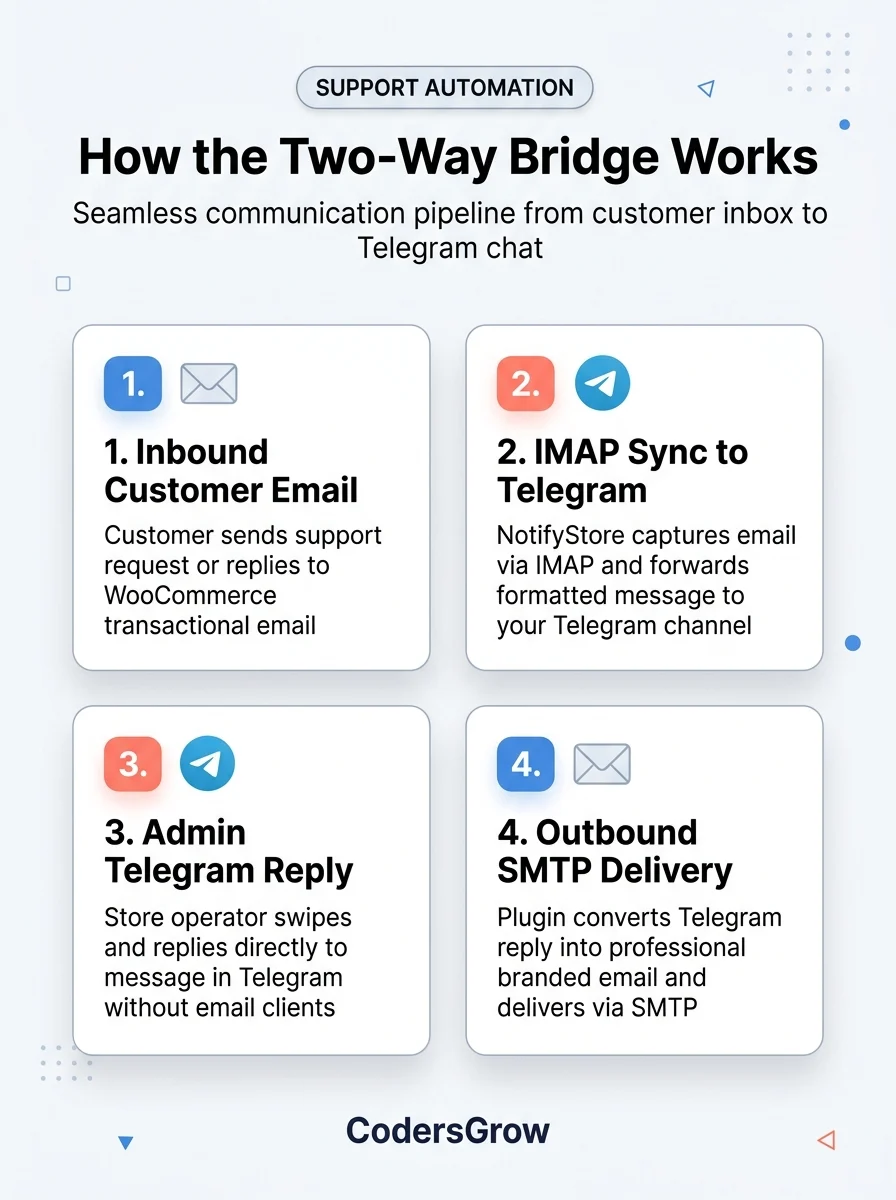
Figure 2: Complete four-stage workflow of the WooCommerce email to Telegram bridge.
Step-by-Step: WooCommerce Email to Telegram Setup with NotifyStore
To implement this advanced two-way email forwarding mechanism without complex server daemons, we use NotifyStore – Smart Store Alerts for WooCommerce, the official HPOS-certified plugin on the WooCommerce Marketplace.
Step 1: Configure Inbound IMAP Email Fetching
In your WordPress dashboard, navigate to NotifyStore → Email Bridge → Inbound (IMAP):
- Enter your support mailbox IMAP Server host (e.g.,
imap.yourdomain.comorimap.gmail.com). - Select your port and security encryption (usually Port 993 with SSL/TLS).
- Enter your support email address and password (or App Password if using Google Workspace / Microsoft 365).
- Set your polling interval (e.g., check every 1 to 3 minutes).
- Click Test IMAP Connection to verify successful mailbox authentication.
Step 2: Connect Telegram Bot & Group Routing
Direct where incoming emails should be posted:
- Ensure your Telegram Bot Token is entered in NotifyStore → Settings → Telegram.
- Enter your target Chat ID or support staff Group ID in the Email Bridge Recipient field.
- Specify whether notification messages should include full email content or an excerpt with an expand button.
Step 3: Configure Outbound SMTP Delivery
To enable direct replies from Telegram, configure your outbound mail transport under NotifyStore → Email Bridge → Outbound (SMTP):
- Enter your authenticated SMTP server host (e.g.,
smtp.yourdomain.comor your transactional provider like SendGrid, Mailgun, or Postmark). - Set Port 587 (STARTTLS) or Port 465 (SSL).
- Enter your From Name and From Email address so customer replies maintain consistent branding.
- Send a test email to confirm zero delivery hiccups.
Step 4: Enable Two-Way Webhook Handling
NotifyStore automatically registers a secure webhook listener with the Telegram Bot API. When a staff member replies to a forwarded email message inside Telegram, the webhook catches the reply payload, extracts the message body, formats the email template, and sends the response immediately.
Best Practices for Managing Customer Emails via Telegram
To maintain high communication standards while using a woocommerce email to telegram integration, follow these operational best practices:
- Keep Group Roles Organized: When using a Telegram group with multiple staff members, establish guidelines on who handles specific inquiries to prevent duplicate replies.
- Set Up Canned Signatures: NotifyStore allows you to append a dynamic signature to outbound email replies (e.g., “Best regards, Alex – Customer Experience Team”) so your emails look polished and professional.
- Review Message Audit Logs: Access the NotifyStore conversation log table to verify email delivery timestamps and monitor staff response velocity. Technical architecture details are documented in the NotifyStore Documentation.
Frequently Asked Questions
Does the customer know I am replying from Telegram?
No. To the customer, your response arrives as a standard, beautifully formatted email coming directly from your official support address (e.g., [email protected]).
Can I forward emails from specific folders or filters?
Yes. NotifyStore allows you to specify target IMAP folders or filter by subject keywords so you only forward relevant inquiries to Telegram.
Does this work with Gmail, Google Workspace, and Outlook?
Yes. Any email provider supporting standard IMAP and SMTP protocols is fully compatible. For services requiring 2-factor authentication, simply generate a secure App Password.
What happens if a customer attaches images or files to their email?
NotifyStore extracts email attachments and uploads them directly into the Telegram message thread as viewable documents or photos.
Take Support Anywhere with Instant Telegram Email Replies
Customer support velocity is a primary differentiator in modern e-commerce. By setting up an automated woocommerce email to telegram workflow with NotifyStore, you cut response times from hours to minutes and manage customer communication on your terms wherever you go.
Empower your support team today. Explore NotifyStore – Smart Store Alerts for WooCommerce on CodersGrow or visit the official WooCommerce Marketplace listing to get started.
