
Learning how to set up telegram notifications for woocommerce is an essential operational milestone for e-commerce entrepreneurs seeking instantaneous store visibility. When transactions occur around the clock, having your store push automated, encrypted alerts to your mobile phone or team chat completely removes the anxiety of missing critical orders or inventory shortages.
Unlike traditional SMS channels that incur recurring international billing fees or transactional emails that often get delayed in server queues, Telegram provides an enterprise-grade messaging infrastructure that is completely free, lightning-fast, and remarkably versatile. In this tutorial, we walk through the exact steps required to create a dedicated Telegram bot, configure notification routing, and launch your automated alert pipeline.
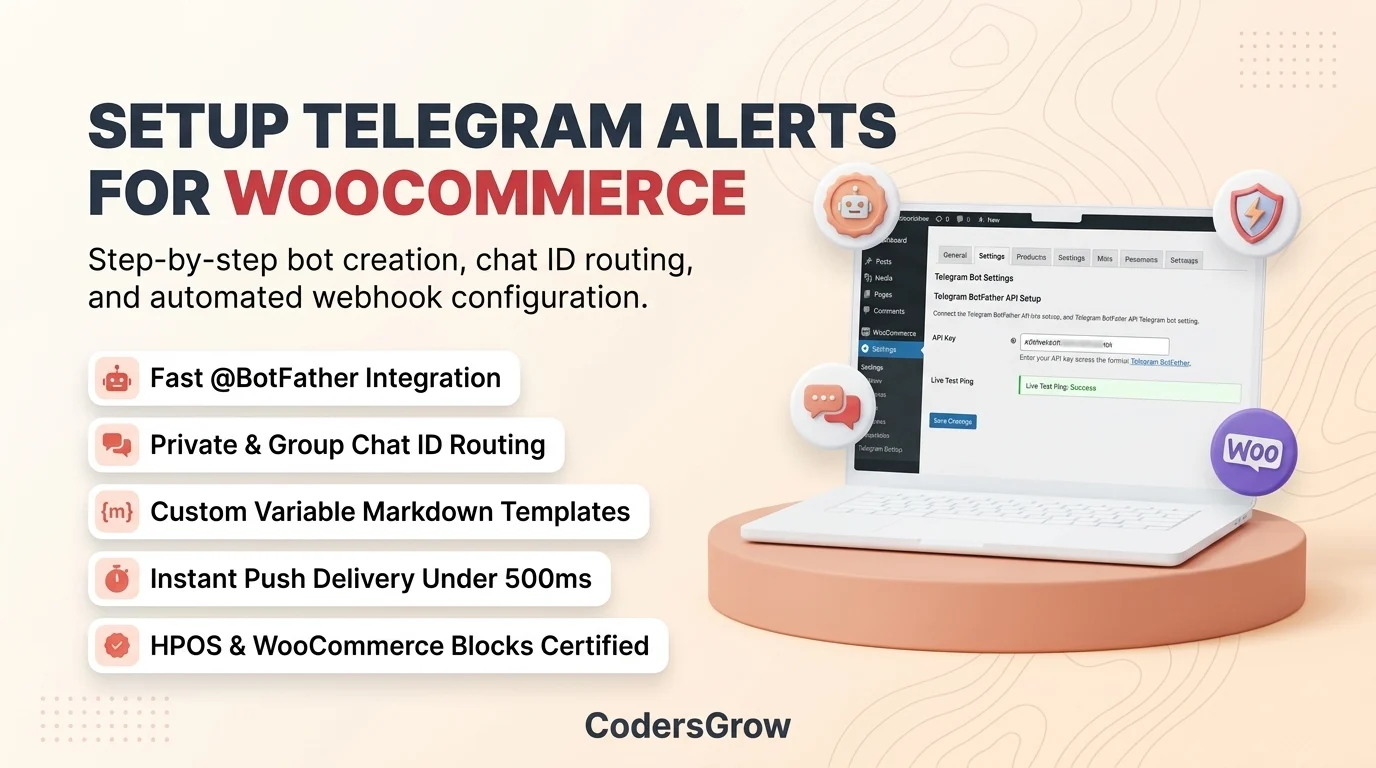
Figure 1: Complete setup framework for connecting Telegram notifications to WooCommerce stores.
Why Configure Telegram Notifications for WooCommerce?
Automating store communication through Telegram offers distinct advantages that make it an indispensable asset for growing e-commerce businesses:
- Instantaneous Millisecond Latency: Messages are pushed in real time via the official Telegram Bot API, ensuring alerts land on your screen within 500 milliseconds of order checkout.
- Completely Free with Zero Message Fees: Telegram charges no monthly subscriptions or per-message fees, making it vastly more cost-effective than SMS gateways like Twilio.
- Fulfillment & Multi-Admin Team Groups: You can route alerts to private one-on-one chats or broadcast them into collaborative team groups where inventory managers, kitchen staff, or fulfillment teams coordinate tasks.
- Multi-Channel Redundancy: Pairing Telegram with our guide on how to send WooCommerce order notifications to WhatsApp gives your brand a fault-tolerant multi-channel communication infrastructure.
Core Prerequisites Before Setup
Before beginning the installation, ensure you have the following ready:
- An active WordPress website running WooCommerce 7.0 or higher.
- A personal Telegram account on your smartphone or desktop app.
- An installed copy of NotifyStore – Smart Store Alerts for WooCommerce, the HPOS-certified notification plugin available on the WooCommerce Marketplace.
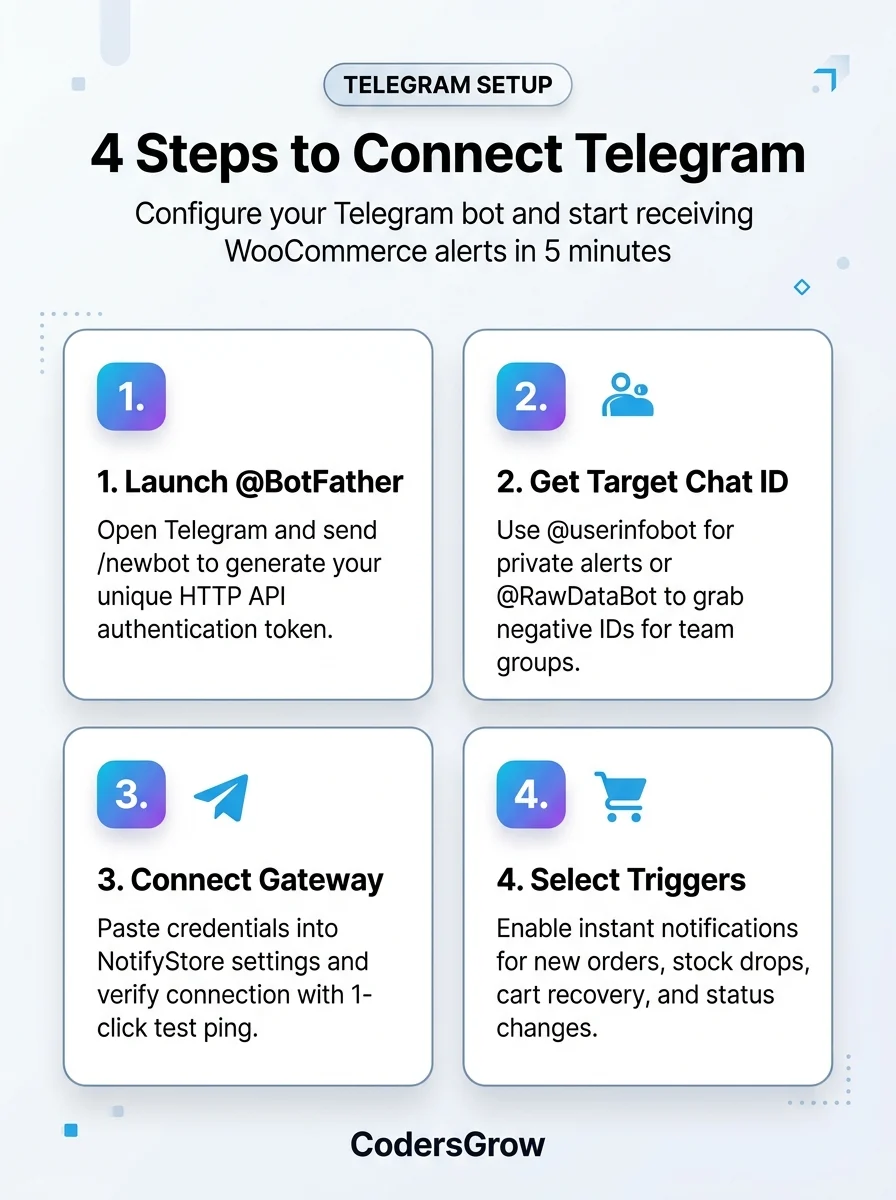
Figure 2: Four-step implementation workflow for activating Telegram notifications inside WooCommerce.
Step-by-Step: Telegram Notifications for WooCommerce Setup
Follow these four simple steps to establish a direct, real-time link between your store and your Telegram client.
Step 1: Create Your Store Bot Using Telegram’s @BotFather
Telegram manages bot creation through its master administrative bot:
- Open Telegram, search for
@BotFather, and click Start. - Type or click the command
/newbot. - Enter a friendly name for your bot (for example, Apex Store Alerts).
- Provide a unique username ending in “bot” (for example, ApexStoreAlerts_bot).
- BotFather will reply with an HTTP API Token formatted like
684930215:AAHkL78-xYz90_abcdEFG1234567890. Keep this token private.
Step 2: Obtain Your Target Chat ID
To tell WooCommerce where to dispatch messages, you need the unique numeric ID of the recipient chat:
- For Private Alerts to Yourself: Search for
@userinfobotin Telegram, hit Start, and note down your numeric Id. Crucially, open a direct chat with your newly created bot and click Start or send a message so the bot is authorized to message you. - For Team Group Chats: Create a Telegram group, invite your staff, and add your newly created bot. Next, add
@RawDataBotto the group temporarily; it will output a JSON payload containing the group’s negative Chat ID (e.g.,-1009876543210). Copy the ID and remove RawDataBot from the group.
Step 3: Connect Bot Credentials Inside NotifyStore
With your Bot Token and Chat ID ready, connect them inside WordPress:
- In your WordPress admin dashboard, navigate to NotifyStore → Settings → Telegram.
- Paste your Bot Token into the Telegram Bot Token field.
- Paste your recipient Chat ID or Group ID into the Chat ID / Channel ID field.
- Click the Send Test Notification button. You will instantly receive a test message confirming a successful connection.
Step 4: Enable Notification Event Triggers
NotifyStore allows you to toggle exactly which events trigger an alert:
- New Order Received: Triggered the instant checkout is completed.
- Order Status Changed: Triggered when orders transition to Processing, Completed, or On Hold.
- Low Stock & Out of Stock: Triggered when inventory drops below warning thresholds.
- Abandoned Cart Alerts: Alerts your team when a customer leaves an active cart without completing checkout.
Configuring Dynamic Markdown Templates
Customizing your notification templates ensures your operations team sees relevant fulfillment data at a glance. NotifyStore supports dynamic merge tags formatted with Telegram Markdown:
🚨 *New WooCommerce Order #{order_id}*
👤 *Customer:* {billing_first_name} {billing_last_name}
💵 *Amount:* {order_total} ({payment_method_title})
📦 *Items:*
{order_items}

🚚 *Ship To:* {shipping_address_1}, {shipping_city}
💬 *Customer Note:* {customer_note}
For more detailed parameter customization and hook specifications, check the official NotifyStore Documentation.
Advanced Capabilities: Interactive In-Chat Management
Configuring telegram notifications for woocommerce unlocks features far beyond one-way status alerts. With NotifyStore’s interactive buttons, store owners can execute direct management tasks inside Telegram:
- 1-Click Status Transitions: Tap inline buttons below the message to mark orders as Processing or Completed without logging into WordPress.
- Direct Admin Deep Linking: Jump straight to the order edit page in your mobile browser with a single tap.
- Customer Email Bridge: Inbound customer email replies are routed directly into your Telegram chat, allowing your support agents to reply via Telegram and automatically deliver outbound emails back to the customer. For a deeper breakdown of order workflows, read our detailed guide on how to send WooCommerce order notifications to Telegram.
Frequently Asked Questions
Is any coding required to set up Telegram notifications for WooCommerce?
No. Using NotifyStore, the entire integration is completed through an intuitive visual settings panel. You only need to paste your BotFather token and Chat ID.
Can I send alerts to multiple Telegram groups at the same time?
Yes. NotifyStore allows you to configure multiple Chat IDs separated by commas, allowing you to route order alerts to management while routing fulfillment messages to your shipping department.
Is Telegram notification data encrypted?
Yes. All communication between your WooCommerce server and Telegram’s infrastructure is encrypted in transit using industry-standard TLS protocols.
Does this setup work with WooCommerce High-Performance Order Storage (HPOS)?
Yes. NotifyStore is 100% compatible with HPOS and asynchronous queueing, ensuring lightning-fast database performance during high-traffic sales events.
Automate Your Store Alerts Today
Implementing telegram notifications for woocommerce gives you total command of your store operations wherever you are. By removing fulfillment lag and keeping your team informed in real time, you elevate customer satisfaction and operational efficiency.
Get started today with NotifyStore – Smart Store Alerts for WooCommerce on CodersGrow, or download directly from the official WooCommerce Marketplace listing.