


WooCommerce Product Availability Scheduler by CodersGrow
The WooCommerce Product Availability Scheduler is a powerful plugin that gives store owners complete control over when, where, and who can purchase products. Set availability rules by date, day, time window, geo-location, and user role — all from a single, easy-to-use dashboard.
Running a WooCommerce store means more than just listing products. Whether you run a restaurant, a wholesale shop, or a global eCommerce business, controlling product access is critical to your operations.
This plugin extends WooCommerce with advanced scheduling features — making it the best product availability scheduler for WooCommerce to meet real-world business needs.
🛒 View Live Demo | Buy on WooCommerce.com | Get Support
Why Use the WooCommerce Product Availability Scheduler?
Many businesses need more control over product purchasing than WooCommerce offers out of the box. For example:
- Food delivery stores need to restrict orders after closing hours.
- Wholesale shops should allow access only to approved user roles.
- Global stores must block products in certain countries or regions.
- Seasonal sellers need products visible only during specific date windows.
With this plugin, you can manage all of these rules effortlessly and customize exactly what customers see when a product isn’t available.
WooCommerce Product Availability Scheduler Workflow Video
How to Install the WooCommerce Product Availability Scheduler
Follow these simple steps to install and activate the plugin:
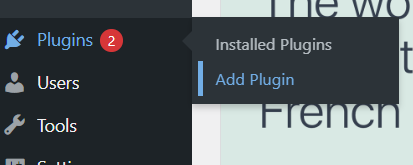
- Go to Plugins → Add New from your WordPress dashboard.
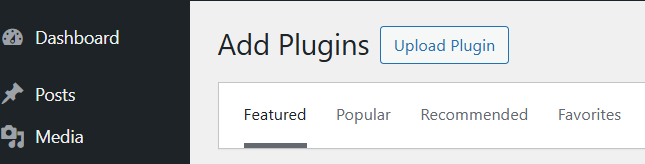
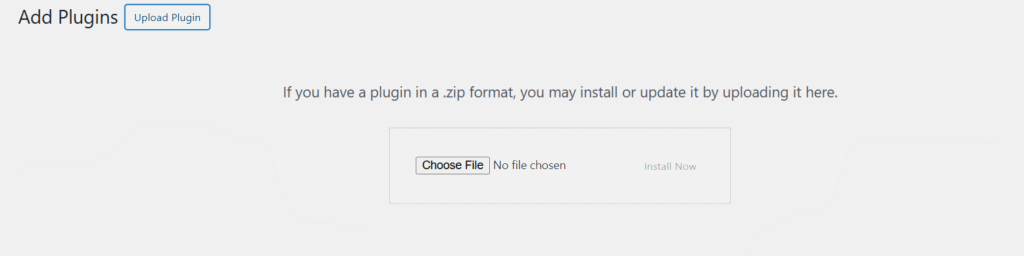
- Click the Upload Plugin tab.
- Upload the WooCommerce Product Availability Scheduler ZIP file.
- Click Install Now, then click Activate once installation is complete.
Once activated, navigate to WooCommerce → Product Availability Scheduler in your sidebar to start configuring rules.
Global Settings – Configure Availability Rules for All Products
The Settings tab inside the Product Availability Scheduler lets you define global rules that apply across your entire WooCommerce store.
1. Enable Scheduler Controls
Check Activate controls to turn the global scheduler on. Rules apply store-wide unless overridden at the product or category level.
2. Choose Scheduling Mode
- Allow only on selected days – Products are purchasable only on days you choose.
- Block on selected days – Products are restricted on selected days, available on all others.
3. Schedule WooCommerce Product Availability by Date
Set a Start Date and End Date to limit when the scheduler is active. Ideal for:
- Campaign windows
- Seasonal availability
- Festival periods
- Limited-time promotions
Leave both fields empty to keep rules active indefinitely.
4. Select Days of the Week
Choose specific weekdays (Mon–Sun) when products should be available or blocked.
5. Define a Time Window
Set start and end times (e.g., 10:00 to 22:00) to restrict purchases to store hours only. Leave blank for all-day availability.
6. Behavior When Product is Unavailable
Control what customers see when a product can’t be purchased:
- Catalog/Loop view – Show a disabled button with tooltip, or hide the Add to Cart button entirely.
- Single product page – Show a disabled button with a custom restriction message.
7. Custom Restriction Messages
Display tailored messages using plain text or HTML:
- Blocked message: “This product is not available right now.”
- Tooltip text: “Available on: {allowed_days}”
8. Geo-Location Rules
Restrict products by country or state. Select blocked countries from the dropdown and display a custom geo-blocked message with HTML styling.
9. Holiday & Exception Dates
- Holiday dates (Block) – Block purchases on specific dates (e.g., national holidays).
- Exception dates (Force-Allow) – Allow purchases on specific dates even if global rules block them (e.g., special promotions).
10. WooCommerce Countdown Timer
Enable the countdown timer to show customers exactly when a product will be available again. Choose to display it after the price or elsewhere on the product page. Use shortcode [daycart_next_available] for custom placement.
11. Save Changes
Click Save changes to apply all global rules.
When you click on the Product Availability Scheduler submenu under WooCommerce, you will be redirected to the Holiday and Exceptions Date Calendar View.
WooCommerce Product Availability Scheduler
Many businesses need more control over product purchasing. For example:
- Food delivery stores can restrict orders after certain hours.
- Wholesale shops can allow access only to specific user roles.
- Global stores can block products in certain countries or states.
With this plugin, you can manage these rules effortlessly and customize how customers interact with your store.

Bulk Rule Application
Managing availability one product at a time is time-consuming. The bulk rule application feature lets you update multiple products in seconds:
- Go to Products → All Products.
- Select one or more products.
- Open the Bulk Actions dropdown.
- Choose from DayCart options:
- Use Global Rules – Apply your global scheduler settings.
- Weekdays Only – Restrict products to Monday–Friday.
- Weekends Only – Restrict products to Saturday–Sunday.
- Click Apply.
This is especially useful for large catalogs — apply consistent scheduling rules across hundreds of products without editing each one individually.
Product-Level Day & Time Availability Settings
Managing product availability is a crucial part of any eCommerce store. Sometimes, you may want certain products to be available only on specific days, during a specific time window, or restricted based on country or user role. Our Product Day/Time Availability feature makes this possible directly within WooCommerce, giving you full control over when and where your products can be purchased.
How Product-Wise Availability Works
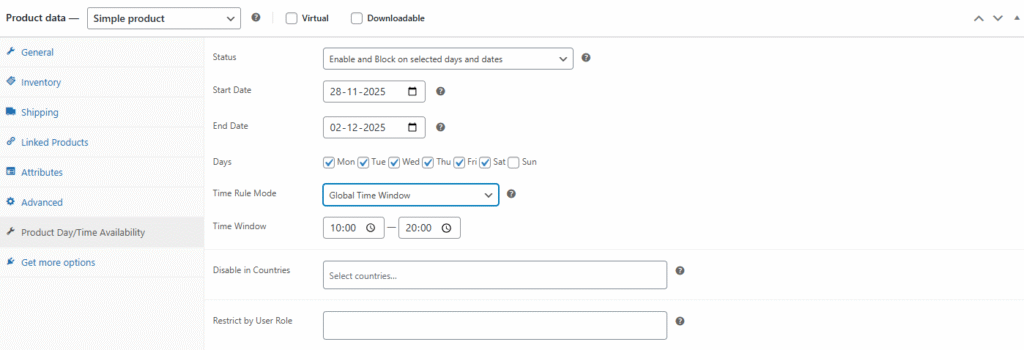
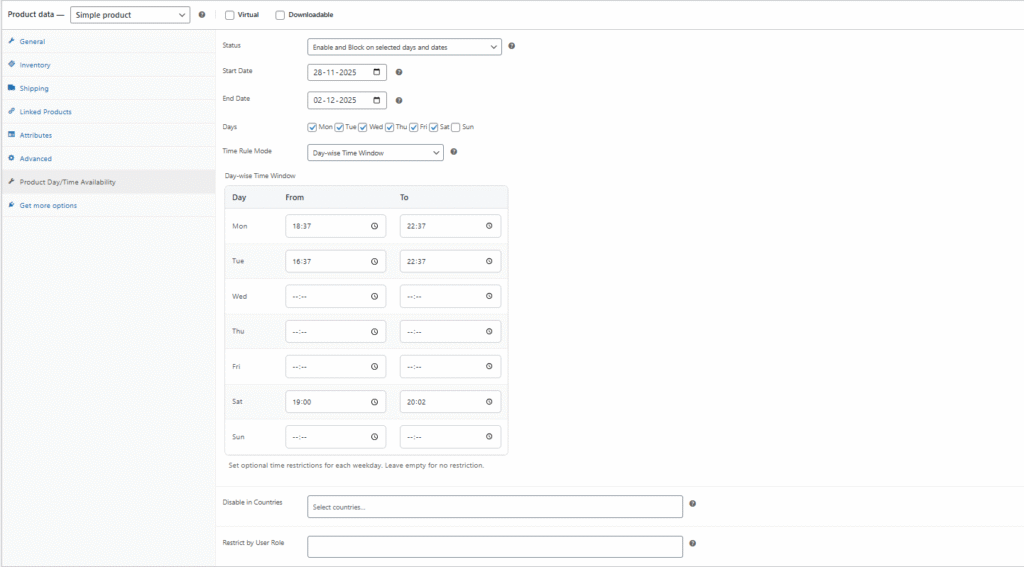
With this feature, you can configure availability for each product individually. Inside the Product Data section of your WooCommerce product, you’ll find a new tab called Product Day/Time Availability.
Here’s what you can do:
1. Product Status
You can choose how the availability rule should work for the selected product. Example:
- Allow only on selected days – This means the product will only be available on the days you check.
2. Select Days of the Week
Pick the days when the product should be available for purchase. For example:
- Available on Friday, Saturday, and Sunday only.
- Restricted on weekdays.
3. Define a Time Window
You can also set a specific time range within the day when the product is available. For example:
- Available between 10:00 AM – 10:59 PM.
- Outside this time, customers won’t be able to add the product to their cart.
4. Restrict by Countries
Sometimes, you may want to block certain products in specific countries. With this setting, you can easily enter the countries where this product should be disabled.
5. Restrict by User Role
Not all products should be available for every customer. Using this option, you can restrict products based on WordPress user roles. For example:
- Only wholesale customers can purchase this product.
- Block guest users from accessing it.
6. Product Start Date & End Date
Define the date range during which this product’s availability rules should apply.
- Start Date – Availability rules begin from this date
- End Date – Rules stop applying after this date
Examples:
- Available only from 1st Dec to 31st Dec
- Seasonal or festival-based product windows
Leave blank for no date restrictions.
7. Product Availability Slots (Time Rule Mode)
Choose how time rules should behave for this product:
a) Global Time Window
Uses the main/global schedule’s time window for restricting availability.
Useful when:
- Store hours are fixed
- All products follow the same daily timing
b) Day-wise Time Window
Allows different time ranges for each selected day.
Example:
- Monday: 9:00 AM – 6:00 PM
- Friday: 10:00 AM – 11:00 PM
Perfect for:
- Restaurants
- Delivery windows
- Flexible product-based timings
Why This is Useful?
This feature is perfect for:
- Restaurants or Food Delivery Stores – Make items available only during business hours or weekends.
- Seasonal Products – Enable them only on selected days.
- Geographical Restrictions – Prevent products from being sold in restricted countries.
- Membership Stores – Allow only certain user roles to access premium products.
Category-Wise Day & Time Availability Settings in WooCommerce
Managing product availability gets even more powerful with Category-wise Day/Time Availability in WooCommerce. Instead of configuring availability for each product individually, you can now apply rules at the category level, saving time and ensuring consistency across multiple products.
How Category Availability Works
Inside the Product Categories section in WooCommerce, you’ll notice a new option called Day/Time Availability (optional). This allows you to schedule when all products under that category should be available for purchase.
Here’s what you can do:
1. Use Global or Custom Settings
You can choose to:
- Use global settings – Inherit availability rules from your global configuration.
- Set custom rules per category – Override global rules with category-specific availability.
2. Select Days of the Week
Choose the specific days when products in this category should be available. For example:
- Grocery Category – Available from Monday to Saturday.
- Weekend Specials Category – Available on Saturday and Sunday only.
3. Define a Time Window
Set start and end times to limit when category products can be purchased in a day. Example:
- Lunch Menu Category – Available between 11:00 AM – 3:00 PM.
- Dinner Menu Category – Available between 7:00 PM – 11:00 PM.
4. Automatic Restriction
If customers try to buy a product outside the defined day or time window, the product will be unavailable for purchase until it matches the allowed schedule.
Why Category-Wise Settings are Useful?
This feature is especially powerful for stores that manage groups of products with similar availability. For example:
- Restaurants & Food Delivery – Automatically manage menu items based on meal times.
- Seasonal Categories – Enable an entire category only during specific days.
- Retail Stores – Control promotional product categories (like “Weekend Discounts”).
- Time-Based Offers – Make flash-sale categories live only during certain hours.

Key Features at a Glance
| Feature | Description |
|---|---|
| Global Day/Time Rules | Allow or block purchases on chosen days and within time windows |
| Product-Level Scheduling | Set unique rules per product |
| Category-Level Scheduling | Apply rules to entire product categories |
| Geo-Location Blocking | Restrict by country or state/region |
| User Role Access Control | Allow/block by WordPress user role |
| Holiday & Exception Dates | Block holidays; force-allow special dates |
| Add to Cart Button Control | Hide or disable button with custom messages |
| Countdown Timer | Show time until next availability with shortcode support |
| Bulk Rule Application | Apply rules to multiple products in one click |
| Calendar View | Visualize all schedules, holidays, and exceptions |
Real-Life Use Cases
Restaurants & Food Delivery – Accept orders only during kitchen hours; block Add to Cart after closing time.
Wholesale Stores – Restrict product access to wholesale user roles only.
Global eCommerce – Block or allow specific products by country or region.
Seasonal Products – Make products purchasable only during festivals or limited-time sales.
Flash Sales – Schedule a product category to go live only during a specific time window.
Membership Stores – Show premium products only to subscribed or specific user roles.
WooCommerce Product Availability Scheduler vs. Other Plugins
| Feature | CG Availability Scheduler | Typical Competitors |
|---|---|---|
| Day & Time Rules | ✅ Global + Per Product + Per Category | ⚠️ Global only |
| Geo-Location Blocking | ✅ Country + State | ❌ Not available |
| User Role Scheduling | ✅ Full role-based control | ⚠️ Limited |
| Countdown Timer | ✅ Built-in + Shortcode | ❌ Not available |
| Bulk Rule Application | ✅ One-click bulk update | ❌ Not available |
| Calendar View | ✅ Holiday + exception dates | ❌ Not available |
| Custom Restriction Messages | ✅ HTML supported | ⚠️ Plain text only |
Pro Tips & Best Practices
- Always test rules on a staging site before applying them live.
- Use clear custom messages so customers understand why a product isn’t available.
- Combine geo-location rules with user roles for advanced targeting.
- Use the calendar view to plan ahead for sales campaigns and holiday blocks.
Frequently Asked Questions
Yes. You can define a start and end time window (e.g., 10:00 AM – 10:00 PM) globally or per product. Outside these hours, the Add to Cart button is automatically disabled or hidden.
Yes. Availability rules apply to both simple and variable products.
Yes. You can configure separate messages for guests, logged-in users, and wholesale roles.
Yes. It uses WooCommerce’s built-in geo-location functionality for precise country and state-level results.
Go to the global settings, select “Block on selected days,” choose the days you want to block, and save. The button will be disabled automatically on those days.
Yes. The geo-rules feature lets you block specific countries or states from purchasing a product — either globally or on a per-product basis.
Yes. Select multiple products in the Products list and use the Bulk Actions dropdown to apply Global Rules, Weekdays Only, or Weekends Only in one click.
Yes. Enable the countdown timer in settings, and use the shortcode [daycart_next_available] to display it anywhere on the product page.
Conclusion
The WooCommerce Product Availability Scheduler is the most complete solution for controlling when, where, and who can buy your products. From day/time restrictions to geo-blocking, user role access, and countdown timers, it covers every real-world scenario your store might face.
Whether you run a restaurant, a wholesale operation, or a global eCommerce store, this plugin gives you the precision and flexibility to run your store on your terms.
View Live Demo — see every feature in action before you buy. 👉 Buy on WooCommerce.com 📧 Questions? Visit our Contact Page 📖 More WooCommerce guides on our Blog
👉 Ready to take control of your WooCommerce store? Start using the WooCommerce Product Availability Scheduler today!
👉 Submit your request now and let’s start building your dream eCommerce store.
📧 Have questions before you start? Visit our Contact Page
🌐 Browse our full range of services at codersgrow.com
Can i set geo locations for specific customer as i want not to visible few of my product to specific type of customer?
Hello Dear,
Thanks for reaching out to us,
Yes, you can absolutely do that.
Simply go to the Products section in your dashboard, select the specific product, and then multi-select the user roles you don’t want that product to be visible to. Once you save the changes, those users will no longer see that product. That’s it — you’re ready to go! ✅
Thanks and Regards
CodersGrow Team
токарный станок чпу по дереву http://tokarnyi-stanok-s-chpu.ru – http://tokarnyi-stanok-s-chpu.ru
Hello Dear,
Thank you for reaching out to us.
Could you please explain your query in a bit more detail so we can assist you better?
Thanks & Regards,
CodersGrow Team